Step-by-step guides for every role in the workshop — Front Office, Service Advisor, Supervisor, Mechanic, Purchase, Accountant / Admin and Management. Learn each topic with a video, a text guide, a reading and a hands-on practice in Moiboo.
Read the guideNumbered steps, exactly as in Moiboo.
Open the readingThe booklet pages with marked screenshots.
PractiseDo it in a demo account and tick it off.
Enterprise Plan · Section A
Front Office
Put your booking link where customers look, take online and counter bookings, and keep the appointment calendar right — learn each step with a video, a reading guide and a hands-on practice in Moiboo.
See your assigned jobs, run the job timer and close the work order — all from the Moiboo mobile app. Learn each step with a reading guide and a hands-on practice.
Invoices, receipts, credit notes, receivables, expenses, bank reconciliation and GST returns — learn each one with a video, a reading guide and a hands-on practice in Moiboo.
Read the workshop's performance at a glance — summary cards, live jobs, mechanic utilisation, on-time delivery and feedback — and act from the Quick Actions toolbar.
Add Appointment Booking Link on Website / Official WhatsApp
Role: Front OfficeModule: Dashboard › Service Booking SharePlan: Enterprise
Moiboo Academy
Front Office · Topic 1.1
Add Appointment Booking Link on Website / Official WhatsApp Video tutorial
Text Guide
Copy the Service Booking Share link from the Dashboard and add it to your website, WhatsApp, social pages and Google profile.
When
Use this when you set up online booking — and whenever there is a new place customers find you — so customers can book a service appointment online, even when the workshop is closed.
Copy your booking link
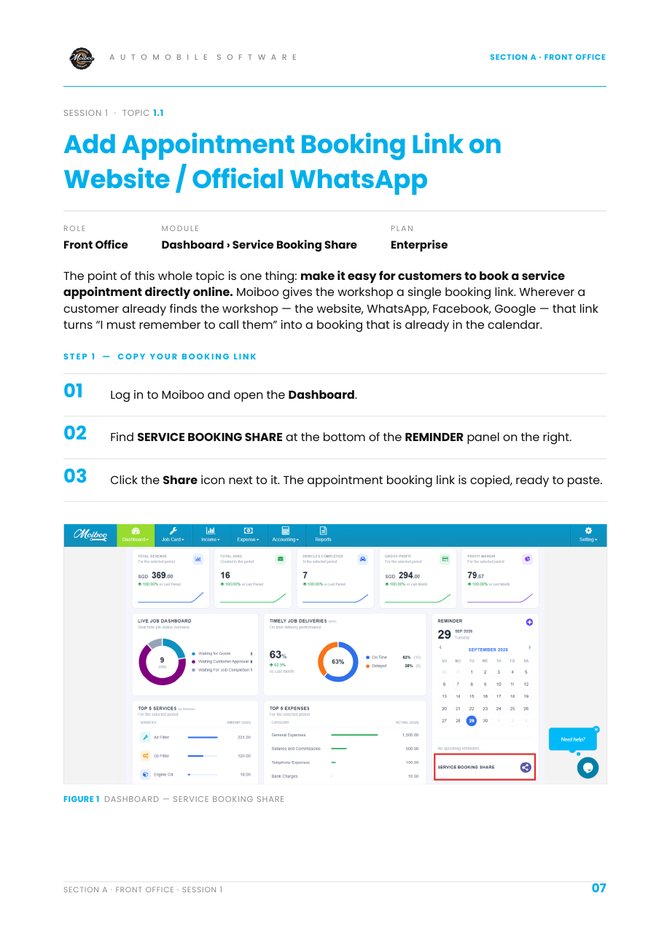
Log in to Moiboo and open the Dashboard.
Find SERVICE BOOKING SHARE at the bottom of the REMINDER panel on the right.
Click the Share icon next to it. The appointment booking link is copied, ready to paste.
Add the link everywhere customers look
Your website — behind a Book an Appointment button, on the home page and the contact page.
Official WhatsApp — in the Business profile, and in the greeting and away messages, so anyone who messages after hours gets it straight away.
Facebook and Instagram — in the page bio or link area, and in the Book Now action button.
Google Business Profile — as the appointment link, so it shows in Search and on Maps.
Anywhere else customers reach you — email signatures, SMS replies, printed service reminders and the QR code on the reception counter.
Check it, then share it
Open the link yourself, exactly as a customer would. The Book Your Service Appointment page opens on Step 1 of 5.
Check that the dates and time slots, the vehicle and service options and the business information (workshop name and the local time note under the slots) are right and current.
Share the link. Customers pick a date and slot, go through the five steps, and the booking lands in the Appointment calendar — see topic 1.3.
Why it is worth doing. A phone only takes bookings while somebody is free to answer it. The link takes them at 11 p.m., on a Sunday, and while the front office is busy at the counter — no call, no callback, no slot written on paper.
Practise in a demo or training account with sample data. Everything you tick or type here is self-reported — this page doesn't connect to Moiboo and can't verify your work. Progress is saved in this browser only.
Your browser is blocking storage, so progress here won't be kept after you close the page.
SCENARIO
Customers keep calling after hours to book a service. Copy your workshop's booking link, check it the way a customer sees it, and add it to a WhatsApp Business away message.
Before you start
A demo or training Moiboo account with access to the Dashboard.
A test WhatsApp Business account — or a notes app to paste into if you shouldn't change the live profile.
Sample data
Find it in
Dashboard › Reminder panel
Link
SERVICE BOOKING SHARE
Paste into
WhatsApp away message
Message
Book your next service here: [link]
Need help?
1. Can you open the Dashboard and find SERVICE BOOKING SHARE? It's at the bottom of the REMINDER panel on the right of the Dashboard.
2. Can you copy the link with the Share icon? Click the Share icon next to SERVICE BOOKING SHARE — the link is copied, ready to paste.
3. Can you open the link as a customer would? Paste it into a browser, ideally on your phone. Book Your Service Appointment opens on Step 1 of 5.
4. Can you check the dates and free time slots? Each date shows its time slots and how many are still free.
5. Can you check the vehicle, service and business details? Step through the pages without confirming. Check the makes and models, the service types, the workshop name and the local time note.
6. Can you paste the link into a WhatsApp greeting or away message? In WhatsApp Business, open Business tools › Away message (or Greeting message) and paste the link after a short line such as “Book your next service here:”.
7. Can you name three other places the link should go? Website Book an Appointment button, Facebook / Instagram Book Now, Google Business Profile, email signature, printed reminders, reception QR code.
Expected result
The booking link copied from Service Booking Share, checked on the customer's Book Your Service Appointment page, and added to a WhatsApp away or greeting message.
Your result
Let's find where you got stuck
Saved here as Needs help — nothing is sent anywhere. Copy your question to share it with your trainer, then carry on with other modules and come back.
It's at the bottom of the REMINDER panel on the right of the Dashboard.Click the Share icon next to SERVICE BOOKING SHARE — the link is copied, ready to paste.Paste it into a browser, ideally on your phone. Book Your Service Appointment opens on Step 1 of 5.Each date shows its time slots and how many are still free.Step through the pages without confirming. Check the makes and models, the service types, the workshop name and the local time note.In WhatsApp Business, open Business tools › Away message (or Greeting message) and paste the link after a short line such as “Book your next service here:”.Website Book an Appointment button, Facebook / Instagram Book Now, Google Business Profile, email signature, printed reminders, reception QR code.
Practice completeYou marked this practice complete on this browser. It's your own self-check.
Front Office · Topic 1.2
Set Up Appointment Slots Video tutorial
Text Guide
Walk through the five-step online booking a customer makes, then add an appointment yourself from Repair › Appointment.
When
Learn the five steps a customer goes through on the online booking portal — and use the internal entry when a customer books by phone or at the counter.
Step 1 — Select date & time
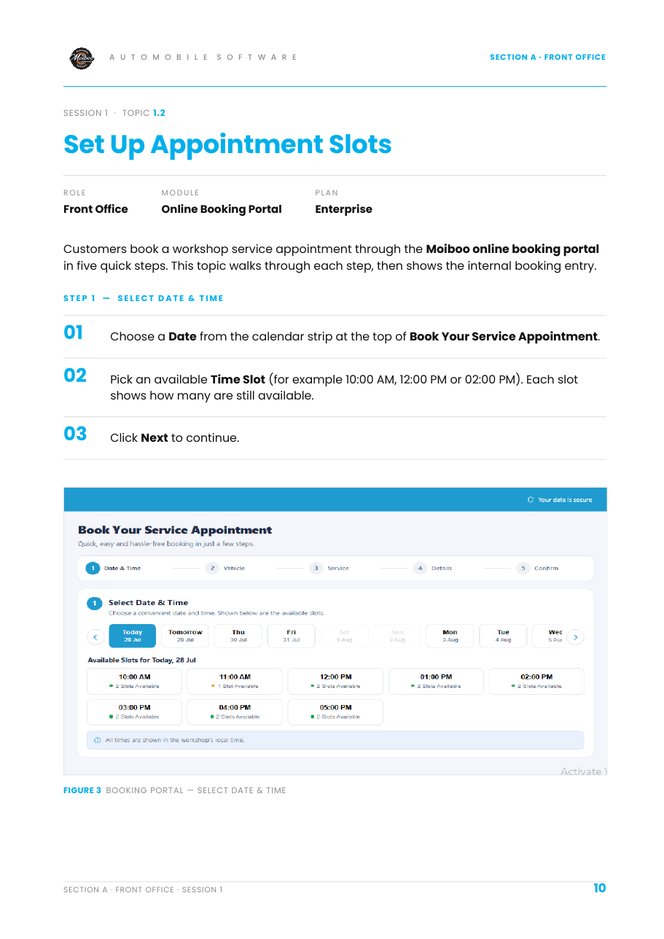
Choose a Date from the calendar strip at the top of Book Your Service Appointment.
Pick an available Time Slot (for example 10:00 AM, 12:00 PM or 02:00 PM). Each slot shows how many are still available.
Click Next.
Step 2 — Vehicle
Enter the Vehicle Number (for example SMA12345) and click Search to auto-fill the saved vehicle details.
If the vehicle is not found, fill in Make and Model (for example BMW, 320i), Year and Colour. Fuel Type is optional.
Click Next.
Step 3 — Service
Select all the services required: Regular Servicing, Warning Light Showing, Noise / Vibration, Aircon Problem, Battery Issue, Tyres, Accident / Body Repair or Other.
Use Tell us more (optional) to describe the concern or symptoms, then click Next.
Step 4 — Details
Enter the Full Name and a valid Mobile Number. Add an Email (optional) to receive updates and receipts.
Choose the Visit Preference — Wait at Workshop, Drop Vehicle or Need Pickup — and click Next.
Step 5 — Review & confirm
On Your Appointment Summary, check the date & time, vehicle, selected services, customer name & mobile and visit preference.
Click Confirm Booking. The Appointment Confirmed! screen shows the Booking Reference, the status CONFIRMED and a summary — a confirmation is sent automatically by WhatsApp and email.
Internal booking entry — Repair › Appointment
Click Repair in the main menu, go to Appointment and click Add Appointment at the top right.
Under Products, pick the repair service type from Select a Product.
Choose the Customer, or click + to register a new one. Then select the Vehicle by plate number, or add a new vehicle.
Set In Date & Time for arrival and Out Date & Time for estimated completion. Check that the Appointment Details box shows the matching slot.
Assign the Service Engineer from the dropdown.
Scroll down, fill in Appointment Type and Notes, then click Save, Save & Email or Save and Whatsapp. Cancel discards the details.
Practise in a demo or training account with sample data. Everything you tick or type here is self-reported — this page doesn't connect to Moiboo and can't verify your work. Progress is saved in this browser only.
Your browser is blocking storage, so progress here won't be kept after you close the page.
SCENARIO
Test Customer A wants a regular service and a warning-light check next Tuesday at 10:00 AM, and will wait at the workshop. Book it through the online portal. Then Test Customer B calls — add their booking yourself in Repair › Appointment.
Before you start
Your workshop's booking link (topic 1.1).
A demo or training Moiboo account with access to Repair › Appointment.
A test mobile number you can receive WhatsApp on.
Sample data
Vehicle no
TEST 001
Make / model
BMW 320i
Services
Regular Servicing + Warning Light Showing
Slot
Next Tuesday · 10:00 AM
Visit preference
Wait at Workshop
Phone booking
Test Customer B · Save and Whatsapp
Need help?
1. Can you pick a date and an available time slot? Pick the date in the calendar strip, then a slot that still shows availability. Click Next.
2. Can you search the vehicle number, or enter the vehicle by hand? Type the plate and click Search. If it isn't found, fill in Make, Model, Year and Colour.
3. Can you select more than one service and add a note? Tick Regular Servicing and Warning Light Showing, then describe the light in Tell us more.
4. Can you enter the customer details and Visit Preference? Full Name and Mobile Number are needed; Email is optional. Choose Wait at Workshop.
5. Can you review the summary and click Confirm Booking? Check every line on Your Appointment Summary first.
6. Can you find the Booking Reference on the confirmation screen? Appointment Confirmed! shows the Booking Reference and the status CONFIRMED.
7. Can you open Repair › Appointment and click Add Appointment? Repair in the main menu, then Appointment. Add Appointment is at the top right.
8. Can you choose the product, customer and vehicle? Select a Product for the service type, then the Customer (or + to add one), then the Vehicle.
9. Can you set In / Out date & time and assign a Service Engineer? Check the Appointment Details box shows the slot you picked, then choose the engineer.
10. Can you save it and send a WhatsApp confirmation? Scroll down, fill in Appointment Type and Notes, then click Save and Whatsapp.
Expected result
One online booking showing Appointment Confirmed! with a Booking Reference, and one appointment you added in Repair › Appointment with a WhatsApp confirmation sent.
Your result
Let's find where you got stuck
Saved here as Needs help — nothing is sent anywhere. Copy your question to share it with your trainer, then carry on with other modules and come back.
Pick the date in the calendar strip, then a slot that still shows availability. Click Next.Type the plate and click Search. If it isn't found, fill in Make, Model, Year and Colour.Tick Regular Servicing and Warning Light Showing, then describe the light in Tell us more.Full Name and Mobile Number are needed; Email is optional. Choose Wait at Workshop.Check every line on Your Appointment Summary first.Appointment Confirmed! shows the Booking Reference and the status CONFIRMED.Repair in the main menu, then Appointment. Add Appointment is at the top right.Select a Product for the service type, then the Customer (or + to add one), then the Vehicle.Check the Appointment Details box shows the slot you picked, then choose the engineer.Scroll down, fill in Appointment Type and Notes, then click Save and Whatsapp.
Practice completeYou marked this practice complete on this browser. It's your own self-check.
Role: Front OfficeModule: Dashboard › Appointment DashboardPlan: Enterprise
Moiboo Academy
Front Office · Topic 1.3
View Appointments in Calendar Video tutorial
Text Guide
Open the Appointment Dashboard and use the Day, Week, Month and List views to see bookings and plan the workshop's load.
When
Use this at the start of each day and when planning the week — to see which vehicles are due and how busy each day is.
Open the calendar
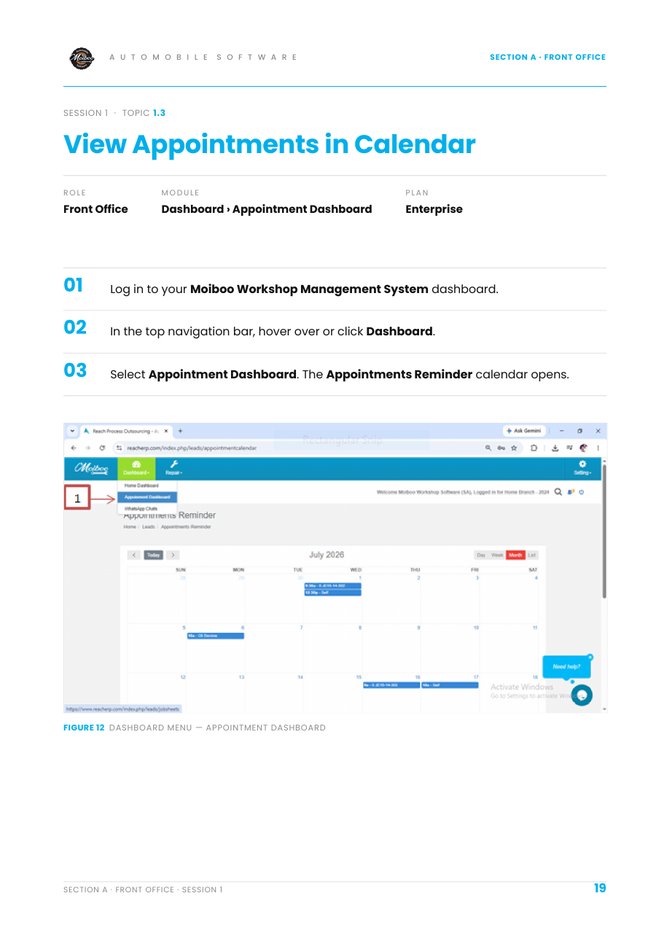
In the top navigation bar, hover over or click Dashboard.
Select Appointment Dashboard. The Appointments Reminder calendar opens.
Switch views & move around
Use the toggles at the top right to switch the view: Day (the day's repair slots in detail), Week (all bookings across the week), Month (plan workload and capacity) or List (appointments in sequence for easy scanning).
Use ‹ (Previous) and › (Next) to move between weeks or months. Click Today to return to the current date.
Work with an appointment
Scheduled jobs appear as coloured blocks on their date slots, with the vehicle number or appointment type.
Click an appointment block to open its details, view the customer, or convert it into a Job Card / Vehicle Check-In.
Practise in a demo or training account with sample data. Everything you tick or type here is self-reported — this page doesn't connect to Moiboo and can't verify your work. Progress is saved in this browser only.
Your browser is blocking storage, so progress here won't be kept after you close the page.
SCENARIO
The workshop manager asks how many vehicles are booked for tomorrow and how next week looks. Use the Appointment Dashboard to find out, then open tomorrow's first booking.
Before you start
A demo or training Moiboo account with access to Dashboard › Appointment Dashboard.
A few demo appointments (book some in topic 1.2 if the calendar is empty).
Sample data
Menu
Dashboard › Appointment Dashboard
Views
Day · Week · Month · List
Look at
Tomorrow, then next week
Need help?
1. Can you open the Appointment Dashboard? Dashboard in the top bar, then Appointment Dashboard.
2. Can you switch between Day, Week, Month and List? The toggles are at the top right of the calendar.
3. Can you move to next week and come back with Today? › moves forward, ‹ moves back, Today returns to the current date.
4. Can you count tomorrow's appointments in Day view? Move to tomorrow with ›, switch to Day and count the coloured blocks.
5. Can you open an appointment block and see the customer? Click the coloured block to open its details.
6. Do you know how to turn an appointment into a Job Card? From the opened appointment, convert it into a Job Card / Vehicle Check-In. Convert Job Card is also in the list's Action menu (topic 1.4).
Expected result
You can say how many appointments are booked for tomorrow, and you have opened one to see its customer and vehicle.
Your result
Let's find where you got stuck
Saved here as Needs help — nothing is sent anywhere. Copy your question to share it with your trainer, then carry on with other modules and come back.
Dashboard in the top bar, then Appointment Dashboard.The toggles are at the top right of the calendar.› moves forward, ‹ moves back, Today returns to the current date.Move to tomorrow with ›, switch to Day and count the coloured blocks.Click the coloured block to open its details.From the opened appointment, convert it into a Job Card / Vehicle Check-In. Convert Job Card is also in the list's Action menu (topic 1.4).
Practice completeYou marked this practice complete on this browser. It's your own self-check.
Role: Front OfficeModule: Repair › AppointmentPlan: Enterprise
Moiboo Academy
Front Office · Topic 1.4
How to Edit Appointment Video tutorial
Text Guide
Find a booking in Repair › Appointment and change its date, slot, service or engineer with Update Appointment — then tell the customer.
When
Use this when a customer wants a different date or time, a changed service, or a different engineer on an existing booking.
Open the appointment list
In the top navigation menu, click Repair and select Appointment.
Locate the appointment
Use the search bar (Name / Mobile / Vehicle No) or click Advance Search to find the booking.
Locate the customer's record in the appointment list table.
Select Update Appointment
Scroll to the Action column on the far right of the appointment.
Click the Action drop-down button and select Update Appointment.
The Action menu
View Appointment
View the existing booking details.
Update Appointment
Edit booking dates, service types, technician assignments or customer details.
Convert Job Card
Convert the scheduled booking straight into an active repair job card.
Save the updated details
Change the fields you need — for example the date, time slot, appointment notes or the assigned engineer.
Click Save (or Save & Email / Save and Whatsapp) to apply your changes.
Tell the customer. When the date or time has moved, finish with Save and Whatsapp rather than plain Save. The customer gets the new slot in writing straight away, and nobody has to remember to call back.
Practise in a demo or training account with sample data. Everything you tick or type here is self-reported — this page doesn't connect to Moiboo and can't verify your work. Progress is saved in this browser only.
Your browser is blocking storage, so progress here won't be kept after you close the page.
SCENARIO
Test Customer A calls: they can't make Tuesday 10:00 AM and want Thursday 2:00 PM instead, and the job needs a different engineer. Update the appointment and send the new slot on WhatsApp.
Before you start
A demo appointment for Test Customer A (from topic 1.2).
At least two service engineers set up in the demo account.
Sample data
Search by
Vehicle No · TEST 001
New slot
Thursday · 02:00 PM
Engineer
Another demo engineer
Note
Moved at customer's request
Finish with
Save and Whatsapp
Need help?
1. Can you open Repair › Appointment? Click Repair in the top menu and select Appointment.
2. Can you find the booking with the search bar or Advance Search? Search by Name, Mobile or Vehicle No.
3. Can you open the Action menu and choose Update Appointment? The Action column is on the far right of the row.
4. Can you change the date and time slot? Pick the new In and Out date & time.
5. Can you change the engineer and add a note? Choose a different Service Engineer and add a note such as “Moved at customer's request”.
6. Can you save with Save and Whatsapp? It's next to Save and Save & Email at the bottom of the form.
7. Do you know what Convert Job Card does? It turns the scheduled booking into an active repair job card — use it when the vehicle arrives.
Expected result
The appointment now shows Thursday 2:00 PM with the new engineer, and the customer received the new slot on WhatsApp.
Your result
Let's find where you got stuck
Saved here as Needs help — nothing is sent anywhere. Copy your question to share it with your trainer, then carry on with other modules and come back.
Click Repair in the top menu and select Appointment.Search by Name, Mobile or Vehicle No.The Action column is on the far right of the row.Pick the new In and Out date & time.Choose a different Service Engineer and add a note such as “Moved at customer's request”.It's next to Save and Save & Email at the bottom of the form.It turns the scheduled booking into an active repair job card — use it when the vehicle arrives.
Practice completeYou marked this practice complete on this browser. It's your own self-check.
Practise in a demo or training account with sample data. Everything you tick or type here is self-reported — this page doesn't connect to Moiboo and can't verify your work. Progress is saved in this browser only.
Your browser is blocking storage, so progress here won't be kept after you close the page.
SCENARIO
A sample customer brings a car in for an oil change and mentions a squeak when braking. You notice a small scratch on the rear bumper.
Before you start
A demo or training Moiboo account with access to Job Card › Job Sheet.
A demo customer and vehicle (create them if they don't exist).
At least one mechanic set up in the account.
Sample data
Customer
Test Customer A
Vehicle plate
TEST 001
Mileage
45,200 km
Fuel level
About half
Fault comments
Oil change · Brake squeak
Reception defect
Scratch on rear bumper
Need help?
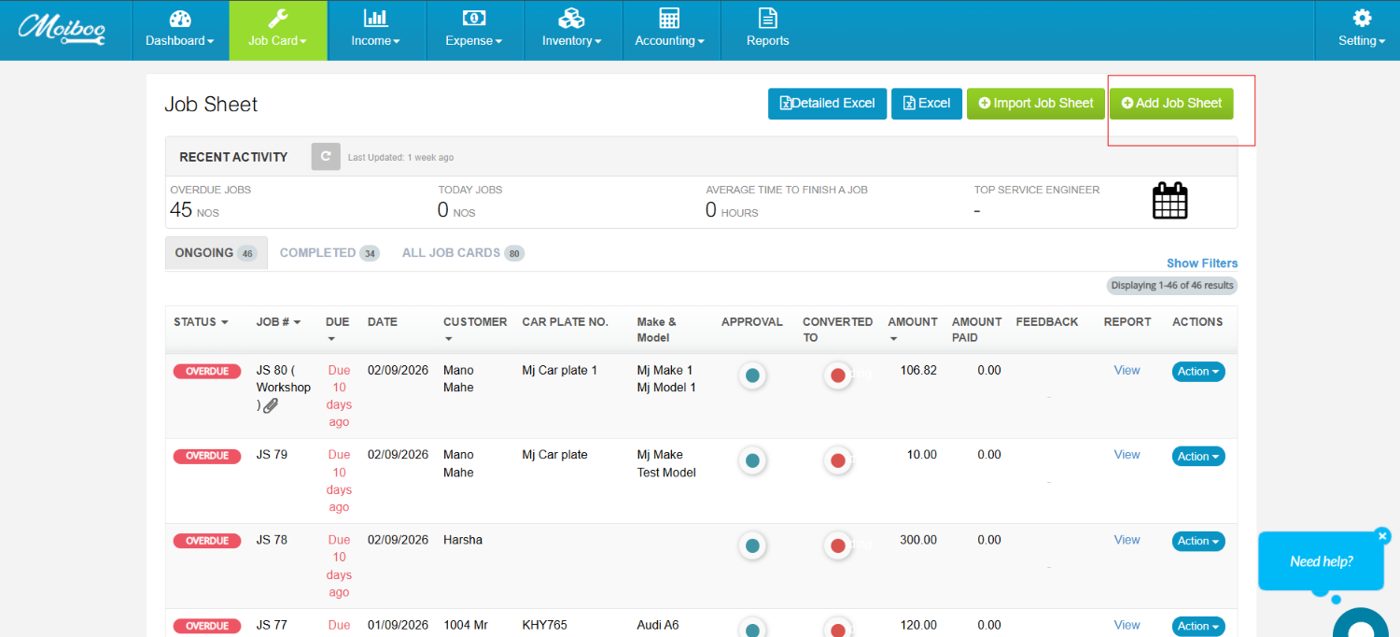
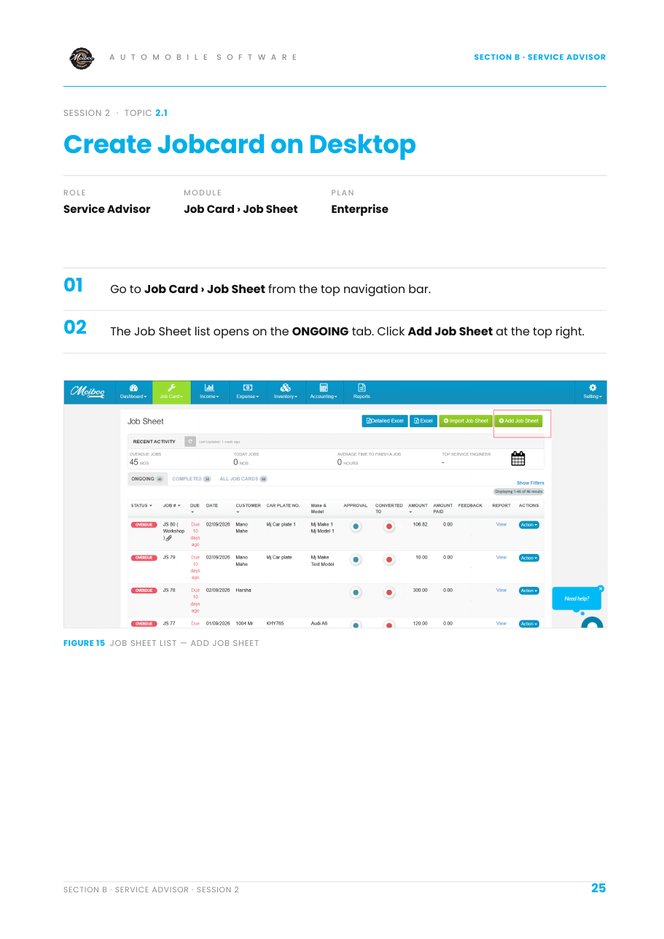
1. Can you create a new job card in the system? Go to Job Card › Job Sheet. On the ONGOING tab, click Add Job Sheet at the top right.
2. Can you select an existing customer or add a new customer? Under Customer Details, open the Customer Name dropdown and pick the customer. If they aren't listed, use + Add New in the same dropdown.
3. Can you record the customer’s complaints in the job card? Under Fault Description, type each problem on its own line in Fault Comment.
4. Can you mark any existing vehicle damage, such as a bumper scratch? Under Reception Defect, click the body diagram where the damage is. Clear removes all marks.
5. Can you upload photos of the vehicle’s condition during intake? Under Attachments, click + to upload a photo. Click the × on a photo to remove it.
6. Can you save the job card successfully? Click Save in the bottom bar of the Job Sheet window.
7. Can you locate the saved job card under the ONGOING tab? Go to Job Card › Job Sheet — the list opens on the ONGOING tab. Use search if the list is long.
8. Can you verify that the customer, vehicle, mechanic, mileage, fuel level, and complaints are recorded correctly? Open the job card and check Customer Details, Vehicle Details (mileage and fuel slider) and Fault Comment against your sample data.
9. Can you print the job card? Use Save and Print in the bottom bar of the Job Sheet window.
10. Can you send the job card to the customer for approval? On the ONGOING tab click Action → Whatsapp Job Card for approval, enter your own test number and click Send.
Expected result
A saved job sheet on the ONGOING tab with Test Customer A, the mechanic, vehicle TEST 001 with mileage and fuel, two fault comments, the bumper scratch marked and one photo.
Your result
Let's find where you got stuck
Saved here as Needs help — nothing is sent anywhere. Copy your question to share it with your trainer, then carry on with other modules and come back.
Go to Job Card › Job Sheet. On the ONGOING tab, click Add Job Sheet at the top right.Under Customer Details, open the Customer Name dropdown and pick the customer. If they aren't listed, use + Add New in the same dropdown.Under Fault Description, type each problem on its own line in Fault Comment.Under Reception Defect, click the body diagram where the damage is. Clear removes all marks.Under Attachments, click + to upload a photo. Click the × on a photo to remove it.Click Save in the bottom bar of the Job Sheet window.Go to Job Card › Job Sheet — the list opens on the ONGOING tab. Use search if the list is long.Open the job card and check Customer Details, Vehicle Details (mileage and fuel slider) and Fault Comment against your sample data.Use Save and Print in the bottom bar of the Job Sheet window.On the ONGOING tab click Action → Whatsapp Job Card for approval, enter your own test number and click Send.
Practice completeYou marked this practice complete on this browser. It's your own self-check.
Practise in a demo or training account with sample data. Everything you tick or type here is self-reported — this page doesn't connect to Moiboo and can't verify your work. Progress is saved in this browser only.
Your browser is blocking storage, so progress here won't be kept after you close the page.
SCENARIO
You're in the bay next to a sample car that needs an oil change and a new oil filter. Open the job sheet from your phone without going back to the desk.
Before you start
The Moiboo mobile app installed and signed in to a demo or training account.
A demo customer, vehicle and an oil-filter product in that account.
Sample data
Customer
Test Customer A
Vehicle plate
TEST 001
Fault comment
Oil change due
Part
Oil filter · Qty 1
Need help?
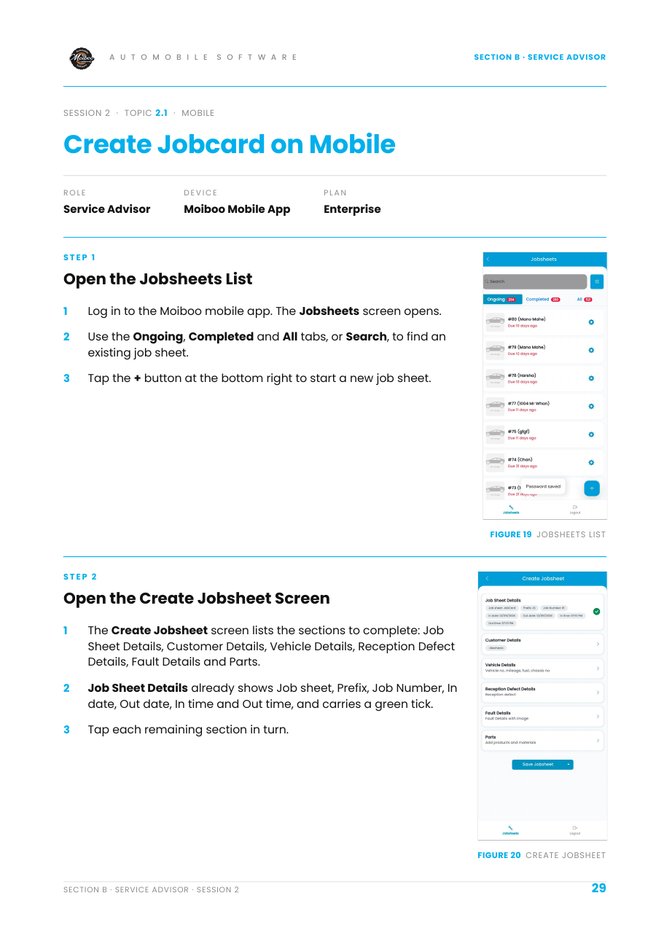
1. Can you open the Jobsheets screen in the Moiboo mobile app? Log in to the Moiboo mobile app — the Jobsheets screen opens first.
2. Can you start a new job sheet? Tap the + button at the bottom right of the Jobsheets screen.
3. Can you select the customer and engineer? Tap Customer Details, select the Customer and the Engineer, then tap Done.
4. Can you select the vehicle and record mileage and fuel level? Tap Vehicle Details, select the vehicle, enter Mileage, move the fuel slider, tap Done.
5. Can you mark existing vehicle damage? Tap Reception Defect Details and mark the diagram. Clear starts again. Tap Done.
6. Can you record complaints and add intake photos? Tap Fault Details, type the Fault Comments, tap + under Attachments for photos, enter a Title, tap Done.
7. Can you add a part with quantity and rate? Tap Parts, Select Product, enter Qty and Rate. + Add New Item adds another line. Tap Done.
8. Can you see a green tick on every section? A section only gets its tick after you tap Done inside it.
9. Can you save the job sheet successfully? Tap Save Jobsheet at the bottom of the Create Jobsheet screen.
Expected result
A new job sheet on the Ongoing tab of the app with green ticks on every section, the sample customer and vehicle, a fault with photo, one defect and the oil filter with its total.
Your result
Let's find where you got stuck
Saved here as Needs help — nothing is sent anywhere. Copy your question to share it with your trainer, then carry on with other modules and come back.
Log in to the Moiboo mobile app — the Jobsheets screen opens first.Tap the + button at the bottom right of the Jobsheets screen.Tap Customer Details, select the Customer and the Engineer, then tap Done.Tap Vehicle Details, select the vehicle, enter Mileage, move the fuel slider, tap Done.Tap Reception Defect Details and mark the diagram. Clear starts again. Tap Done.Tap Fault Details, type the Fault Comments, tap + under Attachments for photos, enter a Title, tap Done.Tap Parts, Select Product, enter Qty and Rate. + Add New Item adds another line. Tap Done.A section only gets its tick after you tap Done inside it.Tap Save Jobsheet at the bottom of the Create Jobsheet screen.
Practice completeYou marked this practice complete on this browser. It's your own self-check.
Practise in a demo or training account with sample data. Everything you tick or type here is self-reported — this page doesn't connect to Moiboo and can't verify your work. Progress is saved in this browser only.
Your browser is blocking storage, so progress here won't be kept after you close the page.
SCENARIO
The sample customer has left and wants to follow the car's progress from home. Send them the intake link — to your own phone.
Before you start
A practice job card on the ONGOING tab (from the desktop practice).
WhatsApp sending set up in the demo account.
Use your own test WhatsApp number — never a real customer's.
Sample data
Job card
Your practice job card
Send to
Your own test number
Need help?
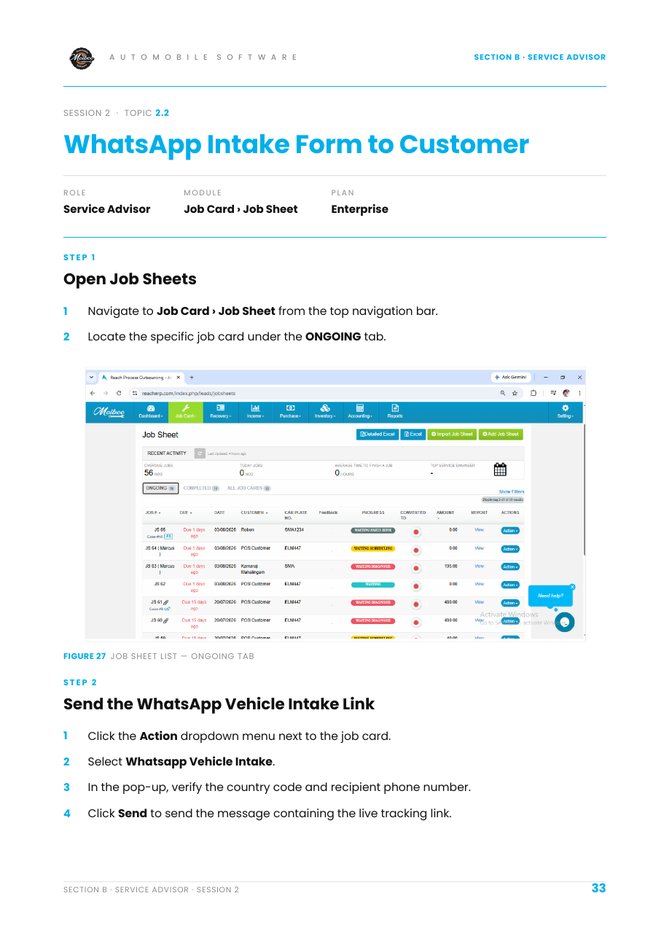
1. Can you find the practice job card under the ONGOING tab? Job Card › Job Sheet → ONGOING tab.
2. Can you open the Whatsapp Vehicle Intake option? Click the Action dropdown next to the job card and select Whatsapp Vehicle Intake.
3. Can you check the country code and phone number before sending? Check both in the pop-up. Use your own test number.
4. Can you send the intake link successfully? Click Send in the pop-up.
5. Can you open the link on your phone? Open the WhatsApp message and tap the link.
6. Can you find the vehicle details, fuel level, damage diagram and live service tracker in the link? The report shows Customer & Vehicle Information, Fuel Level & Visual Inspection, Appointment & Cost Estimates and the Live Service Tracker.
Expected result
A WhatsApp message on your phone with a link to the Vehicle Intake & Service Status report for your practice job card.
Your result
Let's find where you got stuck
Saved here as Needs help — nothing is sent anywhere. Copy your question to share it with your trainer, then carry on with other modules and come back.
Job Card › Job Sheet → ONGOING tab.Click the Action dropdown next to the job card and select Whatsapp Vehicle Intake.Check both in the pop-up. Use your own test number.Click Send in the pop-up.Open the WhatsApp message and tap the link.The report shows Customer & Vehicle Information, Fuel Level & Visual Inspection, Appointment & Cost Estimates and the Live Service Tracker.
Practice completeYou marked this practice complete on this browser. It's your own self-check.
Practise in a demo or training account with sample data. Everything you tick or type here is self-reported — this page doesn't connect to Moiboo and can't verify your work. Progress is saved in this browser only.
Your browser is blocking storage, so progress here won't be kept after you close the page.
SCENARIO
Vendors have replied to the RFQ for a sample job needing brake pads and an AC coil. Choose the best value for each part — not automatically the cheapest.
Before you start
A demo job card in WAITING FOR QUOTE status.
A demo RFQ with responses from at least two suppliers (ask your trainer to set this up).
Sample data
Parts
Brake pads · AC coil
Compare on
Price, grade, delivery time, warranty
Need help?
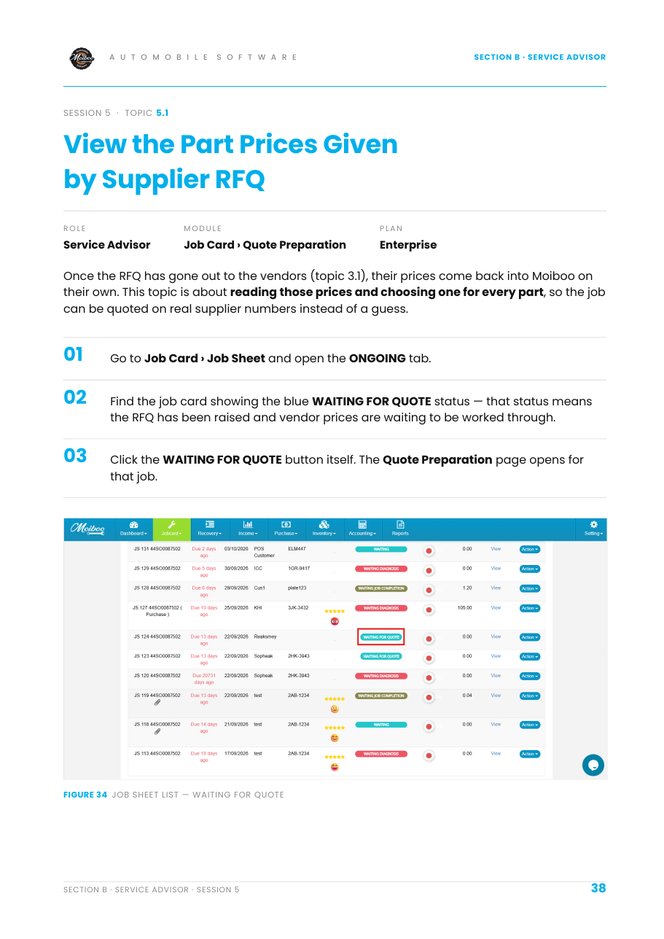
1. Can you find a job card with the WAITING FOR QUOTE status? Job Card › Job Sheet → ONGOING. Look for the blue WAITING FOR QUOTE status.
2. Can you open the Quote Preparation page? Click the WAITING FOR QUOTE status button itself.
3. Can you read the RFQ summary (RFQ status, required parts, vendors quoted, best option)? It's the strip at the top of the Quote Preparation page.
4. Can you open Compare Quotes for a part? Click the chevron in the Action column at the end of the part row.
5. Can you compare suppliers on price, grade, delivery time and warranty? Compare Quotes shows Original, OEM, Aftermarket, Reconditioned, Delivery Time, Warranty and Quote Date. The ★ marks the lowest price — a suggestion, not a rule.
6. Can you select a price for every part? Click the radio button next to the price. The row shows a green Selected badge and the Cost Price.
Expected result
Each part row on Price Comparison shows a supplier with a green Selected badge and a Cost Price.
Your result
Let's find where you got stuck
Saved here as Needs help — nothing is sent anywhere. Copy your question to share it with your trainer, then carry on with other modules and come back.
Job Card › Job Sheet → ONGOING. Look for the blue WAITING FOR QUOTE status.Click the WAITING FOR QUOTE status button itself.It's the strip at the top of the Quote Preparation page.Click the chevron in the Action column at the end of the part row.Compare Quotes shows Original, OEM, Aftermarket, Reconditioned, Delivery Time, Warranty and Quote Date. The ★ marks the lowest price — a suggestion, not a rule.Click the radio button next to the price. The row shows a green Selected badge and the Cost Price.
Practice completeYou marked this practice complete on this browser. It's your own self-check.
Practise in a demo or training account with sample data. Everything you tick or type here is self-reported — this page doesn't connect to Moiboo and can't verify your work. Progress is saved in this browser only.
Your browser is blocking storage, so progress here won't be kept after you close the page.
SCENARIO
Supplier prices are chosen for the sample job. Add a 20% markup, confirm labour and send the quotation — to your own phone.
Before you start
A demo job in WAITING FOR QUOTE with supplier prices selected (previous practice).
Labour lines on the demo job.
Use your own test WhatsApp number — never a real customer's.
Sample data
Markup
20%
Send to
Your own test number
Need help?
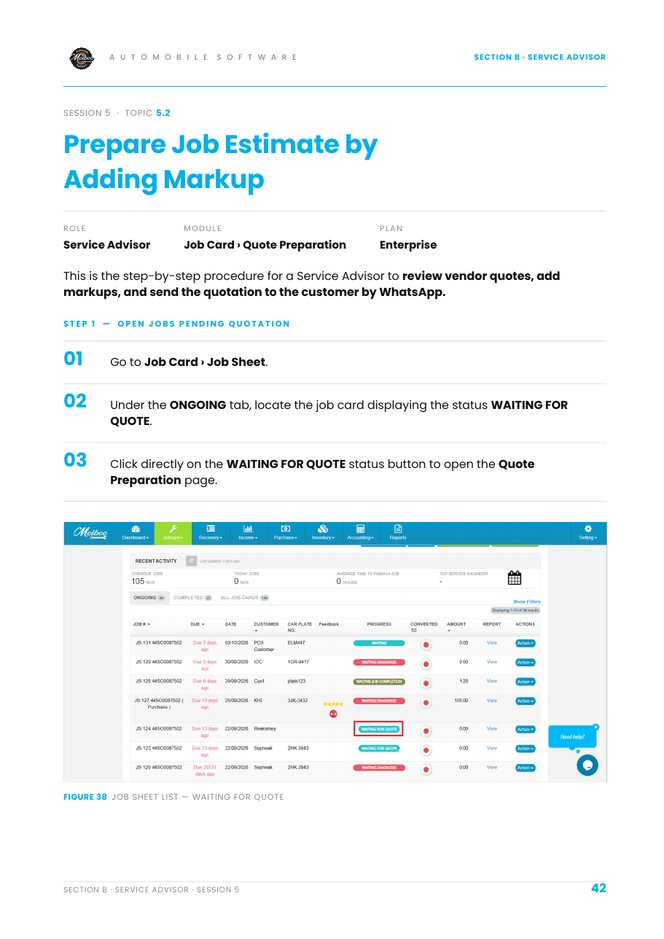
1. Can you open the Quote Preparation page for the job? Job Card › Job Sheet → ONGOING → click WAITING FOR QUOTE.
2. Can you choose the vendor quote for each part? Under Compare Quotes, select the preferred option for each part.
3. Can you enter the markup percentage? Type it in the Markup % column. Selling Price and Total update automatically.
4. Can you check the labour rate and working minutes? Scroll to Labour Details — check Sales Price Per hr and Working min.
5. Can you check the Grand Total (parts plus labour)? The Grand Total is at the bottom right of the page.
6. Can you send the quotation to the customer by WhatsApp? Click Save and Send to Customer and complete the pop-up. Use your own test number.
Expected result
A saved quotation with 20% markup on every part, labour confirmed, and the quotation link received on your phone.
Quick calculation
This one is checked automatically because it has a known answer.
Your result
Let's find where you got stuck
Saved here as Needs help — nothing is sent anywhere. Copy your question to share it with your trainer, then carry on with other modules and come back.
Job Card › Job Sheet → ONGOING → click WAITING FOR QUOTE.Under Compare Quotes, select the preferred option for each part.Type it in the Markup % column. Selling Price and Total update automatically.Scroll to Labour Details — check Sales Price Per hr and Working min.The Grand Total is at the bottom right of the page.Click Save and Send to Customer and complete the pop-up. Use your own test number.
Practice completeYou marked this practice complete on this browser. It's your own self-check.
Practise in a demo or training account with sample data. Everything you tick or type here is self-reported — this page doesn't connect to Moiboo and can't verify your work. Progress is saved in this browser only.
Your browser is blocking storage, so progress here won't be kept after you close the page.
SCENARIO
The sample customer must approve the estimate before work starts. Play both roles: send it from Moiboo, then approve it on your own phone.
Before you start
A practice job sheet on ONGOING with an estimate.
Use your own test WhatsApp number — never a real customer's.
Sample data
Send to
Your own test number
As the customer
Click Approve
Need help?
1. Can you find the job sheet on the ONGOING tab? Job Card › Job Sheet → ONGOING.
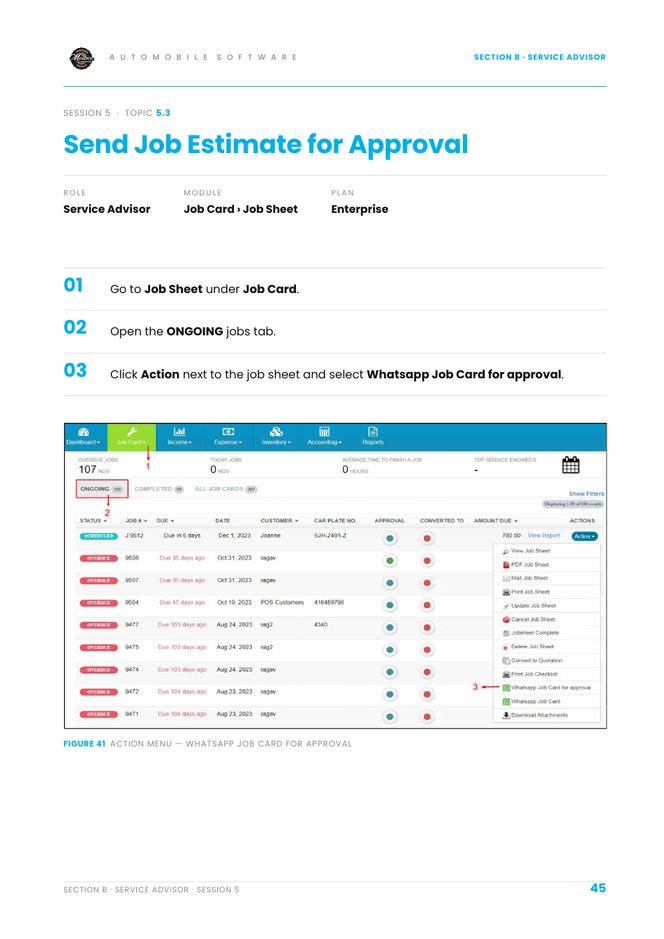
2. Can you open the Whatsapp Job Card for approval option? Click Action next to the job sheet and select Whatsapp Job Card for approval.
3. Can you send the approval link to the customer’s number? Key in the WhatsApp number in the pop-up (your own test number) and click Send.
4. Can you approve the estimate from the link as the customer? Open the link — the Order Estimate Approval form opens. Click Approve.
5. Can you see the Approval status turn green? Refresh the Job Sheet list and check the Approval column.
Expected result
The Approval status for your practice job sheet is green.
Your result
Let's find where you got stuck
Saved here as Needs help — nothing is sent anywhere. Copy your question to share it with your trainer, then carry on with other modules and come back.
Job Card › Job Sheet → ONGOING.Click Action next to the job sheet and select Whatsapp Job Card for approval.Key in the WhatsApp number in the pop-up (your own test number) and click Send.Open the link — the Order Estimate Approval form opens. Click Approve.Refresh the Job Sheet list and check the Approval column.
Practice completeYou marked this practice complete on this browser. It's your own self-check.
Practise in a demo or training account with sample data. Everything you tick or type here is self-reported — this page doesn't connect to Moiboo and can't verify your work. Progress is saved in this browser only.
Your browser is blocking storage, so progress here won't be kept after you close the page.
SCENARIO
Work on the sample car is finished and checked. Close the job so it leaves the ongoing list.
Before you start
Your practice job sheet on ONGOING. Only complete your own practice job — never a live customer's.
Sample data
Job
Your practice job sheet
Need help?
1. Can you find the finished job sheet on the ONGOING tab? Job Card › Job Sheet → ONGOING. Use only your practice job.
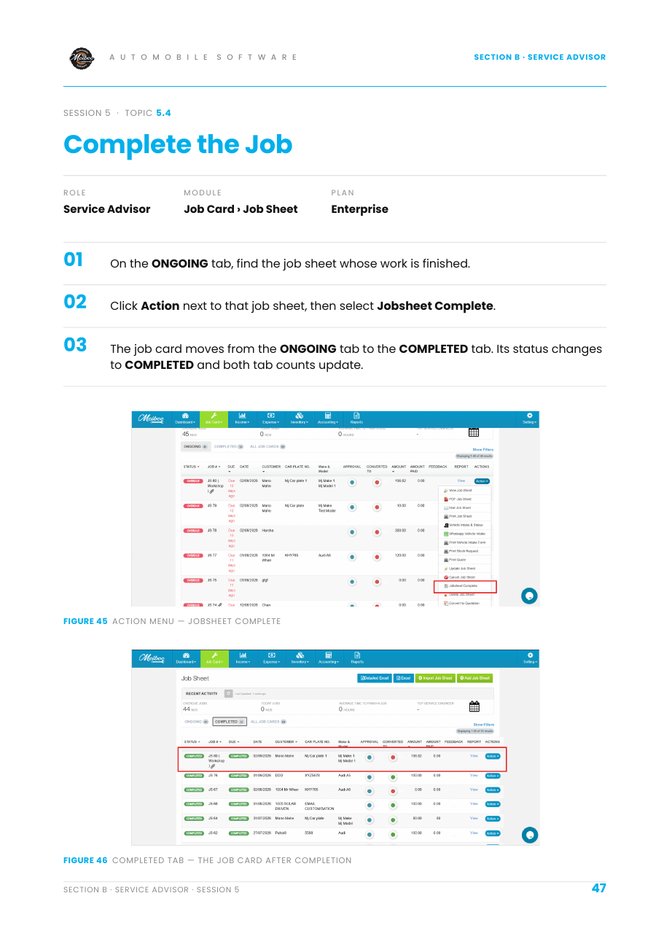
2. Can you mark the job sheet as complete? Click Action next to the job sheet and select Jobsheet Complete.
3. Can you find the job card under the COMPLETED tab? Open the COMPLETED tab — status shows COMPLETED.
4. Can you see the ONGOING and COMPLETED counts update? ONGOING goes down by one and COMPLETED goes up by one.
Expected result
Your practice job sheet is on the COMPLETED tab with status COMPLETED.
Your result
Let's find where you got stuck
Saved here as Needs help — nothing is sent anywhere. Copy your question to share it with your trainer, then carry on with other modules and come back.
Job Card › Job Sheet → ONGOING. Use only your practice job.Click Action next to the job sheet and select Jobsheet Complete.Open the COMPLETED tab — status shows COMPLETED.ONGOING goes down by one and COMPLETED goes up by one.
Practice completeYou marked this practice complete on this browser. It's your own self-check.
Role: Service AdvisorModule: Dashboard › RemindersPlan: Enterprise
Moiboo Academy
Service Advisor · Topic 7.1
Create General Reminder Video tutorial
Text Guide
Raise a reminder by hand from the Reminders page for any customer — a follow-up call, a renewal, a callback next month.
Open the Reminders page
Log in to Moiboo. The Dashboard opens.
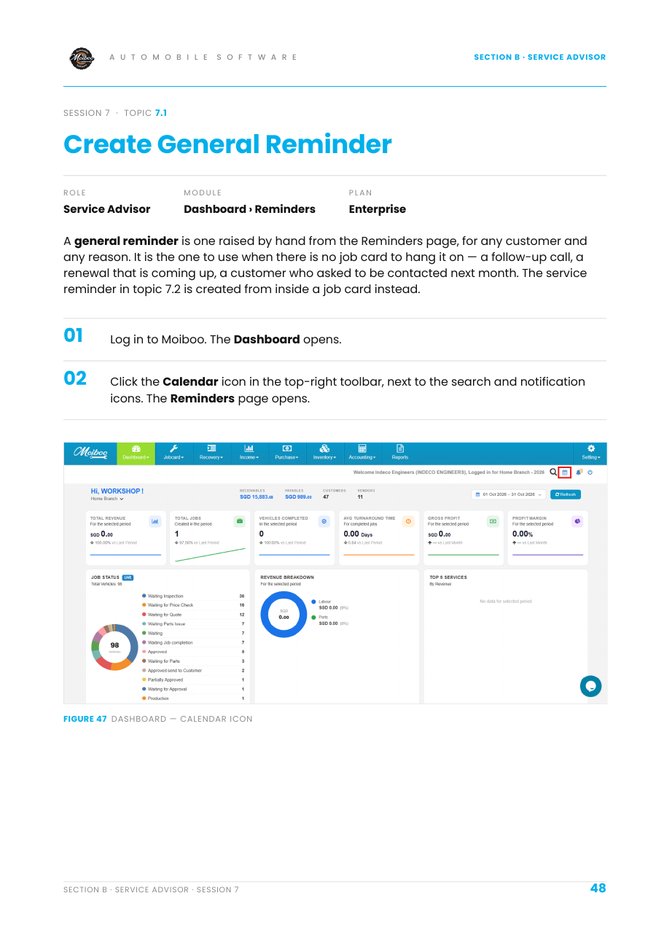
Click the Calendar icon in the top-right toolbar. The Reminders page opens with TOTAL REMINDERS, ACTIVE, DUE SOON, SENT and FAILED cards.
Click the blue + Create Reminder button.
Fill the form
1. Reminder Type — pick what the reminder is about.
Customer — choose who it's for (the list shows the mobile number with the name).
2. Start From — choose Custom Date and pick the Date.
3. Repeat — One time, or Every X Months.
4. End When — Never, after a number of occurrences, or on a date.
Click Save Reminder. It appears in the list and is counted under ACTIVE.
Before you start
If an amber banner says no WhatsApp template is set up, reminders will be created but fail to send. Add the templates once under Settings › WhatsApp Reminder Templates.
Practise in a demo or training account with sample data. Everything you tick or type here is self-reported — this page doesn't connect to Moiboo and can't verify your work. Progress is saved in this browser only.
Your browser is blocking storage, so progress here won't be kept after you close the page.
SCENARIO
A sample customer asked to be called next month about tyre replacement. There's no job card — set a one-time general reminder.
Before you start
Access to the Reminders page (Calendar icon on the Dashboard).
WhatsApp reminder templates set up — if the amber banner shows, reminders will be created but fail to send.
Sample data
Customer
Test Customer A
Date
One month from today
Repeat
One time
End
Never
Need help?
1. Can you open the Reminders page? From the Dashboard, click the Calendar icon in the top-right toolbar.
2. Can you start a new reminder? Click the blue + Create Reminder button at the top right.
3. Can you choose the reminder type and customer? Under 1. Reminder Type pick the type; under Customer choose the sample customer.
4. Can you set the reminder date? Under 2. Start From choose Custom Date and pick the Date.
5. Can you set how often it repeats and when it ends? 3. Repeat → One time or Every X Months. 4. End When → Never, after X occurrences, or on a date.
6. Can you save the reminder and find it under ACTIVE? Click Save Reminder. It appears in the list and the ACTIVE count goes up.
Expected result
A new reminder for Test Customer A, one month ahead, counted under ACTIVE.
Your result
Let's find where you got stuck
Saved here as Needs help — nothing is sent anywhere. Copy your question to share it with your trainer, then carry on with other modules and come back.
From the Dashboard, click the Calendar icon in the top-right toolbar.Click the blue + Create Reminder button at the top right.Under 1. Reminder Type pick the type; under Customer choose the sample customer.Under 2. Start From choose Custom Date and pick the Date.3. Repeat → One time or Every X Months. 4. End When → Never, after X occurrences, or on a date.Click Save Reminder. It appears in the list and the ACTIVE count goes up.
Practice completeYou marked this practice complete on this browser. It's your own self-check.
Practise in a demo or training account with sample data. Everything you tick or type here is self-reported — this page doesn't connect to Moiboo and can't verify your work. Progress is saved in this browser only.
Your browser is blocking storage, so progress here won't be kept after you close the page.
SCENARIO
The sample car's next service is due in 6 months. Set a reminder from its job sheet that goes out 5 days before.
Before you start
Your practice job sheet.
A Next Service Date on that job sheet — without it the reminder has nothing to count from.
Sample data
Next Service Date
6 months from today
Reminder Before
5 Days
Repeat
Every 6 months
Need help?
1. Can you add a Next Service Date to the job sheet? Open the job sheet; fill Next Service Date under Job Sheet Details.
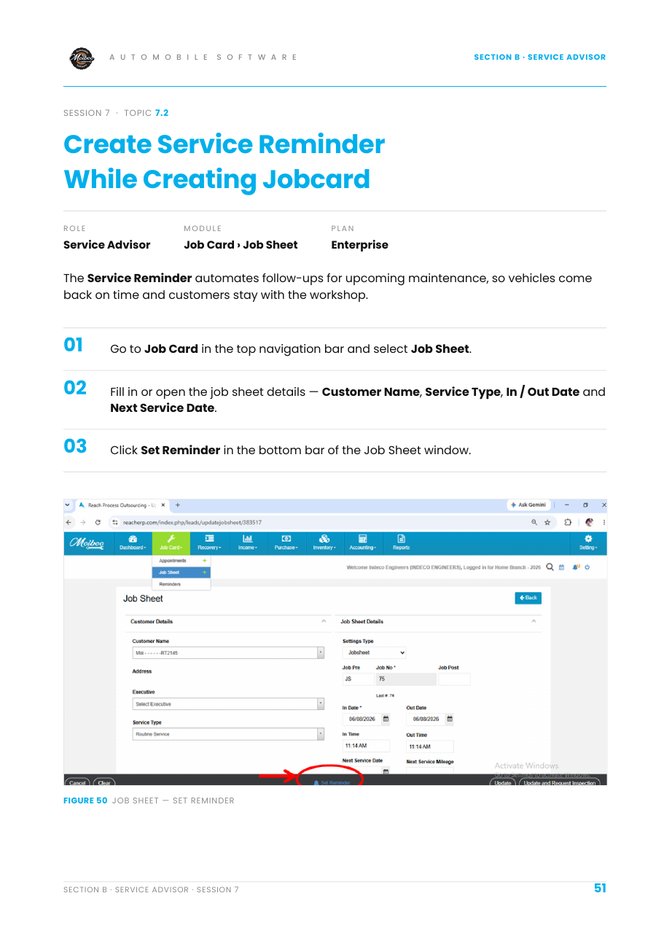
2. Can you open Set Reminder from the job sheet? Click Set Reminder in the bottom bar of the Job Sheet window.
3. Can you confirm the Reminder Type is Service Reminder? It's shown at the top of the Create Reminder pop-up.
4. Can you set the reminder to go out before the due date? Start From → Next Service Due Date; set Reminder Before (e.g. 5 Days).
5. Can you set Repeat and End When? Repeat → One time or Every X months. End When → Never, after X occurrences, or on a date.
6. Can you save the service reminder? Click Save Reminder.
Expected result
A Service Reminder for the sample customer, triggered from Next Service Date, 5 days before, repeating every 6 months.
Your result
Let's find where you got stuck
Saved here as Needs help — nothing is sent anywhere. Copy your question to share it with your trainer, then carry on with other modules and come back.
Open the job sheet; fill Next Service Date under Job Sheet Details.Click Set Reminder in the bottom bar of the Job Sheet window.It's shown at the top of the Create Reminder pop-up.Start From → Next Service Due Date; set Reminder Before (e.g. 5 Days).Repeat → One time or Every X months. End When → Never, after X occurrences, or on a date.Click Save Reminder.
Practice completeYou marked this practice complete on this browser. It's your own self-check.
Practise in a demo or training account with sample data. Everything you tick or type here is self-reported — this page doesn't connect to Moiboo and can't verify your work. Progress is saved in this browser only.
Your browser is blocking storage, so progress here won't be kept after you close the page.
SCENARIO
Oil filters should be replaced every 6 months. Add a sample product with a parts reminder so every customer who gets one is reminded.
Before you start
Permission to open Settings › Inventory › Products in the demo account.
Sample data
Product
TEST Oil Filter
Start From
Job Completion Date
Delay
6 Months
Repeat
Every 6 Months
Need help?
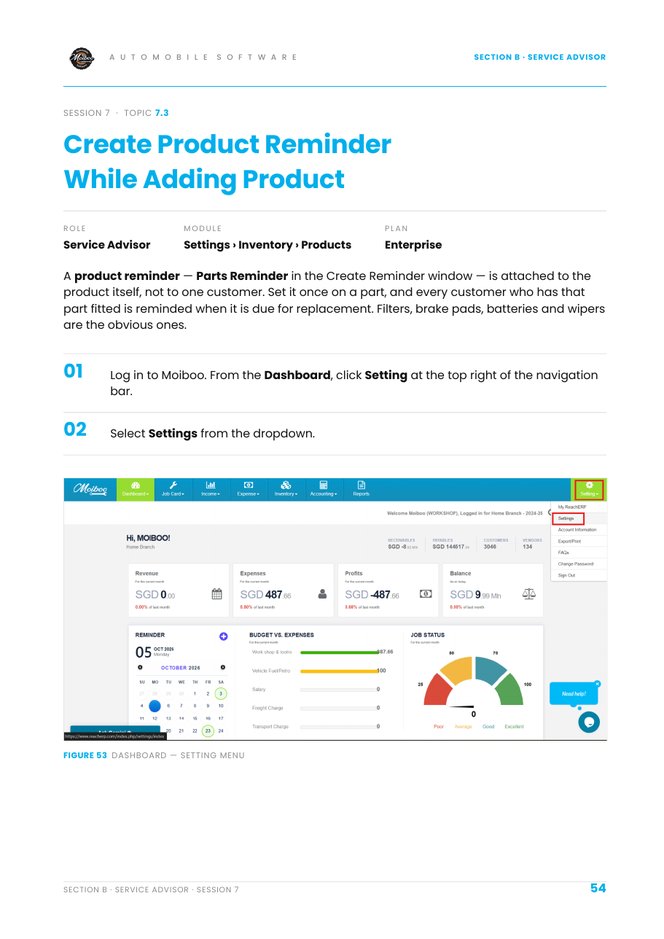
1. Can you open the Products list in Settings? Setting (top right) → Settings → Inventory → Products Settings → Products.
2. Can you add a new product or open an existing one? Click Add Products, or use Action on an existing row.
3. Can you open Set Reminder and see Parts Reminder? While filling in the product, open Set Reminder — the type is Parts Reminder.
4. Can you choose what the reminder counts from and set the delay? Start From → Job Completion Date (wear items), Custom Date, or Invoice Date (warranty parts). Then set the Delay.
5. Can you set Repeat and End When? Repeat → One time or Every X Months. End When → Never, after X Occurrences, or on a date.
6. Can you save the reminder and the product? Click Save Reminder, then save the product.
Expected result
Product TEST Oil Filter with a Parts Reminder counting 6 months from job completion, repeating every 6 months.
Your result
Let's find where you got stuck
Saved here as Needs help — nothing is sent anywhere. Copy your question to share it with your trainer, then carry on with other modules and come back.
Setting (top right) → Settings → Inventory → Products Settings → Products.Click Add Products, or use Action on an existing row.While filling in the product, open Set Reminder — the type is Parts Reminder.Start From → Job Completion Date (wear items), Custom Date, or Invoice Date (warranty parts). Then set the Delay.Repeat → One time or Every X Months. End When → Never, after X Occurrences, or on a date.Click Save Reminder, then save the product.
Practice completeYou marked this practice complete on this browser. It's your own self-check.
Practise in a demo or training account with sample data. Everything you tick or type here is self-reported — this page doesn't connect to Moiboo and can't verify your work. Progress is saved in this browser only.
Your browser is blocking storage, so progress here won't be kept after you close the page.
SCENARIO
It's Monday morning. Find the reminders you created, filter them, and decide what to do with one that needs attention.
Before you start
At least one practice reminder (from the earlier practices).
Don't click Send Today's WATI Reminders in a live account — it sends real messages.
Sample data
Search for
Test Customer A
Filter
Service Reminder
Need help?
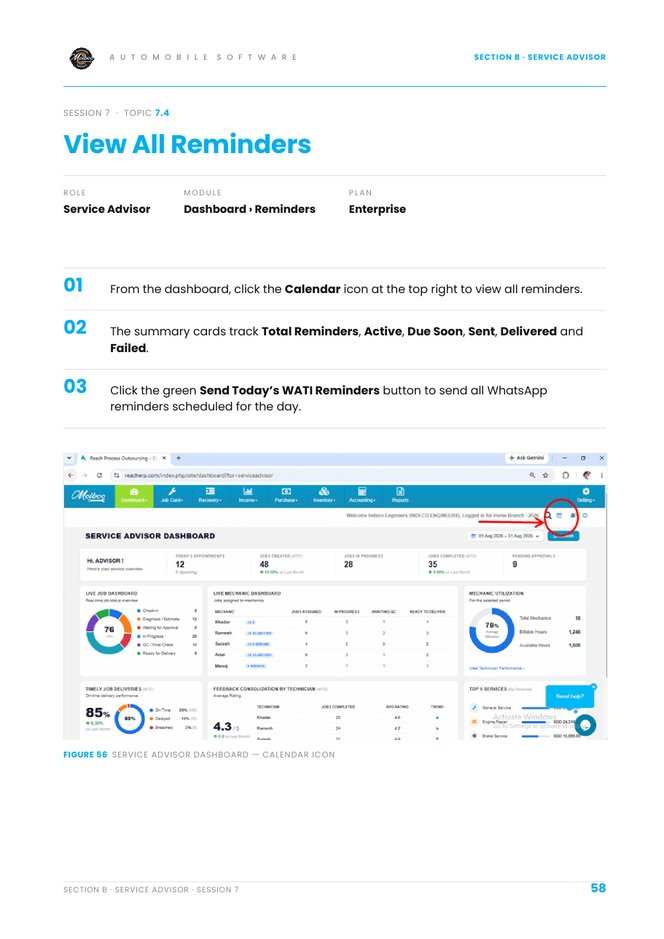
1. Can you open the Reminders page and read the summary cards? Dashboard → Calendar icon. Cards: Total, Active, Due Soon, Sent, Delivered, Failed.
2. Can you search for a reminder by customer name? Type in the Search reminder, customer… box.
3. Can you filter the list by reminder type and reset it? Use All Reminder Types to pick Service, Parts or Invoice. Reset clears search and filter.
4. Can you find a reminder that is Due Today or Overdue? Look at NEXT REMINDER — amber Due Today, red Overdue.
5. Can you reschedule a reminder with Set Follow-up? Click Set Follow-up in the RESCHEDULE TO column and choose a new date.
6. Can you find the Edit, Send WhatsApp and Mail Reminder actions? Click the Action dropdown on the right of a row.
Expected result
You can find, filter and reschedule a reminder, and read its status and next date.
Your result
Let's find where you got stuck
Saved here as Needs help — nothing is sent anywhere. Copy your question to share it with your trainer, then carry on with other modules and come back.
Dashboard → Calendar icon. Cards: Total, Active, Due Soon, Sent, Delivered, Failed.Type in the Search reminder, customer… box.Use All Reminder Types to pick Service, Parts or Invoice. Reset clears search and filter.Look at NEXT REMINDER — amber Due Today, red Overdue.Click Set Follow-up in the RESCHEDULE TO column and choose a new date.Click the Action dropdown on the right of a row.
Practice completeYou marked this practice complete on this browser. It's your own self-check.
Role: Service AdvisorModule: Dashboard › Job & Dispatch DetailsPlan: Enterprise
Moiboo Academy
Service Advisor · Topic 8.1
Set Up the Workshop TV Video tutorial
Text Guide
Open the Workshop Dispatch Board from the Dashboard and read it — who is working on what, and what is still waiting.
Open the board menu
Log in to Moiboo. The Dashboard opens as the landing page.
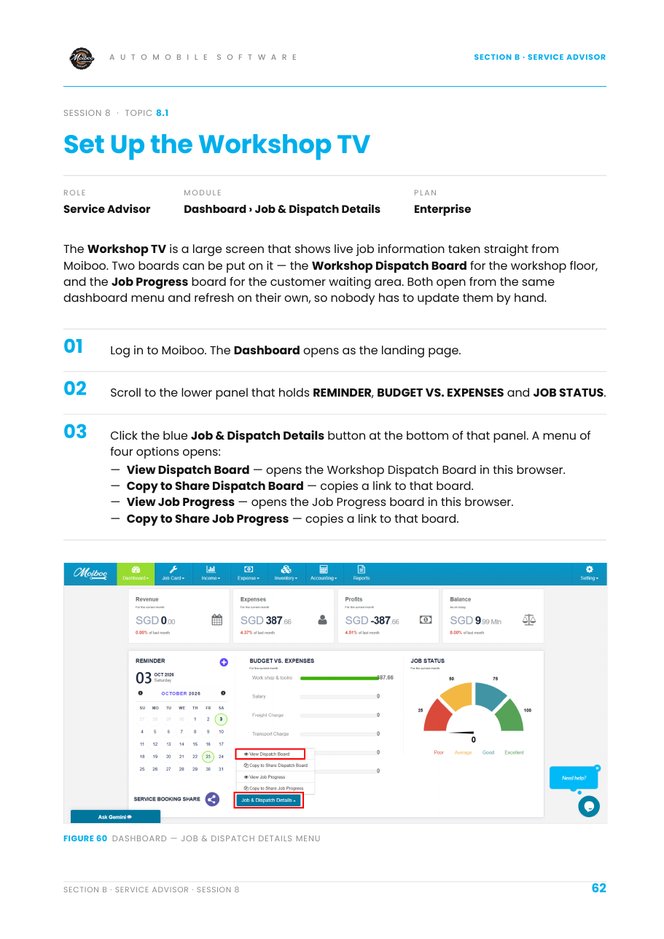
Scroll to the lower panel that holds REMINDER, BUDGET VS. EXPENSES and JOB STATUS.
Click the blue Job & Dispatch Details button. A menu opens: View Dispatch Board, Copy to Share Dispatch Board, View Job Progress, Copy to Share Job Progress.
Select View Dispatch Board.
The Workshop Dispatch Board
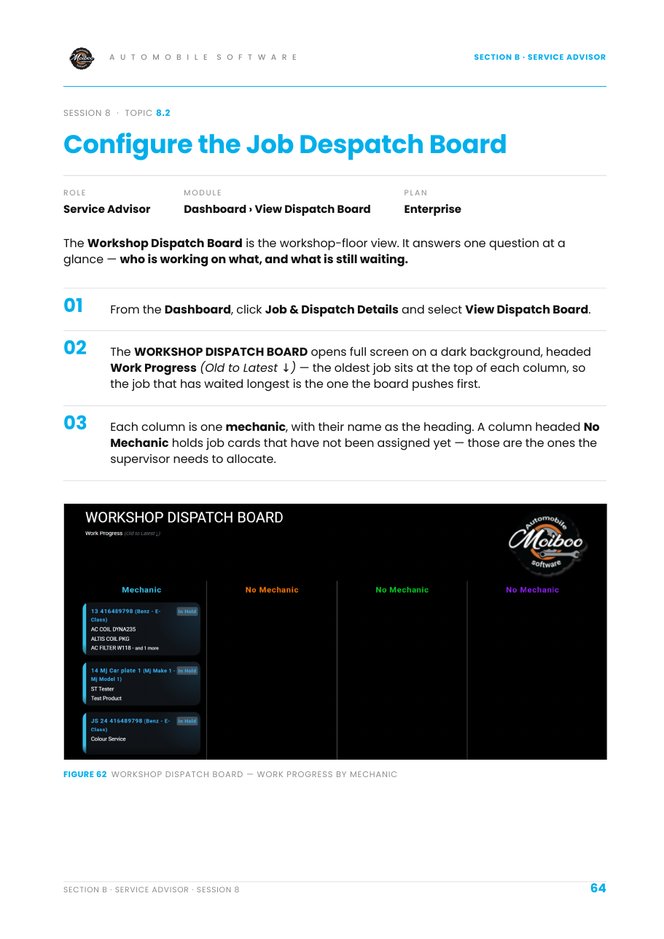
The WORKSHOP DISPATCH BOARD opens full screen on a dark background, headed Work Progress (Old to Latest ↓) — the oldest job sits at the top of each column.
Each column is one mechanic, with their name as the heading. No Mechanic holds job cards that have not been assigned yet — the ones the supervisor needs to allocate.
Reading a card
Job number and vehicle — for example 13 416489798 (Benz - E-Class).
Status badge on the right — for example In Hold.
Work lines below — the parts and services on the job; “and 1 more” when there are more lines than fit.
Nothing is typed in. Every card comes from a job sheet — assigning a mechanic moves the card out of No Mechanic, and completing a job takes it off the board.
Why it's worth the screen
The supervisor sees an unbalanced load without walking the floor, mechanics stop asking what's next, and anything under No Mechanic or stuck on In Hold is visible to everyone.
Practise in a demo or training account with sample data. Everything you tick or type here is self-reported — this page doesn't connect to Moiboo and can't verify your work. Progress is saved in this browser only.
Your browser is blocking storage, so progress here won't be kept after you close the page.
SCENARIO
The supervisor asks: “How many jobs have no mechanic, and who has the most work?” Answer from the Workshop Dispatch Board without walking the floor.
Before you start
Dashboard access in a demo or training account.
A few demo job cards, including at least one with no mechanic assigned.
Sample data
Board
Workshop Dispatch Board
Look for
No Mechanic column
Need help?
1. Can you find the Job & Dispatch Details button on the Dashboard? Scroll to the lower panel with REMINDER, BUDGET VS. EXPENSES and JOB STATUS — the blue button is at the bottom.
2. Can you open the Workshop Dispatch Board? Click Job & Dispatch Details and select View Dispatch Board.
3. Can you find each mechanic's column? Each column heading is a mechanic's name.
4. Can you find the jobs under No Mechanic? No Mechanic is the column of job cards not yet assigned.
5. Can you read a card's job number, vehicle, status and work lines? Job number and vehicle at the top, status badge on the right (e.g. In Hold), work lines below; “and 1 more” means extra lines.
6. Can you explain why the oldest job is at the top? The board is Work Progress (Old to Latest ↓) — the job waiting longest is pushed first.
Expected result
The Workshop Dispatch Board open full screen, with one column per mechanic and unassigned jobs under No Mechanic.
Your result
Let's find where you got stuck
Saved here as Needs help — nothing is sent anywhere. Copy your question to share it with your trainer, then carry on with other modules and come back.
Scroll to the lower panel with REMINDER, BUDGET VS. EXPENSES and JOB STATUS — the blue button is at the bottom.Click Job & Dispatch Details and select View Dispatch Board.Each column heading is a mechanic's name.No Mechanic is the column of job cards not yet assigned.Job number and vehicle at the top, status badge on the right (e.g. In Hold), work lines below; “and 1 more” means extra lines.The board is Work Progress (Old to Latest ↓) — the job waiting longest is pushed first.
Practice completeYou marked this practice complete on this browser. It's your own self-check.
Role: Service AdvisorModule: Dashboard › View Dispatch BoardPlan: Enterprise
Moiboo Academy
Service Advisor · Topic 8.2
Configure the Job Despatch Board Video tutorial
Text Guide
Put the Job Progress board on the TV and read it by stage — so a waiting customer can follow their own vehicle.
Put a board on the TV
From the Dashboard, click Job & Dispatch Details.
Click Copy to Share Job Progress (or Copy to Share Dispatch Board). The link is copied to the clipboard.
Paste the link into the browser on the TV, or the PC / stick driving it. The board opens on its own.
Press F11 for full screen, and leave the tab open — the board refreshes by itself.
The Job Progress board
To view it on your own screen: Job & Dispatch Details → View Job Progress.
The JOB PROGRESS board opens, headed Your Vehicle Status (Old to Latest ↓), with four stage columns: Diagnostic In Progress (red), Service In Progress (orange), Quality Check In Progress (yellow), Vehicle Ready (green).
Each vehicle appears under its current stage by job number and plate, and moves across on its own. An empty column shows No Data.
Where it goes & how it helps
Put the Job Progress board in the customer waiting area or at reception; the Dispatch Board goes on the workshop floor.
Customers find their own plate and stage without asking reception.
Red → green shows how far is left, and oldest-to-latest columns show the queue ahead.
Diagnostic means an estimate is still coming; Vehicle Ready tells them it's time to collect.
Practise in a demo or training account with sample data. Everything you tick or type here is self-reported — this page doesn't connect to Moiboo and can't verify your work. Progress is saved in this browser only.
Your browser is blocking storage, so progress here won't be kept after you close the page.
SCENARIO
Reception has a new TV. Put the customer-facing Job Progress board on it — practise in a separate browser window — and find the test car's stage.
Before you start
Dashboard access in a demo or training account.
A demo job card for your test vehicle.
Sample data
Board
Job Progress
Test vehicle
TEST 001
Screen
A separate browser window
Need help?
1. Can you copy the Job Progress share link? Dashboard → Job & Dispatch Details → Copy to Share Job Progress.
2. Can you open the board in a separate browser window? Paste the copied link into a new browser window (or the TV's browser).
3. Can you show the board in full screen? Press F11 (F11 or Esc again to exit).
4. Can you name the four stage columns? Diagnostic In Progress (red), Service In Progress (orange), Quality Check In Progress (yellow), Vehicle Ready (green).
5. Can you find the test vehicle's current stage? Look for its job number and plate under one of the four columns.
6. Can you see the board refresh on its own? Leave the tab open — vehicles move across as job cards progress.
Expected result
The Job Progress board open full screen in its own window, showing four stage columns and the test vehicle under its current stage.
Your result
Let's find where you got stuck
Saved here as Needs help — nothing is sent anywhere. Copy your question to share it with your trainer, then carry on with other modules and come back.
Dashboard → Job & Dispatch Details → Copy to Share Job Progress.Paste the copied link into a new browser window (or the TV's browser).Press F11 (F11 or Esc again to exit).Diagnostic In Progress (red), Service In Progress (orange), Quality Check In Progress (yellow), Vehicle Ready (green).Look for its job number and plate under one of the four columns.Leave the tab open — vehicles move across as job cards progress.
Practice completeYou marked this practice complete on this browser. It's your own self-check.
Practise in a demo or training account with sample data. Everything you tick or type here is self-reported — this page doesn't connect to Moiboo and can't verify your work. Progress is saved in this browser only.
Your browser is blocking storage, so progress here won't be kept after you close the page.
SCENARIO
The sample customer collected their car yesterday. Send a feedback request to your own phone and answer it as the customer.
Before you start
A completed practice job (see “Complete the Job”).
Use your own test WhatsApp number — never a real customer's.
Sample data
Job
Your completed practice job
Send to
Your own test number
Need help?
1. Can you find the completed job card? Job Card › Job Sheet → COMPLETED tab.
2. Can you open the Whatsapp Feedback option? Click Action on that row and select Whatsapp Feedback.
3. Can you check the number and message before sending? Check Send To (your own test number) and review the message with the feedback link.
4. Can you send the feedback request? Click Send.
5. Can you submit test feedback from the link? Open the link, give a star rating, tick aspects, add a comment, click Submit Feedback.
6. Can you see the rating appear in the Feedback column? The star rating and emoji show in the Feedback column of the Job Sheet list.
Expected result
Your star rating and emoji show in the Feedback column for the practice job.
Your result
Let's find where you got stuck
Saved here as Needs help — nothing is sent anywhere. Copy your question to share it with your trainer, then carry on with other modules and come back.
Job Card › Job Sheet → COMPLETED tab.Click Action on that row and select Whatsapp Feedback.Check Send To (your own test number) and review the message with the feedback link.Click Send.Open the link, give a star rating, tick aspects, add a comment, click Submit Feedback.The star rating and emoji show in the Feedback column of the Job Sheet list.
Practice completeYou marked this practice complete on this browser. It's your own self-check.
Practise in a demo or training account with sample data. Everything you tick or type here is self-reported — this page doesn't connect to Moiboo and can't verify your work. Progress is saved in this browser only.
Your browser is blocking storage, so progress here won't be kept after you close the page.
SCENARIO
Open the test feedback as if a real customer had sent it, work out what they were unhappy with, and plan the follow-up.
Before you start
Test feedback submitted on a practice job (previous practice).
Sample data
Job
Your practice job with feedback
Need help?
1. Can you find the rating in the Feedback column? Job Card › Job Sheet — a star rating with emoji, or a dash if no reply yet.
2. Can you open the Customer Feedback Details? Click the emoji on that row.
3. Can you read the satisfaction, recommendation and satisfied aspects? The pop-up shows Satisfaction (stars), Recommendation (emoji) and Satisfied Aspects (Quality, Time, Communication, Price).
4. Can you identify what the customer was unhappy with? Look at which aspects were not ticked and read the Customer Comments.
5. Can you decide the right follow-up? Low rating → call with the facts. High rating → ask for a public review.
Expected result
You can say what the customer liked, what they didn't, and what to do next.
Your result
Let's find where you got stuck
Saved here as Needs help — nothing is sent anywhere. Copy your question to share it with your trainer, then carry on with other modules and come back.
Job Card › Job Sheet — a star rating with emoji, or a dash if no reply yet.Click the emoji on that row.The pop-up shows Satisfaction (stars), Recommendation (emoji) and Satisfied Aspects (Quality, Time, Communication, Price).Look at which aspects were not ticked and read the Customer Comments.Low rating → call with the facts. High rating → ask for a public review.
Practice completeYou marked this practice complete on this browser. It's your own self-check.
Practise in a demo or training account with sample data. Everything you tick or type here is self-reported — this page doesn't connect to Moiboo and can't verify your work. Progress is saved in this browser only.
Your browser is blocking storage, so progress here won't be kept after you close the page.
SCENARIO
You have been assigned a brake pad replacement on TEST 001. Open the job on your phone, check the repair items and start the timer.
Before you start
The Moiboo mobile app, logged in as a demo mechanic.
A demo job card assigned to that mechanic.
Sample data
App screen
Mechanic Jobs
Job
TEST 001 · Brake pad replacement
Gesture
Swipe right on the job card
Need help?
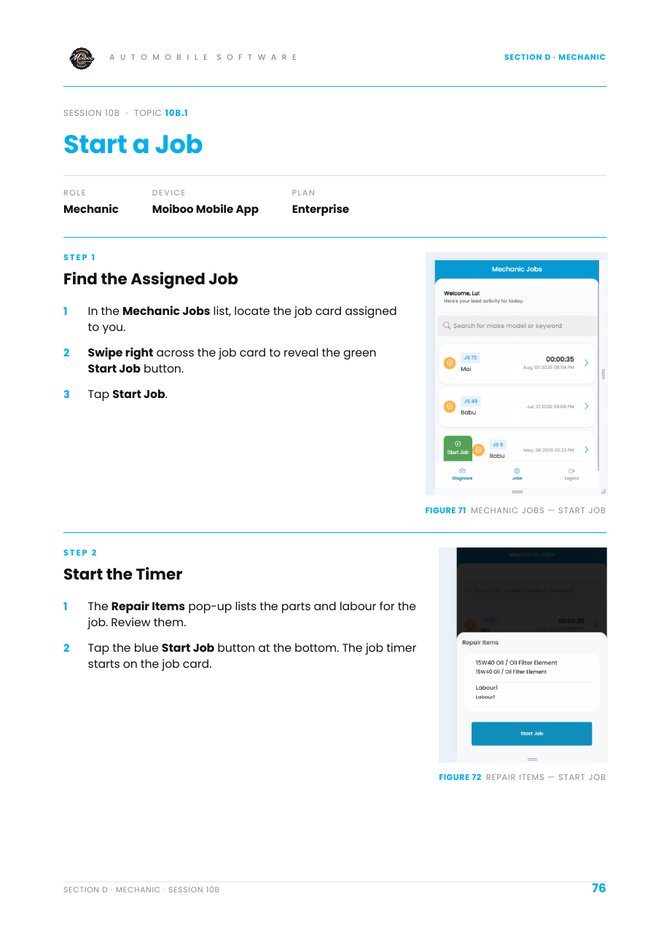
1. Can you open Mechanic Jobs and find the job assigned to you? Mechanic Jobs lists the job cards assigned to you.
2. Can you swipe right to show the green Start Job button? Swipe right across the job card itself.
3. Can you review the parts and labour in Repair Items? The Repair Items pop-up opens after you tap Start Job.
4. Can you tap the blue Start Job button? It's at the bottom of the Repair Items pop-up.
5. Can you see the timer running on the job card? Back in Mechanic Jobs, the active card shows the running timer.
Expected result
The job card shows a running timer in Mechanic Jobs.
Your result
Let's find where you got stuck
Saved here as Needs help — nothing is sent anywhere. Copy your question to share it with your trainer, then carry on with other modules and come back.
Mechanic Jobs lists the job cards assigned to you.Swipe right across the job card itself.The Repair Items pop-up opens after you tap Start Job.It's at the bottom of the Repair Items pop-up.Back in Mechanic Jobs, the active card shows the running timer.
Practice completeYou marked this practice complete on this browser. It's your own self-check.
Practise in a demo or training account with sample data. Everything you tick or type here is self-reported — this page doesn't connect to Moiboo and can't verify your work. Progress is saved in this browser only.
Your browser is blocking storage, so progress here won't be kept after you close the page.
SCENARIO
Halfway through the brake job you need a part from stores. Pause the job, then restart it when the part arrives.
Before you start
A demo job you have started (topic 10B.1).
Sample data
Job
TEST 001 · Brake pad replacement
Pause for
Waiting for parts
Buttons
Yellow Pause Job · Start Job
Need help?
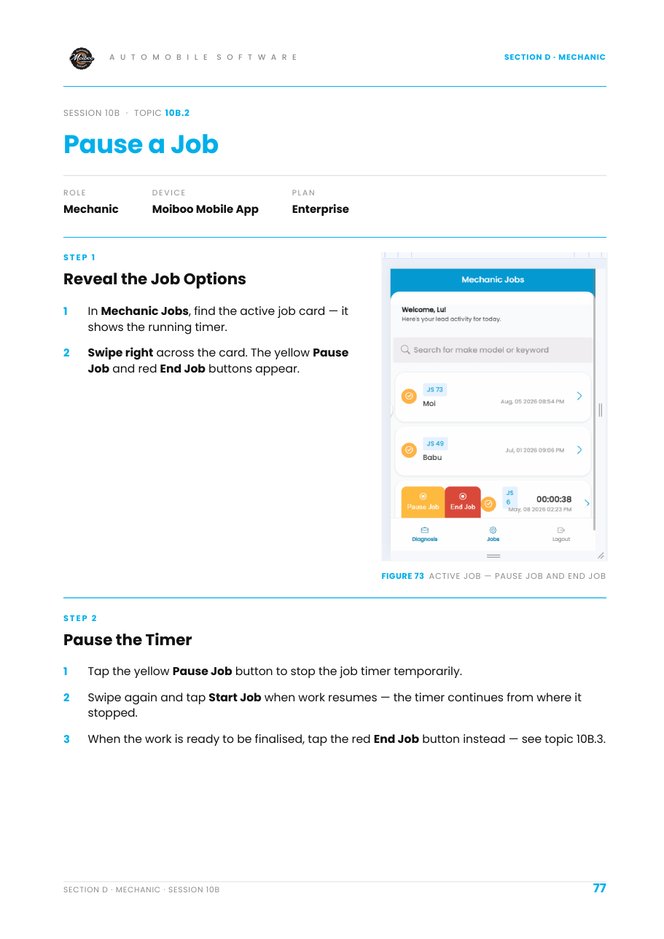
1. Can you find the active job with the running timer? It's in Mechanic Jobs — the card shows the timer.
2. Can you swipe right to see Pause Job and End Job? Swipe right across the active card.
3. Can you tap the yellow Pause Job button? The timer stops.
4. Can you restart the job with Start Job? Swipe again and tap Start Job — the timer continues from where it stopped.
5. Do you know which button finalises the job? The red End Job button — see topic 10B.3.
Expected result
The job was paused and restarted, and the timer carried on from where it stopped instead of starting again.
Your result
Let's find where you got stuck
Saved here as Needs help — nothing is sent anywhere. Copy your question to share it with your trainer, then carry on with other modules and come back.
It's in Mechanic Jobs — the card shows the timer.Swipe right across the active card.The timer stops.Swipe again and tap Start Job — the timer continues from where it stopped.The red End Job button — see topic 10B.3.
Practice completeYou marked this practice complete on this browser. It's your own self-check.
Practise in a demo or training account with sample data. Everything you tick or type here is self-reported — this page doesn't connect to Moiboo and can't verify your work. Progress is saved in this browser only.
Your browser is blocking storage, so progress here won't be kept after you close the page.
SCENARIO
The brake pads are replaced, but the brake disc needs a second opinion. End the job, mark the pads Done and the disc check Need Help, and leave a comment.
Before you start
A demo job you have started (topic 10B.1) with at least two repair items.
Sample data
Item 1
Brake pads · Done
Item 2
Brake disc check · Need Help
Comment
Disc worn — please check before delivery
Need help?
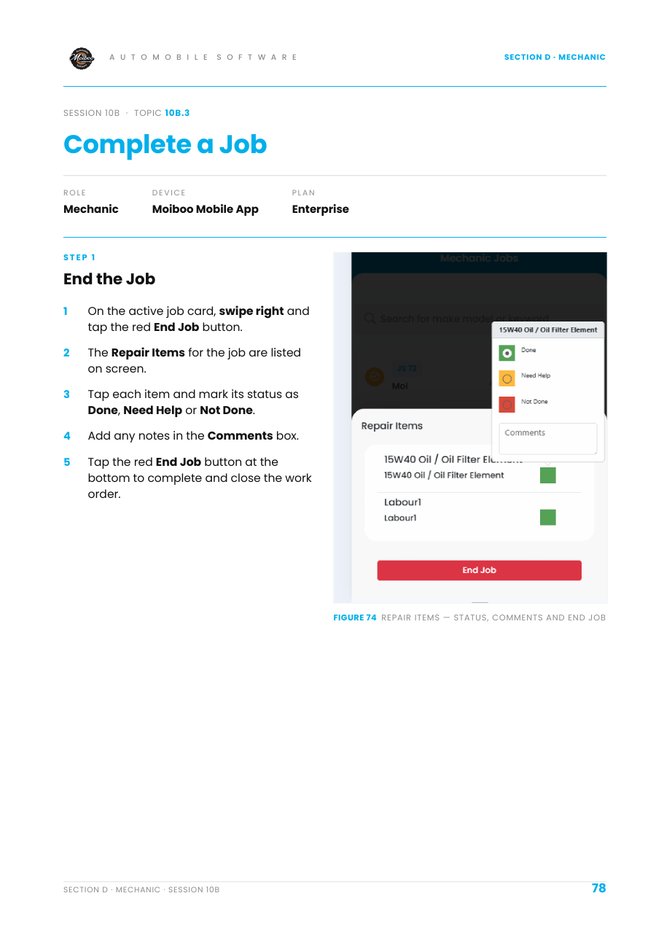
1. Can you swipe right on the active job and tap End Job? The red End Job button appears when you swipe right.
2. Can you see the job's Repair Items listed? They show on screen after you tap End Job.
3. Can you mark an item Done? Tap the item and choose Done.
4. Can you mark an item Need Help or Not Done? Tap the item and choose the right status.
5. Can you write a comment? Type it in the Comments box.
6. Can you tap the red End Job button at the bottom? This completes and closes the work order.
Expected result
The work order is closed on the app, each repair item has a status, and your comment is saved.
Your result
Let's find where you got stuck
Saved here as Needs help — nothing is sent anywhere. Copy your question to share it with your trainer, then carry on with other modules and come back.
The red End Job button appears when you swipe right.They show on screen after you tap End Job.Tap the item and choose Done.Tap the item and choose the right status.Type it in the Comments box.This completes and closes the work order.
Practice completeYou marked this practice complete on this browser. It's your own self-check.
Ask several vendors to price the same parts from the job card, then compare the quotes that come back.
When
Use this when a job needs parts priced. An RFQ — request for quotation — asks several vendors to price the same parts, so the job can be quoted on real supplier numbers. The parts come from the job card; this topic sends the request and collects the replies.
Open the Pending list
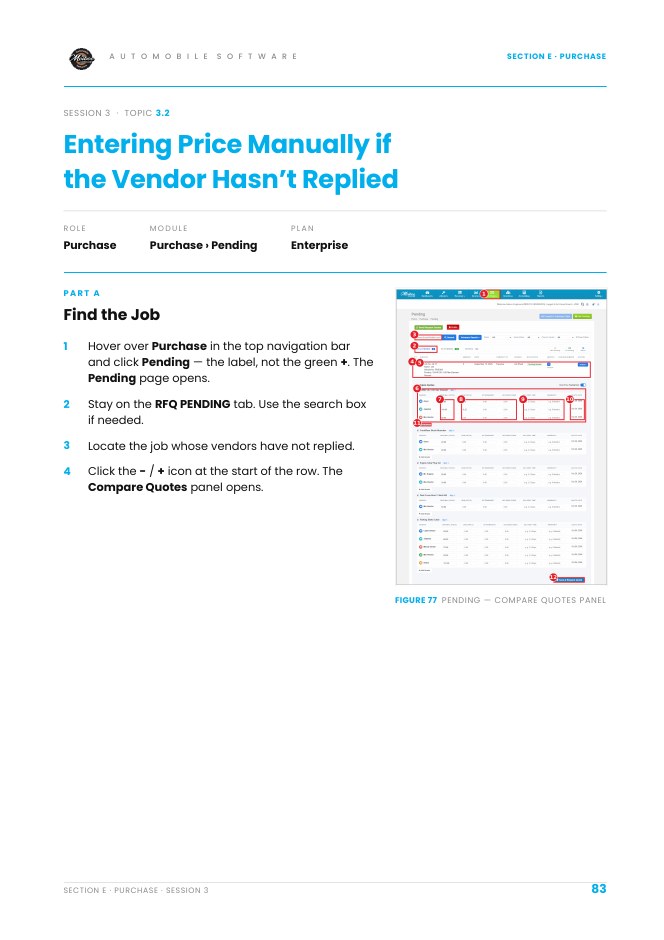
Hover over Purchase in the top navigation bar. The dropdown lists Pending, Purchase Order, Bill, Payment, Debit Note and Reminders. Click Pending — the label itself, not the green +.
Stay on the RFQ PENDING tab. The other tabs are PO PENDING and OTHERS. To find a job, use the search box or the Status, Quote Status and Chosen Vendor filters.
Locate the job. Its row shows the job number, name, vehicle number and product, with the amount, date, Convert To, Source, RFQ Status, number of vendors and Action.
Click the − / + icon at the start of the row. The Compare Quotes panel opens.
Compare quotes & add vendors
For each product in the panel, the vendors being asked are listed with Original (Price), OEM (Price), Aftermarket, Reconditioned, Delivery Time, Warranty and Quote Date. Awaiting means no quote has been received yet.
The Best Price Highlighted switch highlights the best price for each product.
To ask another vendor, click + Add Vendor under that product.
Save and request the quotes
Scroll to the bottom of the Compare Quotes panel. If a vendor is missing, click + Add Vendor first.
Click the blue Save & Request Quote button. The vendors are saved and quotes are requested from them.
On the vendor's phone
Each vendor opens the quote link they receive in the browser on their phone. The Submit Your Quote page shows the vendor's name.
The page lists the items requested — for example 15W40 Oil / Oil Filter Element, Dust Cover Boot / Clutch Kit, Engine Glow Plug Set, Front/Rear Shock Absorber and Parking Brake Cable. The vendor taps an item to open it and enter the quote.
When all items are done, the vendor taps the green Submit Quote button.
Review the quotes received
Back on the Pending page, expand the job row again. The vendors' prices now appear in the price columns and the Quote Date column shows the date with Saved instead of Awaiting.
Use the Best Price Highlighted switch to see the best price for each product.
To change prices or ask more vendors, click + Add Vendor where needed, then click Save & Request Quote to save.
A link, not a login. Each vendor receives a quote link they open in the browser on their phone. They do not need a Moiboo account, and nothing has to be installed — which is why a vendor who has never used the system can still reply the same day.
Practise in a demo or training account with sample data. Everything you tick or type here is self-reported — this page doesn't connect to Moiboo and can't verify your work. Progress is saved in this browser only.
Your browser is blocking storage, so progress here won't be kept after you close the page.
SCENARIO
A demo job needs brake pads and an oil filter. Send an RFQ to two demo vendors, then check that the Compare Quotes panel shows them as Awaiting.
Before you start
A demo or training Moiboo account with access to Purchase › Pending.
A demo job card with at least one part on it.
Two demo vendors with a mobile number.
Sample data
Job
Your demo job (e.g. JS 27)
Products
Brake pad, Oil filter
Vendors
Two demo vendors
Delivery time
2–3 Days
Warranty
6 Months
Need help?
1. Can you open Purchase › Pending and stay on the RFQ PENDING tab? Hover over Purchase in the top bar and click Pending — the label, not the green +.
2. Can you find your demo job in the list? Use the search box, or the Status, Quote Status and Chosen Vendor filters.
3. Can you open the Compare Quotes panel for that job? Click the − / + icon at the start of the job's row.
4. Can you read the price columns for a product? Each vendor row shows Original, OEM, Aftermarket, Reconditioned, Delivery Time, Warranty and Quote Date.
5. Can you add a second vendor with + Add Vendor? + Add Vendor sits under each product inside the Compare Quotes panel.
6. Can you click Save & Request Quote? It is the blue button at the bottom of the Compare Quotes panel.
7. Can you see the Quote Date showing Awaiting for the vendors you asked? Awaiting means the quote has been requested but has not come back yet.
8. Can you turn on Best Price Highlighted? It is the switch at the top right of the Compare Quotes panel.
Expected result
An RFQ saved against your demo job with two vendors per product, each showing Awaiting until they reply.
Your result
Let's find where you got stuck
Saved here as Needs help — nothing is sent anywhere. Copy your question to share it with your trainer, then carry on with other modules and come back.
Hover over Purchase in the top bar and click Pending — the label, not the green +.Use the search box, or the Status, Quote Status and Chosen Vendor filters.Click the − / + icon at the start of the job's row.Each vendor row shows Original, OEM, Aftermarket, Reconditioned, Delivery Time, Warranty and Quote Date.+ Add Vendor sits under each product inside the Compare Quotes panel.It is the blue button at the bottom of the Compare Quotes panel.Awaiting means the quote has been requested but has not come back yet.It is the switch at the top right of the Compare Quotes panel.
Practice completeYou marked this practice complete on this browser. It's your own self-check.
Purchase · Topic 3.2
Enter Price Manually if the Vendor Hasn't Replied Video tutorial
Text Guide
Type in a price a vendor gave you another way, so that vendor is compared on the same footing as the rest.
When
Use this when a vendor has not replied to the RFQ but has given you a price another way — by phone, for example. Typing it in puts that vendor back into the comparison.
Find the job
Hover over Purchase in the top navigation bar and click Pending — the label, not the green +. The Pending page opens.
Stay on the RFQ PENDING tab. Use the search box if needed.
Locate the job whose vendors have not replied.
Click the − / + icon at the start of the row. The Compare Quotes panel opens.
Enter the prices
Find the product and the vendor row that has not replied. Its Quote Date shows Awaiting.
Click that vendor's Original (Price) field and type the price the vendor gave you, for example by phone.
If the vendor also quoted other prices, enter them in OEM (Price), Aftermarket and Reconditioned.
Enter the Delivery Time and Warranty in the format shown, for example 2–3 Days and 6 Months.
Repeat for the other products and vendors. Click + Add Vendor to add a vendor who is not listed.
Save
Scroll to the bottom of the Compare Quotes panel and click the blue Save & Request Quote button. The Quote Date column then shows the date for each saved price.
Why it matters. A vendor who quotes over the phone would otherwise leave the comparison blank, and the job would be quoted on partial information. Typing the price in puts that vendor back into the comparison, so the best price wins on the same footing as the rest.
Practise in a demo or training account with sample data. Everything you tick or type here is self-reported — this page doesn't connect to Moiboo and can't verify your work. Progress is saved in this browser only.
Your browser is blocking storage, so progress here won't be kept after you close the page.
SCENARIO
A vendor called with a price for the brake pads instead of replying to the RFQ. Enter the price, delivery time and warranty by hand, then save.
Before you start
A demo or training Moiboo account with access to Purchase › Pending.
A demo job with an RFQ already sent and at least one vendor still showing Awaiting.
Sample data
Job
Your demo job (e.g. JS 27)
Product
Brake pad
Vendor
The vendor still showing Awaiting
Original price
SGD 45.00
Delivery time
2–3 Days
Warranty
6 Months
Need help?
1. Can you open Purchase › Pending on the RFQ PENDING tab? Hover over Purchase in the top bar and click Pending.
2. Can you find the job whose vendor has not replied? Use the search box at the top of the list.
3. Can you open the Compare Quotes panel for that job? Click the − / + icon at the start of the job's row.
4. Can you spot the vendor row showing Awaiting? Awaiting in the Quote Date column means no quote has come back yet.
5. Can you type the price into Original (Price)? Click the field on that vendor's row and type the price they gave you.
6. Can you enter the Delivery Time and Warranty? Use the same format as the other rows, for example 2–3 Days and 6 Months.
7. Can you click Save & Request Quote and see a Quote Date? The Quote Date replaces Awaiting with the date once the price is saved.
Expected result
The vendor's phone price saved against the product, with a Quote Date instead of Awaiting.
Your result
Let's find where you got stuck
Saved here as Needs help — nothing is sent anywhere. Copy your question to share it with your trainer, then carry on with other modules and come back.
Hover over Purchase in the top bar and click Pending.Use the search box at the top of the list.Click the − / + icon at the start of the job's row.Awaiting in the Quote Date column means no quote has come back yet.Click the field on that vendor's row and type the price they gave you.Use the same format as the other rows, for example 2–3 Days and 6 Months.The Quote Date replaces Awaiting with the date once the price is saved.
Practice completeYou marked this practice complete on this browser. It's your own self-check.
Purchase · Topic 3.3
Convert RFQ into a PO — Supplier-wise Video tutorial
Text Guide
Turn the chosen quote into a purchase order — one PO per chosen vendor, with parts, prices and job reference carried across.
When
Use this once a vendor has been chosen for the parts. The RFQ becomes a purchase order, and Moiboo creates it supplier-wise — one PO per chosen vendor — with the parts, prices and job reference already carried across.
Select the job
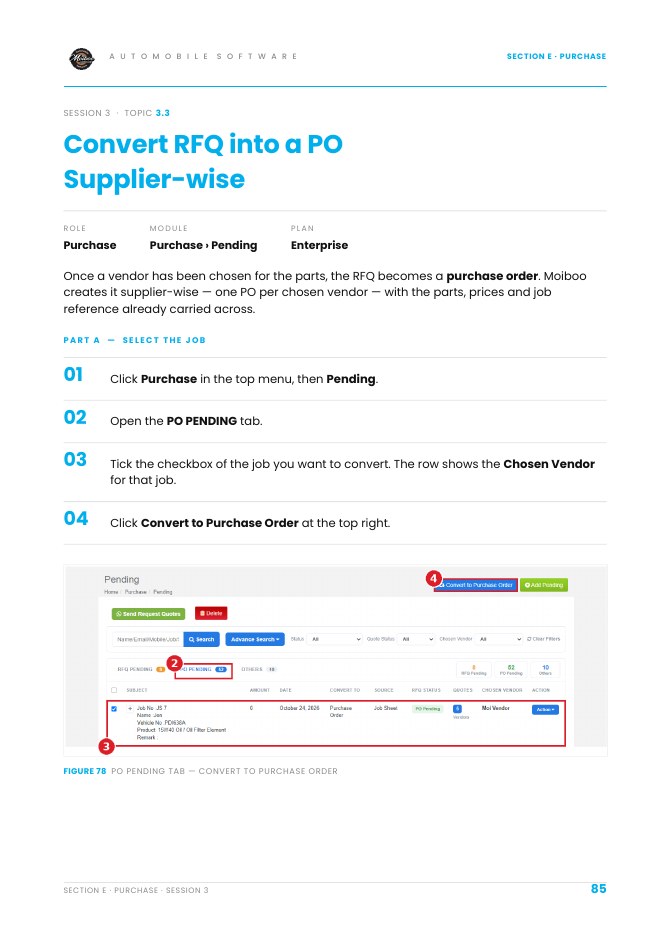
Click Purchase in the top menu, then Pending.
Open the PO PENDING tab.
Tick the checkbox of the job you want to convert. The row shows the Chosen Vendor for that job.
Click Convert to Purchase Order at the top right.
Complete and save the purchase order
Check the Vendor Name chosen for the job.
Select the App Exec.
Enter the Notes, for example Please deliver within 3 working days.
Enter the Delivery Address.
Enter the Terms & condition, and check the product line and Total.
Click Save to create the purchase order. Save and Create New, Save and SMS and Save and Email sit in the same bar.
Practise in a demo or training account with sample data. Everything you tick or type here is self-reported — this page doesn't connect to Moiboo and can't verify your work. Progress is saved in this browser only.
Your browser is blocking storage, so progress here won't be kept after you close the page.
SCENARIO
The brake pads quote from your demo vendor has been chosen. Convert it into a purchase order with a delivery note and terms, then save.
Before you start
A demo or training Moiboo account with access to Purchase › Pending.
A demo job with a chosen vendor showing on the PO PENDING tab.
Sample data
Job
Your demo job (e.g. JS 7)
Vendor
Your chosen demo vendor
Notes
Please deliver within 3 working days
Terms
Payment within 30 days of delivery
Delivery address
Your workshop address
Need help?
1. Can you open Purchase › Pending and switch to the PO PENDING tab? Click Purchase in the top menu, then Pending, then the PO PENDING tab.
2. Can you find the job and see its Chosen Vendor? The Chosen Vendor column shows the vendor picked for that job.
3. Can you tick the job's checkbox? The checkbox is at the start of the job's row.
4. Can you click Convert to Purchase Order? It is the button at the top right of the Pending page.
5. Can you check the Vendor Name and select the App Exec? Vendor Name is carried across from the chosen quote; App Exec is a drop-down.
6. Can you enter the Notes, Delivery Address and Terms & condition? Notes could be 'Please deliver within 3 working days'; terms could be payment within 30 days.
7. Can you check the product line and Total, then click Save? Save and Create New, Save and SMS and Save and Email sit in the same bar.
Expected result
A purchase order created for the chosen vendor with the job's parts, prices, your notes and terms.
Your result
Let's find where you got stuck
Saved here as Needs help — nothing is sent anywhere. Copy your question to share it with your trainer, then carry on with other modules and come back.
Click Purchase in the top menu, then Pending, then the PO PENDING tab.The Chosen Vendor column shows the vendor picked for that job.The checkbox is at the start of the job's row.It is the button at the top right of the Pending page.Vendor Name is carried across from the chosen quote; App Exec is a drop-down.Notes could be 'Please deliver within 3 working days'; terms could be payment within 30 days.Save and Create New, Save and SMS and Save and Email sit in the same bar.
Practice completeYou marked this practice complete on this browser. It's your own self-check.
Purchase · Topic 5.1
Record a Supplier Invoice Video tutorial
Text Guide
Record what a supplier bills the workshop — vendor, dates, products, tax and price — from Expense › Bill.
When
Use this when a supplier's invoice arrives. A purchase invoice records what a supplier bills the workshop — the date, the goods or services bought, quantities, prices, any discount or GST, and the total amount due.
Open a new bill
Hover over Expense in the top navigation bar and click Bill — the label, not the green +. The Bill page opens, listing each bill's Bill #, Vendor, Date, Amount, Paid, Pending and Status.
Click Add Bill at the top right. Import Bill beside it brings bills in from a file instead.
Practise in a demo or training account with sample data. Everything you tick or type here is self-reported — this page doesn't connect to Moiboo and can't verify your work. Progress is saved in this browser only.
Your browser is blocking storage, so progress here won't be kept after you close the page.
SCENARIO
ABC Suppliers delivered 4 brake pads at SGD 45.00 each. Their invoice is dated today and due in 30 days. Record the bill with GST.
Before you start
A demo or training Moiboo account with access to Expense › Bill.
A demo vendor and a demo product (create them if they don't exist).
Sample data
Vendor
ABC Suppliers (demo)
Date
Today
Due date
Today + 30 days
Product
Brake pad × 4
Price
SGD 45.00 each
Tax
GST (if set up)
Need help?
1. Can you open Expense › Bill? Hover over Expense in the top bar and click Bill — the label, not the green +.
2. Can you click Add Bill? It is at the top right of the Bill page. Import Bill beside it brings bills in from a file instead.
3. Can you select the vendor? Choose ABC Suppliers from the Vendor dropdown.
4. Can you set the Date and the Due Date? Date is the invoice date; Due Date is when payment is due — 30 days later here.
5. Can you add the product and quantity? Add a line for Brake pad and set the quantity to 4.
6. Can you choose the Tax and key in the price? Pick GST if it's set up, then key in 45.00 as the price.
7. Can you save the bill and find it in the list? Click Save — the bill shows in Expense › Bill.
Quick calculation
Expected result
A purchase bill for ABC Suppliers saved in Expense › Bill with 4 brake pads, the right due date and GST applied.
Your result
Let's find where you got stuck
Saved here as Needs help — nothing is sent anywhere. Copy your question to share it with your trainer, then carry on with other modules and come back.
Hover over Expense in the top bar and click Bill — the label, not the green +.It is at the top right of the Bill page. Import Bill beside it brings bills in from a file instead.Choose ABC Suppliers from the Vendor dropdown.Date is the invoice date; Due Date is when payment is due — 30 days later here.Add a line for Brake pad and set the quantity to 4.Pick GST if it's set up, then key in 45.00 as the price.Click Save — the bill shows in Expense › Bill.
Practice completeYou marked this practice complete on this browser. It's your own self-check.
Record money going out on Expense › Payment — payment against a bill, a direct payment, or an advance against expense.
Open Payment
Money going out of the workshop is recorded on the Payment page. There are three payment types, each covered below — Payment against bill, Direct payment and For advances against expense.
Hover over Expense in the top navigation bar. The dropdown lists Purchase Indent, Purchase Order, Bill, Payment, Debit Note and Reminders.
Click Payment — the label itself, not the green + — to open the Payment list.
The list shows Payment #, Date, Bank, Vendor / Category, Amount, Notes and Action. To find a payment, enter the prefix, payment number or suffix and click Search, or use Advance Search.
Click the green Add Payment button. The Create Payment page opens — choose the Payment Type there.
Payment Method: how the payment is made, for example Cheque. Enter the Ref No, for example REF-1001.
Payment No is pre-filled — leave it. Date is pre-filled with today’s date; change it from the calendar if required.
For a cheque payment, enter the Cheque No and Cheque Date. Leave both blank for other methods.
Vendor: the vendor being paid, for example ABC Suppliers. The blue + adds a new vendor.
Payment Mode: the bank the payment is made from, for example Main Bank. The blue + adds a bank. Mandatory.
Amount: the amount paid, for example 500.00. Mandatory.
Notes: for example Payment for supplier bill.
Attach Documents: click Choose file to attach a supporting file (jpg, png, gif, txt, xls, doc or xlsx, maximum 2M). Add new attaches another.
Finish with Save. Save and Print, Save and Email, Save and Whatsapp and Save and Create New save and then print, send or open a new payment. Cancel leaves without saving.
Practise in a demo or training account with sample data. Everything you tick or type here is self-reported — this page doesn't connect to Moiboo and can't verify your work. Progress is saved in this browser only.
Your browser is blocking storage, so progress here won't be kept after you close the page.
SCENARIO
Today you pay ABC Suppliers’ bill by cheque, pay a taxi fare in cash, and give ABC Travel Agency a cash advance for a trip.
Before you start
A demo or training Moiboo account with access to Expense › Payment.
Demo vendors (or use the blue + to add them).
A bank and a cash account set up as Payment Modes.
Sample data
Against bill
ABC Suppliers · Cheque · REF-1001 · 500.00
Direct
City Taxi Services · Cash · Travelling Expenses · 100.00
Advance
ABC Travel Agency · Cash · REF-1003 · 300.00
Need help?
1. Can you open Expense › Payment and click Add Payment? Hover over Expense, click the Payment label (not the green +), then click the green Add Payment button.
2. Can you record a payment against a bill? Payment Type: Payment against bill. Fill Payment Method, Ref No, Vendor, Payment Mode and Amount, then Save.
3. Can you fill the Cheque No and Cheque Date for a cheque payment? When Payment Method is Cheque, enter both. Leave them blank for other methods.
4. Can you record a direct payment with an expense account line? Payment Type: Direct Payment. In the lines, select the Account (e.g. Travelling Expenses) and enter the Price.
5. Can you add tax and another line to a direct payment? Select the Tax and enter the Tax Amount. Click Add a line (F4) for another line.
6. Can you record an advance against expense? Payment Type: For Advances against Expense. Fill Vendor, Payment Mode and Amount, then Save.
7. Can you attach a supporting document to a payment? Under Attach Documents click Choose file (maximum 2M).
8. Can you find your payments in the Payment list? Enter the payment number and click Search, or use Advance Search.
Expected result
Three saved payments in the Payment list — one against a bill, one direct payment to Travelling Expenses and one advance — each with the right vendor, payment mode and amount.
Your result
Let's find where you got stuck
Saved here as Needs help — nothing is sent anywhere. Copy your question to share it with your trainer, then carry on with other modules and come back.
Hover over Expense, click the Payment label (not the green +), then click the green Add Payment button.Payment Type: Payment against bill. Fill Payment Method, Ref No, Vendor, Payment Mode and Amount, then Save.When Payment Method is Cheque, enter both. Leave them blank for other methods.Payment Type: Direct Payment. In the lines, select the Account (e.g. Travelling Expenses) and enter the Price.Select the Tax and enter the Tax Amount. Click Add a line (F4) for another line.Payment Type: For Advances against Expense. Fill Vendor, Payment Mode and Amount, then Save.Under Attach Documents click Choose file (maximum 2M).Enter the payment number and click Search, or use Advance Search.
Practice completeYou marked this practice complete on this browser. It's your own self-check.
Accountant / Admin · Topic 4A.1
Create an Invoice Video tutorial
Text Guide
Convert a completed job card into an invoice — customer, lines and vehicle come across automatically — then check it and save.
Convert the job card
An invoice is an itemized list that records the products or services supplied to the customer, the total amount due, and how they can pay. Once the job is completed, the invoice is created from the job card itself — nothing is keyed in twice.
Go to Job Sheet under Job Card.
Click the COMPLETED tab.
Find the customer’s job card, click Action and select Convert to Invoice.
Check the invoice & save
Moiboo fetches the customer’s details from the job card automatically — name, address, phone and customer reference.
Add the Invoice date, and check Invoice #, Due Date and Terms of Payment.
The product lines come across from the job card too — quantity, units, price and taxes. Amend any line if it needs to change, or click Add a line (F1) for an extra one.
The vehicle information is shown under Other Details.
Click Save to finish. Save and Create New, Save and Whatsapp, Save and Email, Save and Print and Send to Prepaid sit in the same bar.
The saved invoice
The invoice is now saved and ready to go to the customer. It can be printed, emailed or sent on WhatsApp — the next module covers each of those.
Under the Income tab select Invoice, tick the customer’s invoice and click Action. The menu carries everything that can be done to it — View Invoice, PDF Invoice, Mail Invoice, Print Invoice, Update Invoice, Cancel Invoice, Delete Invoice, Add Receipt, Match Receipt / Credit Note, Duplicate Invoice, Whatsapp Invoice and Download Attachments.
Practise in a demo or training account with sample data. Everything you tick or type here is self-reported — this page doesn't connect to Moiboo and can't verify your work. Progress is saved in this browser only.
Your browser is blocking storage, so progress here won't be kept after you close the page.
SCENARIO
A sample customer’s job is finished and they are at the counter to collect the car. Turn their completed job card into an invoice.
Before you start
A demo or training Moiboo account with access to Job Card and Income › Invoice.
A demo job card on the COMPLETED tab (complete one if there isn’t any).
Sample data
Job card
Any demo job on COMPLETED
Customer
Test Customer A
Invoice date
Today
Terms of Payment
Any option in the list
Extra line
Optional — Add a line (F1)
Need help?
1. Can you open the COMPLETED tab under Job Card › Job Sheet? Go to Job Card › Job Sheet and click the COMPLETED tab.
2. Can you convert the job card to an invoice? On the customer’s job card click Action and select Convert to Invoice.
3. Can you check that the customer’s details came across from the job card? Name, address, phone and customer reference are filled in automatically at the top of the invoice.
4. Can you add the Invoice date and check Invoice #, Due Date and Terms of Payment? All four sit in the invoice header — set the date and check the other three.
5. Can you check or amend the product lines? The lines come from the job card. Change qty, price or tax if needed, or click Add a line (F1) for an extra line.
6. Can you find the vehicle information? It is shown under Other Details.
7. Can you save the invoice? Click Save in the bottom bar.
8. Can you find the saved invoice and open its Action menu? Go to Income › Invoice, tick the invoice and click Action.
Expected result
A saved invoice for the completed job, with the customer, lines and vehicle taken from the job card, listed under Income › Invoice.
Your result
Let's find where you got stuck
Saved here as Needs help — nothing is sent anywhere. Copy your question to share it with your trainer, then carry on with other modules and come back.
Go to Job Card › Job Sheet and click the COMPLETED tab.On the customer’s job card click Action and select Convert to Invoice.Name, address, phone and customer reference are filled in automatically at the top of the invoice.All four sit in the invoice header — set the date and check the other three.The lines come from the job card. Change qty, price or tax if needed, or click Add a line (F1) for an extra line.It is shown under Other Details.Click Save in the bottom bar.Go to Income › Invoice, tick the invoice and click Action.
Practice completeYou marked this practice complete on this browser. It's your own self-check.
Practise in a demo or training account with sample data. Everything you tick or type here is self-reported — this page doesn't connect to Moiboo and can't verify your work. Progress is saved in this browser only.
Your browser is blocking storage, so progress here won't be kept after you close the page.
SCENARIO
Test Customer A wants a printed copy at the counter, the invoice on WhatsApp and a copy by email for their records.
Before you start
The invoice you created in Module 1 (or any demo invoice).
Your own mobile number to receive the test WhatsApp message.
Your own email address to receive the test email.
Sample data
Invoice
Your invoice from Module 1
WhatsApp to
Your own test number
Mail To
Your own email
Subject
Invoice for your service
Need help?
1. Can you select an invoice and open the Action menu? On the Invoice page, tick the invoice and click Action.
2. Can you print the invoice? From the Action menu, click Print Invoice.
3. Can you save the invoice as a PDF? From the Action menu, click PDF Invoice.
4. Can you send the invoice on WhatsApp? Click Whatsapp Invoice. Check the country code and mobile number (use your own test number), edit the Message if needed, then click Send.
5. Can you email the invoice? Click Mail Invoice. In Send document fill Mail To, Subject and Message, then click Send.
6. Can you add a CC, BCC or an extra attachment to the email? In Send document, fill BCC or Mail Cc and use Attachment before you click Send.
Expected result
The invoice printed or saved as a PDF, a WhatsApp message with the invoice on your test phone, and the invoice email in your test inbox.
Your result
Let's find where you got stuck
Saved here as Needs help — nothing is sent anywhere. Copy your question to share it with your trainer, then carry on with other modules and come back.
On the Invoice page, tick the invoice and click Action.From the Action menu, click Print Invoice.From the Action menu, click PDF Invoice.Click Whatsapp Invoice. Check the country code and mobile number (use your own test number), edit the Message if needed, then click Send.Click Mail Invoice. In Send document fill Mail To, Subject and Message, then click Send.In Send document, fill BCC or Mail Cc and use Attachment before you click Send.
Practice completeYou marked this practice complete on this browser. It's your own self-check.
Practise in a demo or training account with sample data. Everything you tick or type here is self-reported — this page doesn't connect to Moiboo and can't verify your work. Progress is saved in this browser only.
Your browser is blocking storage, so progress here won't be kept after you close the page.
SCENARIO
Test Customer A pays their invoice in full by bank transfer and sends you a screenshot of the transfer as proof.
Before you start
An unpaid demo invoice (for example the one from Module 1).
A sample image to use as the proof of payment.
Sample data
Settings Type
Inv Receipt
Date
Today
Payment Method
Bank transfer (or any listed)
Ref No
TEST-REF-001
Amount
The invoice total
Proof
Any sample image
Need help?
1. Can you open Add Receipt from the invoice's Action menu? On the Invoice page, tick the invoice, click Action and select Add Receipt.
2. Can you choose the Settings Type and Date? In Create Receipt, choose the Settings Type (for example Inv Receipt) and set the Date.
3. Can you choose the Payment Method and fill the Ref No and Receipt No? All three are in the payment details section of Create Receipt.
4. Can you enter the Amount and pick the Receipt Mode? Type the amount received, then choose the Receipt Mode from its list.
5. Can you attach a proof of payment? Click Attach Documents and upload the screenshot or photo of the payment.
6. Can you add notes and save the receipt? Type any Notes at the bottom, then click Save.
Expected result
A saved receipt against the invoice with the amount, receipt mode, ref no and proof attached.
Your result
Let's find where you got stuck
Saved here as Needs help — nothing is sent anywhere. Copy your question to share it with your trainer, then carry on with other modules and come back.
On the Invoice page, tick the invoice, click Action and select Add Receipt.In Create Receipt, choose the Settings Type (for example Inv Receipt) and set the Date.All three are in the payment details section of Create Receipt.Type the amount received, then choose the Receipt Mode from its list.Click Attach Documents and upload the screenshot or photo of the payment.Type any Notes at the bottom, then click Save.
Practice completeYou marked this practice complete on this browser. It's your own self-check.
Accountant / Admin · Topic 4A.4
View Receivables Video tutorial
Text Guide
Use the Overdue Invoice report to see every open invoice — amount, paid, pending and how many days past due.
Open the Overdue Invoice report
Go to Reports.
Under Invoice Reports, click Overdue Invoice.
Set the filters — date range, customer, user, executive, customer type and sort order — then click Search. The list shows Amount, Paid, Pending and Due Days Crossed for every open invoice.
Practise in a demo or training account with sample data. Everything you tick or type here is self-reported — this page doesn't connect to Moiboo and can't verify your work. Progress is saved in this browser only.
Your browser is blocking storage, so progress here won't be kept after you close the page.
SCENARIO
Your manager asks which customers still have unpaid invoices this month, and how many days overdue each one is.
Before you start
A few demo invoices, some unpaid or part-paid.
Access to Reports in your demo account.
Sample data
Report
Overdue Invoice
Date range
This month
Customer
All, then Test Customer A
Sort order
Any option in the list
Need help?
1. Can you open Overdue Invoice under Invoice Reports? Go to Reports. Under Invoice Reports, click Overdue Invoice.
2. Can you set a date range and click Search? Set the date range in the filters, then click Search.
3. Can you filter the report by one customer? Pick the customer in the customer filter and click Search again.
4. Can you filter by user, executive or customer type? Use the other filters next to the date range, then click Search.
5. Can you change the sort order? Choose a different sort order in the filters and click Search.
6. Can you read the Amount, Paid, Pending and Due Days Crossed for an invoice? Each row in the list shows these columns for one open invoice.
Expected result
The Overdue Invoice report listing every open invoice in your date range, with Amount, Paid, Pending and Due Days Crossed.
Your result
Let's find where you got stuck
Saved here as Needs help — nothing is sent anywhere. Copy your question to share it with your trainer, then carry on with other modules and come back.
Go to Reports. Under Invoice Reports, click Overdue Invoice.Set the date range in the filters, then click Search.Pick the customer in the customer filter and click Search again.Use the other filters next to the date range, then click Search.Choose a different sort order in the filters and click Search.Each row in the list shows these columns for one open invoice.
Practice completeYou marked this practice complete on this browser. It's your own self-check.
Accountant / Admin · Topic 4A.5
Sending Statement of Accounts Video tutorial
Text Guide
Open the customer’s ledger from Reports › Customer Ledger, read every transaction, then print or download the Statement of Account to send.
Open the Customer Ledger
A Statement of Accounts is the customer’s full history on one sheet — every invoice, credit note and receipt, with a running balance. It is what to send when a customer asks what they still owe.
Click on Reports.
Under Income Reports, click Customer Ledger — see all customers (summary and details).
Find the customer
On List of Ledgers, click Advance Search.
Enter the Customer Name in the search box.
Enter the Date Range the statement should cover.
Click Search. The customer’s ledger line appears with the Debit and Credit totals — click the ledger name to open it.
Read it, then send it
All the details of the customer are displayed — Sales Invoice, Credit Note, Receipt and Journal — each row showing Date, Reference, Description, Chassis / Car Plate No, Vch Type, Debit Amount and Credit Amount.
Click the Print icon to view the customer’s Statement of Account. It can also be downloaded in PDF and Excel formats, and sent to the customer from there.
Practise in a demo or training account with sample data. Everything you tick or type here is self-reported — this page doesn't connect to Moiboo and can't verify your work. Progress is saved in this browser only.
Your browser is blocking storage, so progress here won't be kept after you close the page.
SCENARIO
Test Customer A asks for a statement of everything on their account this year before they make a payment.
Before you start
A demo customer with at least one invoice, receipt or credit note.
Access to Reports › Customer Ledger in your demo account.
Sample data
Report
Customer Ledger
Customer
Test Customer A
Date Range
1 Jan to today
Send as
PDF (and Excel)
Need help?
1. Can you open Customer Ledger under Income Reports? Click Reports. Under Income Reports, click Customer Ledger.
2. Can you open Advance Search on List of Ledgers? Click Advance Search at the top of List of Ledgers.
3. Can you search by Customer Name and Date Range? Enter the customer name and the date range, then click Search.
4. Can you open the customer’s ledger? Click the ledger name on the line that appears with the Debit and Credit totals.
5. Can you read each transaction — invoice, credit note, receipt and journal? Each row shows Date, Reference, Description, Chassis / Car Plate No, Vch Type, Debit and Credit Amount.
6. Can you open the Statement of Account? Click the Print icon on the customer’s ledger.
7. Can you download the statement as PDF or Excel? From the Statement of Account, use the PDF or Excel download, then send it to the customer.
Expected result
A Statement of Account for Test Customer A covering your date range, downloaded as a PDF (and Excel), ready to send.
Your result
Let's find where you got stuck
Saved here as Needs help — nothing is sent anywhere. Copy your question to share it with your trainer, then carry on with other modules and come back.
Click Reports. Under Income Reports, click Customer Ledger.Click Advance Search at the top of List of Ledgers.Enter the customer name and the date range, then click Search.Click the ledger name on the line that appears with the Debit and Credit totals.Each row shows Date, Reference, Description, Chassis / Car Plate No, Vch Type, Debit and Credit Amount.Click the Print icon on the customer’s ledger.From the Statement of Account, use the PDF or Excel download, then send it to the customer.
Practice completeYou marked this practice complete on this browser. It's your own self-check.
Accountant / Admin · Topic 4B.1
Adding Expenses Video tutorial
Text Guide
Record a supplier’s bill as a purchase invoice — vendor, bill details, line items, tax and the bill attached.
Open Purchase Invoice
Go to Purchase and click Purchase Invoice.
On the Purchase Invoice page, click Add Purchase Invoice.
Fill the purchase invoice
Select the Vendor and fill Vendor Bill No #, PO Date, Notes, Currency, Cost Centre, Pricelist, Bill #, Date, Due Date, Terms Of Payment and Terms.
Add the lines — Product, Description, Qty, Units, Price, Discount and Tax. Click Add a line (F4) for another row. Subtotal, GST and Total update as you go.
Attach documents if needed, then click Save. Save and Create New, Save and Email and Save and SMS are in the same bar.
Practise in a demo or training account with sample data. Everything you tick or type here is self-reported — this page doesn't connect to Moiboo and can't verify your work. Progress is saved in this browser only.
Your browser is blocking storage, so progress here won't be kept after you close the page.
SCENARIO
A sample vendor has billed the workshop for 2 litres of coolant and one box of cleaning rags. Record the bill as a purchase invoice.
Before you start
A demo or training Moiboo account with access to Purchase.
A demo vendor (create one if it doesn't exist).
A photo or PDF to use as the vendor's bill.
Sample data
Vendor
Test Vendor A
Vendor Bill No #
TEST-BILL-001
Line 1
Coolant · Qty 2
Line 2
Cleaning rags · Qty 1
Tax
Your default GST
Attachment
Photo of the bill
Need help?
1. Can you open Purchase › Purchase Invoice and click Add Purchase Invoice? Go to Purchase, click Purchase Invoice, then click Add Purchase Invoice.
2. Can you select the vendor and fill the Vendor Bill No #? Select the Vendor at the top, then type the bill number from the vendor's bill in Vendor Bill No #.
3. Can you set the Currency, Cost Centre, Pricelist, dates and Terms Of Payment? All of these sit in the header of the purchase invoice, next to the vendor details.
4. Can you add a line with product, qty, price and tax? In the lines table fill Product, Description, Qty, Units, Price, Discount and Tax.
5. Can you add another line with Add a line (F4)? Click Add a line (F4) — or press F4 — to add the next row.
6. Can you check the Subtotal, GST and Total? They update below the lines as you add each row.
7. Can you attach the vendor's bill and save? Use the attach documents section, then click Save.
Expected result
A saved purchase invoice for Test Vendor A with two lines, tax applied, the totals correct and the vendor's bill attached.
Your result
Let's find where you got stuck
Saved here as Needs help — nothing is sent anywhere. Copy your question to share it with your trainer, then carry on with other modules and come back.
Go to Purchase, click Purchase Invoice, then click Add Purchase Invoice.Select the Vendor at the top, then type the bill number from the vendor's bill in Vendor Bill No #.All of these sit in the header of the purchase invoice, next to the vendor details.In the lines table fill Product, Description, Qty, Units, Price, Discount and Tax.Click Add a line (F4) — or press F4 — to add the next row.They update below the lines as you add each row.Use the attach documents section, then click Save.
Practice completeYou marked this practice complete on this browser. It's your own self-check.
Raise a credit note for a customer against an invoice — customer, template, invoice reference and the lines being credited.
Open Credit Note
Go to Invoice and click Credit Note.
On the Credit Note page, click Add Credit Note.
Fill the credit note
Select the Customer Name — the address and any outstanding Debit appear below. Fill Executive, Notes, Cost Centre, Currency, Creditnote Template, Pricelist, Credit Note #, Date, Invoice Number and Invoice Date.
Add the lines — Product, Description, Qty, Units, Price, Discount and Tax — then click Save.
Practise in a demo or training account with sample data. Everything you tick or type here is self-reported — this page doesn't connect to Moiboo and can't verify your work. Progress is saved in this browser only.
Your browser is blocking storage, so progress here won't be kept after you close the page.
SCENARIO
Test Customer A was charged for one extra litre of engine oil on their invoice. Raise a credit note for it against that invoice.
Before you start
A demo invoice for the customer (for example the one from Module 1).
The invoice number and invoice date to hand.
Sample data
Customer
Test Customer A
Invoice Number
Your invoice from Module 1
Line
Engine oil · Qty 1
Notes
Extra oil charged by mistake
Need help?
1. Can you open Invoice › Credit Note and click Add Credit Note? Go to Invoice, click Credit Note, then click Add Credit Note.
2. Can you select the customer and see their address and outstanding debit? Select the Customer Name — the address and any outstanding Debit appear just below it.
3. Can you fill Executive, Cost Centre, Currency, Creditnote Template and Pricelist? Pick each one from its dropdown in the credit note header.
4. Can you link the credit note to the original invoice? Fill the Invoice Number and Invoice Date of the invoice you are crediting.
5. Can you add the line for the item being credited? Fill Product, Description, Qty, Units, Price, Discount and Tax for the item.
6. Can you save the credit note? Click Save in the bottom bar.
Expected result
A saved credit note for Test Customer A linked to the original invoice, crediting one litre of engine oil.
Your result
Let's find where you got stuck
Saved here as Needs help — nothing is sent anywhere. Copy your question to share it with your trainer, then carry on with other modules and come back.
Go to Invoice, click Credit Note, then click Add Credit Note.Select the Customer Name — the address and any outstanding Debit appear just below it.Pick each one from its dropdown in the credit note header.Fill the Invoice Number and Invoice Date of the invoice you are crediting.Fill Product, Description, Qty, Units, Price, Discount and Tax for the item.Click Save in the bottom bar.
Practice completeYou marked this practice complete on this browser. It's your own self-check.
Practise in a demo or training account with sample data. Everything you tick or type here is self-reported — this page doesn't connect to Moiboo and can't verify your work. Progress is saved in this browser only.
Your browser is blocking storage, so progress here won't be kept after you close the page.
SCENARIO
You are returning one damaged brake pad set to Test Vendor A. Raise a debit note against their bill.
Before you start
A demo purchase invoice from the vendor (for example the one from Create Purchase Invoice).
The vendor's bill number and bill date to hand.
Sample data
Vendor
Test Vendor A
Bill Number
Your bill from Create Purchase Invoice
Line
Brake pad set · Qty 1
Notes
Damaged on arrival — returned
Need help?
1. Can you open Purchase › Debit Note and click Add Debit Note? Go to Purchase, click Debit Note, then click Add Debit Note.
2. Can you select the Vendor Name and add a note? Select the Vendor Name at the top, then type the reason in Notes.
3. Can you fill Cost Centre, Currency and Pricelist? Pick each one from its dropdown in the debit note header.
4. Can you link the debit note to the vendor's bill? Fill the DebitNote #, Date, Bill Number and Bill Date.
5. Can you add the line for the item being returned? Fill Product, Description, Qty, Units, Price, Discount and Tax for the item.
6. Can you save the debit note? Click Save in the bottom bar.
Expected result
A saved debit note to Test Vendor A linked to their bill, for one brake pad set.
Your result
Let's find where you got stuck
Saved here as Needs help — nothing is sent anywhere. Copy your question to share it with your trainer, then carry on with other modules and come back.
Go to Purchase, click Debit Note, then click Add Debit Note.Select the Vendor Name at the top, then type the reason in Notes.Pick each one from its dropdown in the debit note header.Fill the DebitNote #, Date, Bill Number and Bill Date.Fill Product, Description, Qty, Units, Price, Discount and Tax for the item.Click Save in the bottom bar.
Practice completeYou marked this practice complete on this browser. It's your own self-check.
Role: Accountant / AdminModule: Reports › Bank ReconciliationPlan: Enterprise
Moiboo Academy
Accountant / Admin · Topic 4C.1
Preparing BRS Video tutorial
Text Guide
Reconcile a bank account in Reports › Bank Reconciliation — match Moiboo’s transactions to the bank’s, then read and save the report.
Open the Bank Reconciliation Report
A bank reconciliation report compares the workshop’s own records with the records the bank holds. It identifies any discrepancy between the two — outstanding cheques, deposits in transit, bank fees or errors — so the books reflect the real financial position.
Click on Reports.
Under Accounting Reports, click Bank Reconciliation Report.
Choose the bank account
From Bank Accounts Ledger Account, choose the account you want to reconcile — for example OCBC.
Match the transactions
Choose the date of transactions in the Transaction Date Range, or use the Bank Date Range instead.
Match the actual bank transactions against the transactions recorded in Moiboo. Go through each one and tick it as reconciled where they agree.
Enter the Bank Date against each matched transaction.
Click Reconcile Report.
Read the reconciliation report
Once all transactions are reconciled, the report shows the matched transactions, the outstanding ones and any discrepancy.
Balance in Books of Accounts — the balance as per Moiboo.
The unreconciled lines, which are not yet reflected in the bank statement: Add: Cheque issued but not presented. Less: Cheque deposited but not cleared.
Balance as per Bank Statement — what the bank says. With the two ends agreeing, the account is reconciled.
Save the report for your records, or use Print, PDF or Excel if a copy is needed.
Practise in a demo or training account with sample data. Everything you tick or type here is self-reported — this page doesn't connect to Moiboo and can't verify your work. Progress is saved in this browser only.
Your browser is blocking storage, so progress here won't be kept after you close the page.
SCENARIO
Last month’s bank statement for the workshop’s main account has arrived. Reconcile it against Moiboo.
Before you start
A demo bank account with a few payments and receipts recorded in Moiboo.
A sample bank statement for the same period (printed or on screen).
Sample data
Report
Bank Reconciliation Report
Bank account
Your demo bank (e.g. OCBC)
Date range
Last month
Copy
PDF
Need help?
1. Can you open Bank Reconciliation Report under Accounting Reports? Click Reports. Under Accounting Reports, click Bank Reconciliation Report.
2. Can you choose the bank account to reconcile? Pick it from Bank Accounts Ledger Account.
3. Can you set the Transaction Date Range or Bank Date Range? Choose the date range at the top of the report.
4. Can you tick each transaction that matches the bank statement? Go through each line and tick it as reconciled where Moiboo and the bank agree.
5. Can you enter the Bank Date for each matched transaction? Type the date the transaction cleared at the bank against each ticked line.
6. Can you run Reconcile Report? Click Reconcile Report once the matching is done.
7. Can you read the Balance in Books, the unreconciled lines and the Balance as per Bank Statement? Books balance at the top, then Add: cheques issued not presented and Less: cheques deposited not cleared, then the bank balance.
8. Can you save the report or download it as PDF or Excel? Save it, or use Print, PDF or Excel.
Expected result
A reconciliation report for the demo bank account where the Balance in Books, adjusted for the unreconciled cheques, agrees with the Balance as per Bank Statement.
Your result
Let's find where you got stuck
Saved here as Needs help — nothing is sent anywhere. Copy your question to share it with your trainer, then carry on with other modules and come back.
Click Reports. Under Accounting Reports, click Bank Reconciliation Report.Pick it from Bank Accounts Ledger Account.Choose the date range at the top of the report.Go through each line and tick it as reconciled where Moiboo and the bank agree.Type the date the transaction cleared at the bank against each ticked line.Click Reconcile Report once the matching is done.Books balance at the top, then Add: cheques issued not presented and Less: cheques deposited not cleared, then the bank balance.Save it, or use Print, PDF or Excel.
Practice completeYou marked this practice complete on this browser. It's your own self-check.
Prepare GST Form 5 from Reports › Tax Reports — pick the period, let Moiboo pull the figures, check boxes 1–8 and save.
Open GST Form 5
Goods and Services Tax (GST) is a broad-based consumption tax levied on the import of goods — collected by Singapore Customs — as well as on nearly all supplies of goods and services in Singapore. GST Form 5 is the document holding the GST details a business must file with the tax authorities: sales, purchases, GST charged on sales and GST paid on purchases. Filing it is compulsory under GST regulations.
Click on Reports.
Scroll to Tax Reports and click GST FORM-5 — see the total GST on purchase, GST on sales. (GST FORM-5 SUMMARY below it gives the same report by tax code.)
Add the GST form
On the GST Forms page, click Add GST Form.
Select the From Period and the To Period the return covers — for example 01/2023 to 07/2023.
Click Search. Moiboo pulls the figures for that period into the form.
Supplies — Boxes 1 to 4
The form is laid out in three blocks — Supplies, Purchases and Taxes. Check each box against your own records before filing.
Box 1 — Total value of standard-rated supplies. The value of the supplies (sales) which are subject to GST at the standard rate of 8%. The value entered here should not include the GST amount charged.
Box 2 — Total value of zero-rated supplies. Supplies of international services as listed in section 21(3) of the GST Act.
Box 3 — Total value of exempt supplies. A GST group can calculate its total value of exempt supplies for a prescribed accounting period by summing the value of each type of exempt supply.
Box 4 — Total value of (1) + (2) + (3). The total supplies made for the accounting period. It is computed automatically once boxes 1, 2 and 3 are filled.
Purchases, taxes & save
Box 5 — Total value of taxable purchases. Standard-rated purchases (including imports) for which the GST incurred can be claimed, and zero-rated purchases. The value entered should exclude any GST amount.
Box 6 — Output tax due. The GST you have charged on your standard-rated supplies.
Box 7 — Less: input tax and refunds claimed. The GST incurred on your purchases, subject to the conditions for claiming input tax.
Box 8 — Equals: Net GST to be paid to IRAS. The difference between box 6 and box 7, computed automatically once both are filled.
Box 13 · Revenue is not the same as Box 4The value of revenue earned is taken from the revenue items — for example sales — in your profit & loss accounts, audited or not. Because that value is based on your accounting treatment, it may differ from the amount declared in Box 4, which is total supplies on a GST basis. Report revenue figures for the prescribed accounting period the GST return covers.
Save
Check every box against your own records, then click Save.
Practise in a demo or training account with sample data. Everything you tick or type here is self-reported — this page doesn't connect to Moiboo and can't verify your work. Progress is saved in this browser only.
Your browser is blocking storage, so progress here won't be kept after you close the page.
SCENARIO
The quarter has closed. Prepare the workshop’s GST Form 5 for the period and check every box before it is filed.
Before you start
A demo account with some sales and purchase invoices that carry GST.
Your own sales and purchase totals for the same period to check against.
Sample data
Report
Tax Reports › GST FORM-5
From Period
01/2023
To Period
07/2023
Check
Boxes 1–8
Need help?
1. Can you open GST FORM-5 under Tax Reports? Click Reports, scroll to Tax Reports and click GST FORM-5.
2. Can you click Add GST Form? On the GST Forms page, click Add GST Form.
3. Can you select the From Period and To Period and click Search? Pick both periods, then click Search — Moiboo pulls the figures in.
4. Can you check Boxes 1 to 4 (supplies)? Box 1 standard-rated, Box 2 zero-rated, Box 3 exempt, Box 4 their total (automatic).
5. Can you check Box 5 (taxable purchases)? Standard-rated and zero-rated purchases, excluding GST.
6. Can you check Boxes 6, 7 and 8 (taxes)? Box 6 output tax, Box 7 input tax claimed, Box 8 the net GST to pay (automatic).
7. Can you save the GST form? Check every box against your records, then click Save.
Expected result
A saved GST Form 5 for your period, with Box 4 = Box 1 + 2 + 3 and Box 8 = Box 6 − Box 7, matching your own records.
Your result
Let's find where you got stuck
Saved here as Needs help — nothing is sent anywhere. Copy your question to share it with your trainer, then carry on with other modules and come back.
Click Reports, scroll to Tax Reports and click GST FORM-5.On the GST Forms page, click Add GST Form.Pick both periods, then click Search — Moiboo pulls the figures in.Box 1 standard-rated, Box 2 zero-rated, Box 3 exempt, Box 4 their total (automatic).Standard-rated and zero-rated purchases, excluding GST.Box 6 output tax, Box 7 input tax claimed, Box 8 the net GST to pay (automatic).Check every box against your records, then click Save.
Practice completeYou marked this practice complete on this browser. It's your own self-check.
Role: ManagementModule: Dashboard › Service Advisor DashboardPlan: Enterprise
Moiboo Academy
Management · Topic 3.1
Reviewing Dashboard Video tutorial
Text Guide
Read the Service Advisor Dashboard — summary cards, live job and mechanic boards, utilisation, deliveries, feedback, top services and quick actions.
When
Use this every day — and in weekly reviews — to see the workshop's load, bottlenecks and performance at a glance.
Open the dashboard
Go to Dashboard › Service Advisor Dashboard. It gives service advisors and workshop managers a real-time view of daily operations, job statuses, technician workloads and key metrics.
Read the top summary cards right below the header.
Part 1 · Top summary cards
Today's Appointments
Appointments scheduled for the day, including upcoming ones.
Jobs Created (MTD)
Jobs opened this month, with growth against last month.
Jobs In Progress
The number of active jobs being worked on.
Jobs Completed (MTD)
Jobs finished this month, compared with last month.
Pending Approvals
Jobs waiting for estimate approval from customers or managers.
Part 2A · Live Job Dashboard — where every active job is
Check-in
Vehicles checked in and waiting for diagnosis.
Diagnosis / Estimate
Vehicles under inspection or estimate creation.
Waiting for Approval
Estimates sent and awaiting customer sign-off.
In Progress
Jobs actively being worked on by mechanics.
QC / Final Check
Completed repairs under quality control.
Ready for Delivery
Vehicles cleared and waiting for pickup.
Parts 2B – 3C · Mechanics & performance
Live Mechanic Dashboard
Each mechanic's active jobs, with a breakdown across Jobs Assigned, In Progress, Awaiting QC and Ready to Deliver.
Mechanic Utilization
Average Utilization Rate (%) — share of available hours spent on billable labour — with total mechanics, billable hours and available hours, plus a Technician Performance link.
Timely Job Deliveries (MTD)
On Time (%) for jobs delivered by the estimated deadline, and Delayed / Breached (%) for jobs past it.
Feedback by Technician (MTD)
Jobs Completed, Average Rating (out of 5) and the Trend (up, down or neutral) for each mechanic.
Top 5 Services (By Revenue)
The month's top revenue-earning services — for example General Service, Engine Repair, Brake Service, AC Service and Electrical Repair.
Part 4 · Quick Actions toolbar (bottom of the dashboard)
+ New Job Card
Create a job card for a walk-in or appointment.
Create Estimate
Draft a cost estimate for parts and labour.
Approve Estimate
Process customer estimate approvals.
Customer Lookup
Search customer history and vehicle details.
Appointment Booking
Schedule a new service appointment.
Follow-up List
View pending customer follow-ups and communications.
Practise in a demo or training account with sample data. Everything you tick or type here is self-reported — this page doesn't connect to Moiboo and can't verify your work. Progress is saved in this browser only.
Your browser is blocking storage, so progress here won't be kept after you close the page.
SCENARIO
It's 9 a.m. Before the daily huddle, check the dashboard and note three things: how many jobs are waiting for approval, which stage has the most vehicles, and which technician has the lowest average rating this month.
Before you start
A demo or training Moiboo account with access to Dashboard › Service Advisor Dashboard.
Some demo job cards and feedback, so the widgets have data.
Sample data
Menu
Dashboard › Service Advisor Dashboard
Note 1
Pending Approvals
Note 2
Busiest stage in Live Job Dashboard
Note 3
Lowest Average Rating (MTD)
Need help?
1. Can you open the Service Advisor Dashboard? Dashboard in the top bar, then Service Advisor Dashboard.
2. Can you read Today's Appointments and Pending Approvals? They're in the top summary cards.
3. Can you compare Jobs Created and Jobs Completed (MTD) with last month? Each card shows the change against last month.
4. Can you find the stage with the most vehicles in the Live Job Dashboard? Compare Check-in, Diagnosis / Estimate, Waiting for Approval, In Progress, QC / Final Check and Ready for Delivery.
5. Can you see each mechanic's workload? The Live Mechanic Dashboard shows Jobs Assigned, In Progress, Awaiting QC and Ready to Deliver per mechanic.
6. Can you read the Average Utilization Rate? It's in the Mechanic Utilization widget.
7. Can you read On Time % and Delayed / Breached %? They're in Timely Job Deliveries (MTD).
8. Can you find the technician with the lowest Average Rating? Look at Feedback Consolidation by Technician (MTD) — check the Trend too.
9. Can you use a Quick Action such as Customer Lookup? The Quick Actions toolbar is at the bottom of the dashboard.
Expected result
Three numbers ready for the huddle: Pending Approvals, the busiest stage, and the technician with the lowest average rating (with their trend).
Your result
Let's find where you got stuck
Saved here as Needs help — nothing is sent anywhere. Copy your question to share it with your trainer, then carry on with other modules and come back.
Dashboard in the top bar, then Service Advisor Dashboard.They're in the top summary cards.Each card shows the change against last month.Compare Check-in, Diagnosis / Estimate, Waiting for Approval, In Progress, QC / Final Check and Ready for Delivery.The Live Mechanic Dashboard shows Jobs Assigned, In Progress, Awaiting QC and Ready to Deliver per mechanic.It's in the Mechanic Utilization widget.They're in Timely Job Deliveries (MTD).Look at Feedback Consolidation by Technician (MTD) — check the Trend too.The Quick Actions toolbar is at the bottom of the dashboard.
Practice completeYou marked this practice complete on this browser. It's your own self-check.
The step-by-step screens for Setting Up & Teaching the Daily Email / WhatsApp Report are being prepared and will be added in the next edition of the training booklet.
What it will cover
Set up the daily summary report by email or WhatsApp and show the team how to read it.
Module DashboardTopic 3.2Includes Video · Text guide · Reading · Practice
Role: ManagementModule: Settings › Income › CustomersPlan: Enterprise
Moiboo Academy
Management · Topic 3.3
How to Add a Customer Video tutorial
Text Guide
Add and edit the customer records that job cards, invoices, reminders and feedback all pick from.
When
Use this when a new customer comes in, or when a customer's details change. Customers are held in Settings under Income — everything downstream picks the customer from this list, so it is worth getting the record right once.
Open the customer list
From the top navigation bar, click Setting, then click Settings in the dropdown.
In the left panel, click Income, then Customer Settings, then Customers. The customer list opens.
The list shows each customer's Name, Customer Type and Mobile (HP), with an Action button on every row.
Click the green Add a Customer button at the top right.
Fill in the customer details
Type the customer's Name (required) and the Mobile (HP) number.
Type the Contact Person.
On the Primary tab, fill in the remaining fields: Customer Code, Account No, Account Holder Name, Bank Name, Customer Type, Pricelist, Date of Birth, Gender, Email, Fax, Website, Phone, Phone 2, Remarks and Executive. The Address, Accounting, Identifications, Multi Vehicle and GST tabs hold the rest.
Click Create to save the customer, or Cancel to discard it.
Confirm the customer
The green message Successfully Added Customer confirms the record was saved.
The new customer appears at the top of the list with the mobile number you entered.
Click Action on the customer's row to see the options available for that record.
Edit a customer
In the left panel, click Income › Customer Settings › Customers to open the customer list.
Find the customer you want to change and click the Action button in that row.
Click Update Customer. The same menu also offers View Customer, Delete Customer, Statement of Account, Duplicate Customer, Download Attachments and Status.
Change the Name (required) and the Mobile (HP) number if needed, and update the Contact Person.
On the Primary tab, change any of the remaining fields. Use the other tabs for address, accounting and GST details.
Click Save to keep the changes, or Cancel to discard them.
Practise in a demo or training account with sample data. Everything you tick or type here is self-reported — this page doesn't connect to Moiboo and can't verify your work. Progress is saved in this browser only.
Your browser is blocking storage, so progress here won't be kept after you close the page.
SCENARIO
A new customer, Demo Customer A, has booked a service. Add them to the customer list with a mobile number and contact person, then edit the record to correct the mobile number.
Before you start
A demo or training Moiboo account with access to Settings.
Permission to open Settings › Income › Customer Settings.
Sample data
Name
Demo Customer A
Mobile (HP)
9123 4567
Contact person
Demo Contact
Customer type
Individual
Corrected mobile
9123 9999
Need help?
1. Can you open Setting › Settings? Click Setting in the top navigation bar, then Settings in the dropdown.
2. Can you reach Income › Customer Settings › Customers? Use the left panel inside Settings.
3. Can you click Add a Customer? It is the green button at the top right of the customer list.
4. Can you enter the Name and Mobile (HP)? Name is required; the mobile number sits beside it.
5. Can you enter the Contact Person? It is on the same form, under the name fields.
6. Can you click Create and see Successfully Added Customer? The green message appears and the customer moves to the top of the list.
7. Can you open Action › Update Customer for that customer? Click Action in the customer's row, then Update Customer.
8. Can you change the mobile number and click Save? Edit the Mobile (HP) field, then click Save to keep the change.
Expected result
Demo Customer A saved in the customer list, then updated with the corrected mobile number.
Your result
Let's find where you got stuck
Saved here as Needs help — nothing is sent anywhere. Copy your question to share it with your trainer, then carry on with other modules and come back.
Click Setting in the top navigation bar, then Settings in the dropdown.Use the left panel inside Settings.It is the green button at the top right of the customer list.Name is required; the mobile number sits beside it.It is on the same form, under the name fields.The green message appears and the customer moves to the top of the list.Click Action in the customer's row, then Update Customer.Edit the Mobile (HP) field, then click Save to keep the change.
Practice completeYou marked this practice complete on this browser. It's your own self-check.
Management · Topic 3.4
How to Add a Vendor Video tutorial
Text Guide
Add and edit the suppliers the workshop buys parts and services from.
When
Use this when you start buying from a new supplier, or when a supplier's details change. Vendors sit in Settings under Expense, and are what RFQs, purchase invoices and debit notes are raised against.
Open the vendor list
From the top navigation bar, click Setting, then click Settings in the dropdown.
In the left panel, click Expense, then Vendor Settings, then Vendor. The Vendors list opens.
The list shows each vendor's Name, Email, Mobile, Products, Country and an Action button.
Click Add Vendor at the top right.
Fill in the vendor details
Type the vendor's Business Name (required), for example ABC Auto Parts.
Type the Mobile number and the Contact Person.
On the Primary tab, fill in Account ID, Vendor Type, Pricelist, Email, Telephone, Mobile2, Fax and Website. The Address, Accounting, Identifications, Contact, Bank Detail and GST tabs hold the rest.
Click Create to save the vendor, or Cancel to discard it.
Edit a vendor
In the left panel, click Expense, then Vendor Settings, to open the Vendors list.
Find the vendor you want to change and click the Action button in that row.
Click Update Vendor. The menu also offers view, Delete Vendor and Status.
Change the Business Name (required), and update the Mobile number and the Contact Person.
Click + more details to show the extra tabs and fields, such as address, accounting and bank details.
Click Save to keep the changes, or Cancel to discard them.
Practise in a demo or training account with sample data. Everything you tick or type here is self-reported — this page doesn't connect to Moiboo and can't verify your work. Progress is saved in this browser only.
Your browser is blocking storage, so progress here won't be kept after you close the page.
SCENARIO
The workshop has started buying from ABC Auto Parts. Add them as a vendor with a mobile number and contact person, then edit the record to change the contact person.
Before you start
A demo or training Moiboo account with access to Settings.
Permission to open Settings › Expense › Vendor Settings.
Sample data
Business name
ABC Auto Parts (demo)
Mobile
6123 4567
Contact person
Demo Contact
Vendor type
Parts supplier
New contact person
Second Contact
Need help?
1. Can you open Setting › Settings? Click Setting in the top navigation bar, then Settings in the dropdown.
2. Can you reach Expense › Vendor Settings › Vendor? Use the left panel inside Settings.
3. Can you click Add Vendor? It is at the top right of the Vendors list.
4. Can you enter the Business Name, Mobile and Contact Person? Business Name is required — for example ABC Auto Parts.
5. Can you fill in something on the Primary tab? Account ID, Vendor Type, Pricelist, Email, Telephone, Mobile2, Fax and Website all sit there.
6. Can you click Create and see the vendor in the list? The Vendors list shows Name, Email, Mobile, Products and Country.
7. Can you open Action › Update Vendor and change the contact person, then Save? Click Action in the vendor's row, then Update Vendor; + more details shows the extra tabs.
Expected result
ABC Auto Parts saved in the Vendors list, then updated with the new contact person.
Your result
Let's find where you got stuck
Saved here as Needs help — nothing is sent anywhere. Copy your question to share it with your trainer, then carry on with other modules and come back.
Click Setting in the top navigation bar, then Settings in the dropdown.Use the left panel inside Settings.It is at the top right of the Vendors list.Business Name is required — for example ABC Auto Parts.Account ID, Vendor Type, Pricelist, Email, Telephone, Mobile2, Fax and Website all sit there.The Vendors list shows Name, Email, Mobile, Products and Country.Click Action in the vendor's row, then Update Vendor; + more details shows the extra tabs.
Practice completeYou marked this practice complete on this browser. It's your own self-check.
Management · Topic 3.5
How to Add a Product Video tutorial
Text Guide
Add a part, consumable or labour package across the seven tabs of the product form, then edit it.
When
Use this when the workshop starts selling a new part, consumable or labour package. Products live in Settings under Inventory, and the Add a Product form is split across seven tabs — this topic works through each of them.
Open the product list
From the top navigation bar, click Setting, then click Settings in the dropdown.
In the left panel, click Inventory, then Product Settings, then Products. The Product list opens.
The list shows each product's Product Name, Product Code (SKU), Item Desc, Buying Price, Selling Price, Opening stock and an Action button.
Click Add Product at the top right.
Primary & Purpose
Type the Product Name (required), for example LABOUR PACKAGE.
The form opens on the Primary tab. The optional fields are Category, Alias Name, Model Name, Model No, Item Desc, Image, Duration and Attach Documents.
Click the Purpose tab next to Primary. In the Purpose drop-down, select Purchase & Sale (Trading). The Vendor field is optional.
Accounts Category
Click the Accounts Category tab.
Type the Selling Price for sales, for example 500, and the Buying Price for purchases, for example 300.
Under Tax Rate, choose a tax from the Select a Tax drop-down on the income and expense sides. Tick Is it inclusive of Tax? if the price already includes tax.
Type the MRP (maximum retail price), for example 600. Multiple Prices and MRP Margin are optional.
Inventory
Click the Inventory tab.
Opening Stock and Opening Rate Per Unit start at 0. Change them only if the product already has stock.
Type the Product Code (SKU), for example LC-001, and the Manufacturer Code / Barcode, for example 1234567890.
Select the Product Type from the drop-down, for example Goods, and enter the Commodity Code, for example 9987.
Display & Re-Order
Click the Display tab and tick the options you need: Show in Appointment Booking, Show Inventory, Show Screen (Pos) and Show after subtotal in Print?.
Click the Re-Order tab. Type the Min. Order Level, for example 5 units, and the Max. Order Level, for example 50 units.
Type the Re Order Level, for example 10 units. The system uses it to remind you when stock is low.
Units, description & create
Click the Units tab. In the Units drop-down, select the unit, for example Nos. Click the blue + icon to add a new unit.
Type the Conversion Ratio, for example 1, and in the Stock Unit drop-down select the unit used to count stock, for example Nos.
Go back to the Primary tab and type the Item Desc, for example LABOUR PACKAGE.
Click Create to save the product, or Cancel to discard it.
Edit a product
The green message Successfully Added LABOUR PACKAGE confirms the product is saved. It now appears in the list.
Find the product you want to change and click the Action button in that row, then click Update Product. The menu also offers Duplicate Product, Delete Product, Status and Download Attachments.
Change the Product Name (required) and update the Item Desc. Use the other tabs to change Purpose, Inventory and the rest.
Click Save to keep the changes, or Cancel to discard them.
Practise in a demo or training account with sample data. Everything you tick or type here is self-reported — this page doesn't connect to Moiboo and can't verify your work. Progress is saved in this browser only.
Your browser is blocking storage, so progress here won't be kept after you close the page.
SCENARIO
The workshop is selling a new LABOUR PACKAGE at SGD 500, bought in at SGD 300. Add it as a product across the tabs, then edit its item description.
Before you start
A demo or training Moiboo account with access to Settings.
Permission to open Settings › Inventory › Product Settings.
Sample data
Product name
LABOUR PACKAGE
Purpose
Purchase & Sale (Trading)
Selling price
500
Buying price
300
MRP
600
SKU
LC-001
Re-order level
10 units
Unit
Nos
Need help?
1. Can you reach Settings › Inventory › Product Settings › Products? Click Setting › Settings, then use the left panel.
2. Can you click Add Product and type the Product Name? Add Product is at the top right; the name is required.
3. Can you set the Purpose to Purchase & Sale (Trading)? The Purpose tab sits next to Primary.
4. Can you enter the Selling Price, Buying Price and MRP? They are on the Accounts Category tab — 500, 300 and 600 here.
5. Can you choose a tax under Tax Rate? Use the Select a Tax drop-down on the income and expense sides.
6. Can you enter the Product Code (SKU) and Product Type on the Inventory tab? SKU is LC-001 here; Product Type could be Goods.
7. Can you set the Min, Max and Re Order Levels? They are on the Re-Order tab — 5, 50 and 10 units here.
8. Can you pick the Unit and Stock Unit, then click Create? Both are on the Units tab; the Conversion Ratio is 1.
9. Can you open Action › Update Product, change the Item Desc and Save? Find the product in the list and click Action in its row.
Expected result
LABOUR PACKAGE saved in the product list with its prices, SKU, re-order levels and unit, then updated with a new item description.
Your result
Let's find where you got stuck
Saved here as Needs help — nothing is sent anywhere. Copy your question to share it with your trainer, then carry on with other modules and come back.
Click Setting › Settings, then use the left panel.Add Product is at the top right; the name is required.The Purpose tab sits next to Primary.They are on the Accounts Category tab — 500, 300 and 600 here.Use the Select a Tax drop-down on the income and expense sides.SKU is LC-001 here; Product Type could be Goods.They are on the Re-Order tab — 5, 50 and 10 units here.Both are on the Units tab; the Conversion Ratio is 1.Find the product in the list and click Action in its row.
Practice completeYou marked this practice complete on this browser. It's your own self-check.
Management · Topic 3.6
How to Add an Account Ledger Video tutorial
Text Guide
Add a line to the chart of accounts — the ledger every expense, receipt and journal posts to.
When
Use this when you need a new line in the chart of accounts — Office Rent, Bank Charges, Travelling Expenses. Every expense, receipt and journal posts to one of these, so the accounting reports are only as good as this list.
Open the accounts list
From the top navigation bar, click Setting, then click Settings in the dropdown.
In the left panel, click Accounting, then Account Ledgers. The Accounts list opens.
The list shows each account's Account ID, Name, Group, Account Type, Opening Balance and an Action button.
Click Add an Account at the top right.
Fill in the account details
In the Group drop-down, select the group for the new account, for example Financial Expenses. Click the blue + icon to add a new group.
Type the Account ID, for example AC1001, and the Name of the account, for example Office Rent.
Optionally type the Alias Name, Budget, Opening Balance and MSIC Code.
Click Create to save the account, or Cancel to discard it.
Edit an account
A green message such as Ledger Account Added Successfully confirms the account is saved.
Find the account you want to change and click the Action button in that row, then click Update Account. The Edit an Account page opens.
Change the Group in the drop-down if the account belongs to a different group.
Update the Account ID, Name, Alias Name, Budget, Opening Balance or MSIC Code as needed.
Click Save to keep the changes, or Cancel to discard them.
Practise in a demo or training account with sample data. Everything you tick or type here is self-reported — this page doesn't connect to Moiboo and can't verify your work. Progress is saved in this browser only.
Your browser is blocking storage, so progress here won't be kept after you close the page.
SCENARIO
The workshop needs a new expense ledger for Office Rent under Financial Expenses. Add the account, then edit its budget.
Before you start
A demo or training Moiboo account with access to Settings.
Permission to open Settings › Accounting › Account Ledgers.
Sample data
Group
Financial Expenses
Account ID
AC1001
Name
Office Rent
Budget
2,000.00
Opening balance
0.00
Need help?
1. Can you open Setting › Settings? Click Setting in the top navigation bar, then Settings in the dropdown.
2. Can you reach Accounting › Account Ledgers? Use the left panel inside Settings — the Accounts list opens.
3. Can you click Add an Account? It is at the top right of the Accounts list.
4. Can you select the Group for the new account? Choose Financial Expenses, or click the blue + to add a new group.
5. Can you type the Account ID and Name? AC1001 and Office Rent here.
6. Can you click Create and see the confirmation? A green message such as Ledger Account Added Successfully appears.
7. Can you open Action › Update Account, change the Budget and Save? Find the account in the list and click Action in its row.
Expected result
An Office Rent account saved under Financial Expenses, then updated with a budget.
Your result
Let's find where you got stuck
Saved here as Needs help — nothing is sent anywhere. Copy your question to share it with your trainer, then carry on with other modules and come back.
Click Setting in the top navigation bar, then Settings in the dropdown.Use the left panel inside Settings — the Accounts list opens.It is at the top right of the Accounts list.Choose Financial Expenses, or click the blue + to add a new group.AC1001 and Office Rent here.A green message such as Ledger Account Added Successfully appears.Find the account in the list and click Action in its row.
Practice completeYou marked this practice complete on this browser. It's your own self-check.
Management · Topic 3.7
Appointment Settings Video tutorial
Text Guide
Set the working days, hours, job duration and vehicle capacity that the online booking portal reads.
When
Use this when the workshop's opening hours or capacity change. Appointment settings decide how many slots the online booking portal can offer — the booking portal reads straight from here: working days, working hours, job duration and how many vehicles the workshop can take at once.
See the appointment list
From the top navigation bar, click Job Card.
Click Appointment in the dropdown to open the appointment list.
The list shows each appointment's name, vehicle number, date, time, service type, fuel type and action.
Open the configuration
From the top navigation bar, click Setting, then click Settings in the dropdown.
In the left panel, under Admin, click Appointment Settings. The Working Hours & Slot Configuration page opens.
The blue box summarises the total slots per day, working days, working hours, max vehicles and job duration. Click Edit to change them.
Edit and save
Enter the total number of vehicles your team can service at the same time.
Click the days your workshop is open (Mon to Sun). Selected days are highlighted in blue.
Choose the Start Time and End Time, then select the Default Job Duration.
Click Save Configuration to apply the changes, or Cancel at the top to discard them.
Practise in a demo or training account with sample data. Everything you tick or type here is self-reported — this page doesn't connect to Moiboo and can't verify your work. Progress is saved in this browser only.
Your browser is blocking storage, so progress here won't be kept after you close the page.
SCENARIO
The workshop can service 4 vehicles at once, opens Monday to Saturday from 9:00 to 18:00, and each job takes about an hour. Set the configuration to match.
Before you start
A demo or training Moiboo account with access to Settings.
Permission to open Settings › Admin › Appointment Settings.
Sample data
Max vehicles
4
Working days
Mon to Sat
Start time
9:00
End time
18:00
Default job duration
1 hour
Need help?
1. Can you open Job Card › Appointment and see the appointment list? Click Job Card in the top navigation bar, then Appointment.
2. Can you open Setting › Settings? Click Setting in the top navigation bar, then Settings in the dropdown.
3. Can you find Appointment Settings under Admin in the left panel? The Working Hours & Slot Configuration page opens.
4. Can you read the blue summary box? It shows total slots per day, working days, working hours, max vehicles and job duration.
5. Can you click Edit and set the max vehicles? Enter the number of vehicles your team can service at the same time.
6. Can you select the working days and the start and end times? Selected days are highlighted in blue.
7. Can you set the Default Job Duration and click Save Configuration? Cancel at the top discards the changes instead.
Expected result
A saved slot configuration with 4 vehicles, Mon to Sat, 9:00 to 18:00 and a one-hour default job duration.
Your result
Let's find where you got stuck
Saved here as Needs help — nothing is sent anywhere. Copy your question to share it with your trainer, then carry on with other modules and come back.
Click Job Card in the top navigation bar, then Appointment.Click Setting in the top navigation bar, then Settings in the dropdown.The Working Hours & Slot Configuration page opens.It shows total slots per day, working days, working hours, max vehicles and job duration.Enter the number of vehicles your team can service at the same time.Selected days are highlighted in blue.Cancel at the top discards the changes instead.
Practice completeYou marked this practice complete on this browser. It's your own self-check.
Management · Topic 3.8
Job Listing Settings Video tutorial
Text Guide
Fill in a job sheet section by section, then set up the job card options, inspection groups and inspection templates behind it.
When
Use this when setting up how job sheets are filled in and what the workshop inspects. This topic walks through a blank job sheet, then the Job Card settings behind it — inspection groups and inspection templates.
Start a blank job sheet
From the top navigation bar, click Job Card.
Click Job Sheet in the dropdown (use the green + to create a new one). The blank Job Sheet form opens.
The form has Customer Details, Job Sheet Details, Vehicle Details, Fault Description, Job Request and Reception Defect.
Fill it in section by section
Customer Details — select the Customer Name, enter the Driver Name and Driver HP No. if needed, and choose the Mechanic. The address fills in automatically.
Job Sheet Details — check the Job No, then set the In Date / Time and Out Date / Time. Add the Next Service Date and Next Service Mileage if needed.
Vehicle Details — choose the vehicle, enter the Mileage, drag the slider to set the Fuel level and describe the problem in Fault Comment.
Job Request — select a Category (for example REPAIR), tick the checklist items and add a description or remarks.
Reception Defect and Save — add a Title, Description, photos and Comments if needed, then click Save (or Save and Print / Save and Send).
Open the job card settings
From the top navigation bar, click Setting, then click Settings in the dropdown.
In the left panel, click Job Card to open its options.
The Job Card options are Settings, Create Templates, Check List, Reception Defect, Inspection Group and Inspection Templates.
Inspection groups
Under Job Card in the left panel, click Inspection Group.
The list shows each group's Name and Description — for example SERVICING, AIRCON REPAIR, REPAIR. Use Action to manage a group.
Click Add Inspection Group at the top right.
Type the group name in Name (required), for example BATTERY CONDITION, and a short Description (optional), for example TERMINALS.
Click Create to save the group, or cancel to go back.
Inspection templates
Under Job Card in the left panel, click Inspection Templates.
The list shows each template's Name, Description and Status (Active). Use Action to manage a template. Click Add Inspection Template at the top right.
Enter the template Name (required), for example BATTERY, and an optional Description.
Select the Inspection Type (for example Diagnosis Template) and pick a Template Name.
For the group (for example BATTERY CONDITION) enter the Name, choose the Type (for example Yes/No), set Estimated Repair Time and Cost (Yellow / Red), add a Desc, switch on Needs photo attachment? if required and select a Product.
Click Add a line for another item, or choose another Group from the dropdown at the bottom.
Practise in a demo or training account with sample data. Everything you tick or type here is self-reported — this page doesn't connect to Moiboo and can't verify your work. Progress is saved in this browser only.
Your browser is blocking storage, so progress here won't be kept after you close the page.
SCENARIO
The workshop wants battery checks on its job sheets. Fill in a blank job sheet, then add a BATTERY CONDITION inspection group and a BATTERY inspection template.
Before you start
A demo or training Moiboo account with access to Job Card and Settings.
A demo customer and a demo vehicle to put on the job sheet.
Sample data
Job sheet
Your demo customer and vehicle
Category
REPAIR
Group name
BATTERY CONDITION
Group description
TERMINALS
Template name
BATTERY
Inspection type
Diagnosis Template
Type
Yes/No
Need help?
1. Can you open Job Card › Job Sheet and get a blank form? Click Job Card in the top bar, then Job Sheet — the green + creates a new one.
2. Can you fill in Customer Details and choose a Mechanic? The address fills in automatically once the customer is selected.
3. Can you set the In / Out Date and Time in Job Sheet Details? Check the Job No first, then set the dates and times.
4. Can you choose the vehicle, enter the Mileage and set the Fuel slider? Describe the problem in Fault Comment.
5. Can you select a Job Request Category and tick the checklist items? REPAIR is the category used here.
6. Can you save the job sheet? Save, Save and Print and Save and Send all sit at the bottom.
7. Can you reach Settings › Job Card and see its options? Settings, Create Templates, Check List, Reception Defect, Inspection Group and Inspection Templates.
8. Can you add an Inspection Group called BATTERY CONDITION? Click Inspection Group, then Add Inspection Group at the top right.
9. Can you add an Inspection Template called BATTERY and click Create? Click Inspection Templates, then Add Inspection Template, and pick the group and type.
Expected result
A saved job sheet, a BATTERY CONDITION inspection group and a BATTERY inspection template in the list.
Your result
Let's find where you got stuck
Saved here as Needs help — nothing is sent anywhere. Copy your question to share it with your trainer, then carry on with other modules and come back.
Click Job Card in the top bar, then Job Sheet — the green + creates a new one.The address fills in automatically once the customer is selected.Check the Job No first, then set the dates and times.Describe the problem in Fault Comment.REPAIR is the category used here.Save, Save and Print and Save and Send all sit at the bottom.Settings, Create Templates, Check List, Reception Defect, Inspection Group and Inspection Templates.Click Inspection Group, then Add Inspection Group at the top right.Click Inspection Templates, then Add Inspection Template, and pick the group and type.
Practice completeYou marked this practice complete on this browser. It's your own self-check.