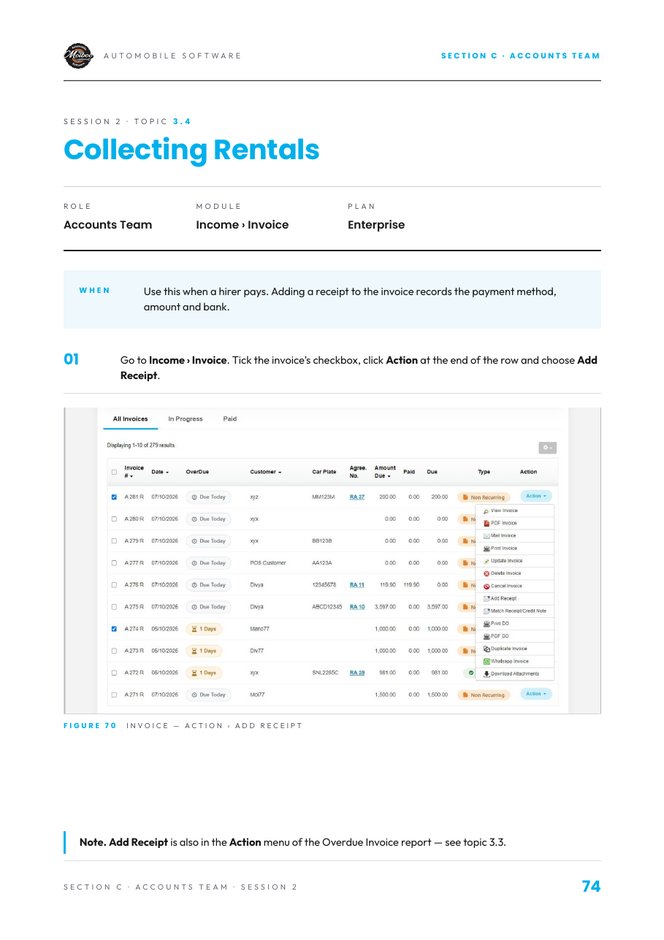
Step-by-step guides for the Marketing, Sales, Operations and Accounts teams — learn each topic with a video, a text guide, a reading and a hands-on practice in Moiboo.
Read the guideNumbered steps, exactly as in Moiboo.
Open the readingThe booklet pages with marked screenshots.
PractiseDo it in a demo account and tick it off.
Enterprise Plan · Section A
Marketing Team
Give hirers promotions and redeem them on their agreement, and take new bookings with a payment request — learn each step with a video, a reading guide and a hands-on practice in Moiboo.
Generate the rental agreement, check the vehicle out in the Moiboo app, start the rental, and manage everything until it comes back — pauses, extensions, replacements, stops, charges, fines and relief drivers.
Marketing Team · Topic 1.1
Creating Promotions Video tutorial
Text Guide
Add a promotion such as free rental days to a hirer's agreement and notify them by email or WhatsApp.
When
Use this to give a hirer a promotion on their rental agreement — for example free rental days — and to notify them by email or WhatsApp.
Open the Add Promotion window
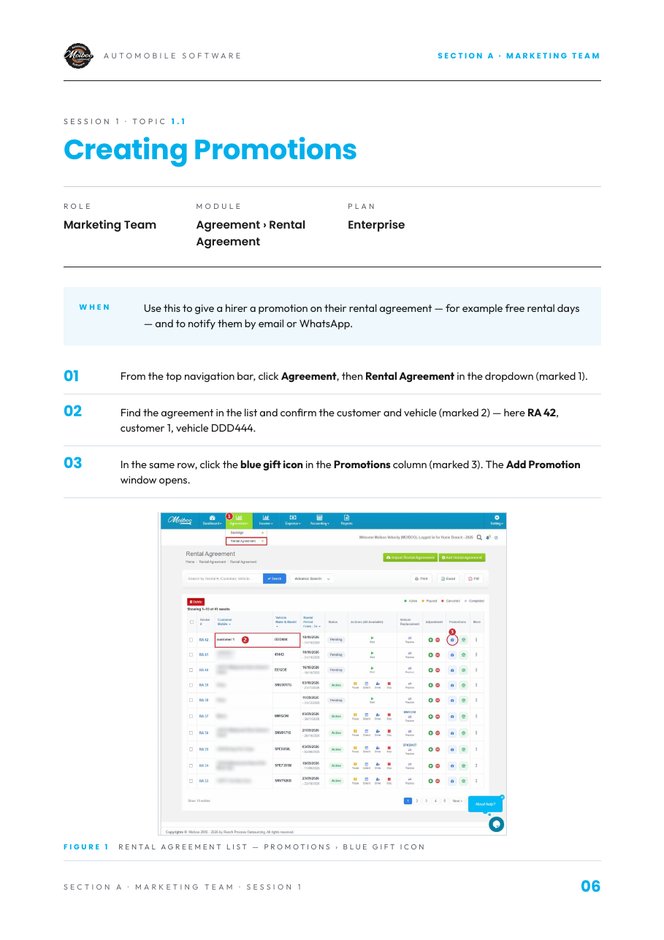
From the top navigation bar, click Agreement, then Rental Agreement in the dropdown.
Find the agreement in the list and confirm the customer and vehicle — for example RA 42, customer 1, vehicle DDD444.
In the same row, click the blue gift icon in the Promotions column. The Add Promotion window opens.
Fill in the promotion details
Check the blue box — agreement, customer and vehicle.
Select the Promotion Type (for example Free Rental) and enter the Value (for example 4 Days).
Set Valid From and Valid Until (Expiry), then choose what it Applies To. Eligibility / Conditions is optional. Scroll down for more fields.
Notify the customer & save
Optionally enter Terms & Conditions for the promotion.
Under Notify Customer, tick Email and/or WhatsApp and enter the contact details. Tick Send now to send immediately; otherwise the notification is sent on the Valid From date.
Click Save Promotion to create the promotion, or Cancel to close the window.
Note. To use the promotion against the rental, see topic 1.2 — Redeeming Promotions.
Practise in a demo or training account with sample data. Everything you tick or type here is self-reported — this page doesn't connect to Moiboo and can't verify your work. Progress is saved in this browser only.
Your browser is blocking storage, so progress here won't be kept after you close the page.
SCENARIO
As a thank-you for renewing, Test Customer A gets 4 free rental days on their current agreement, valid until the end of this month. Add the promotion and send it to them on WhatsApp straight away.
Before you start
A demo or training Moiboo account with access to Agreement › Rental Agreement.
A demo rental agreement for a test customer.
Sample data
Agreement
Your demo agreement (e.g. RA 42)
Promotion type
Free Rental
Value
4 Days
Valid from
Today
Valid until
Last day of this month
Applies to
Rental Days (CDW still chargeable)
Notify
WhatsApp · Send now
Need help?
1. Can you open Agreement › Rental Agreement and find the agreement? Click Agreement in the top bar, then Rental Agreement. Search for the agreement and check the customer and vehicle.
2. Can you open the Add Promotion window? In the agreement's row, click the blue gift icon in the Promotions column.
3. Can you check the agreement, customer and vehicle in the blue box? It's at the top of the Add Promotion window.
4. Can you select Free Rental and enter 4 Days as the value? Pick Free Rental in Promotion Type and type 4 in Value.
5. Can you set Valid From, Valid Until and Applies To? Pick both dates from the calendar, then choose Rental Days in Applies To. Eligibility / Conditions is optional.
6. Can you tick WhatsApp under Notify Customer and choose Send now? Scroll down in the window. Tick WhatsApp, check the number (use your own test number) and tick Send now.
7. Can you save the promotion? Click Save Promotion at the bottom of the window.
8. Do you know where to redeem it later? The green gift icon in the same Promotions column opens Redeem Promotions — see topic 1.2.
Expected result
A 4-day Free Rental promotion saved on the demo agreement, valid until the end of the month, with a WhatsApp notification sent to your test number.
Your result
Let's find where you got stuck
Saved here as Needs help — nothing is sent anywhere. Copy your question to share it with your trainer, then carry on with other modules and come back.
Click Agreement in the top bar, then Rental Agreement. Search for the agreement and check the customer and vehicle.In the agreement's row, click the blue gift icon in the Promotions column.It's at the top of the Add Promotion window.Pick Free Rental in Promotion Type and type 4 in Value.Pick both dates from the calendar, then choose Rental Days in Applies To. Eligibility / Conditions is optional.Scroll down in the window. Tick WhatsApp, check the number (use your own test number) and tick Send now.Click Save Promotion at the bottom of the window.The green gift icon in the same Promotions column opens Redeem Promotions — see topic 1.2.
Practice completeYou marked this practice complete on this browser. It's your own self-check.
Marketing Team · Topic 1.2
Redeeming Promotions Video tutorial
Text Guide
Redeem a hirer's promotion on their agreement and raise a credit note for the redeemed days.
When
Use this when the hirer uses a promotion on their agreement. Redeeming it raises a credit note for the redeemed days.
Open Redeem Promotions
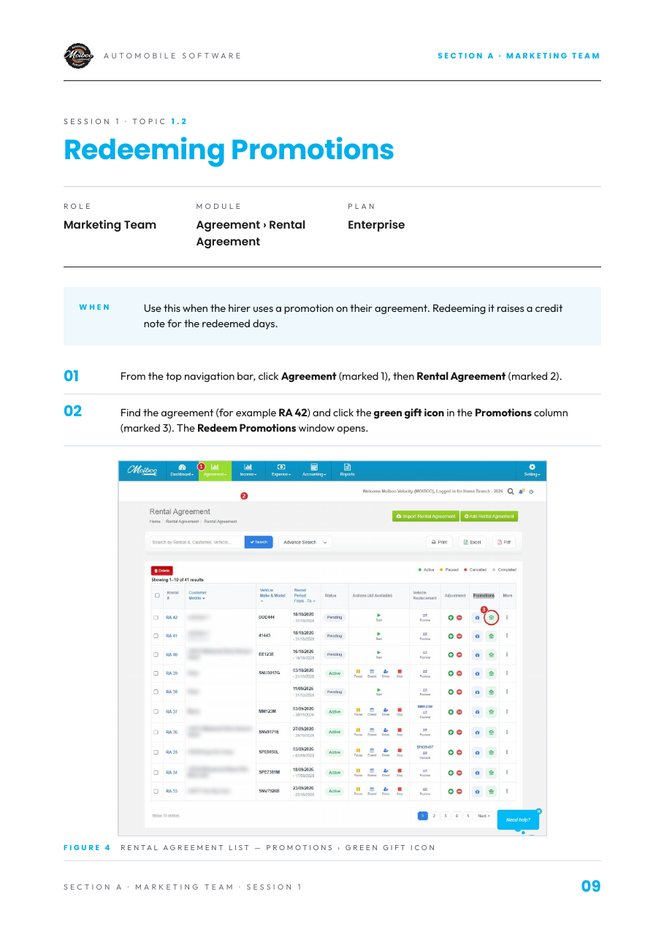
From the top navigation bar, click Agreement, then Rental Agreement.
Find the agreement (for example RA 42) and click the green gift icon in the Promotions column. The Redeem Promotions window opens.
Choose the promotion
Check the blue box — agreement, customer, vehicle and agreement period.
Available Promotions lists each promotion with its type, entitlement, days used, days available, valid-until date and status. Click Redeem on the one you want.
The chosen promotion appears in Selected Promotion, with the Redemption Summary beside it. Scroll down for more fields.
Note. CDW charges still apply during Free Rental days, as per the agreement terms.
Redeem & apply
Enter the Days to Redeem, up to the days available.
Set the Redemption Date and add Remarks if needed.
Review the Redemption Summary — rental and CDW credits, GST and the Net Credit Note Amount.
Click Redeem & Apply to complete the redemption, or Cancel to close the window.
Practise in a demo or training account with sample data. Everything you tick or type here is self-reported — this page doesn't connect to Moiboo and can't verify your work. Progress is saved in this browser only.
Your browser is blocking storage, so progress here won't be kept after you close the page.
SCENARIO
Test Customer A wants to use 2 of their 4 free rental days this week. Redeem them on the agreement and check the credit note amount before applying.
Before you start
The 4-day Free Rental promotion you added in topic 1.1 (or any available demo promotion).
Sample data
Agreement
Your demo agreement (e.g. RA 42)
Promotion
Free Rental - 4 Days
Days to redeem
2
Rental rate (per day)
SGD 100.00
Redemption date
Today
Need help?
1. Can you open the Redeem Promotions window? Agreement › Rental Agreement, find the agreement, click the green gift icon in the Promotions column.
2. Can you check the agreement period in the blue box? It's at the top of the window with the customer and vehicle.
3. Can you read Available Promotions — days used and days available? Each row shows type, entitlement, used, available, valid until and status.
4. Can you click Redeem on the right promotion? It then appears in Selected Promotion with the Redemption Summary beside it.
5. Do you know whether CDW is waived on Free Rental days? No — CDW charges still apply during Free Rental days, as per the agreement terms.
6. Can you enter the Days to Redeem, Redemption Date and Remarks? Scroll down in the window. Days to Redeem can't be more than the days available.
7. Can you read the Net Credit Note Amount in the Redemption Summary? It shows the rental and CDW credits, GST and the net amount.
8. Can you click Redeem & Apply? It's at the bottom right of the window.
9. Can you find the credit note that was raised? Open Income › Credit Note and look for the customer and vehicle (see topic 3.2).
Quick calculation
Expected result
2 of the 4 free days redeemed on the demo agreement, the promotion now shows 2 days available, and a matching credit note appears in Income › Credit Note.
Your result
Let's find where you got stuck
Saved here as Needs help — nothing is sent anywhere. Copy your question to share it with your trainer, then carry on with other modules and come back.
Agreement › Rental Agreement, find the agreement, click the green gift icon in the Promotions column.It's at the top of the window with the customer and vehicle.Each row shows type, entitlement, used, available, valid until and status.It then appears in Selected Promotion with the Redemption Summary beside it.No — CDW charges still apply during Free Rental days, as per the agreement terms.Scroll down in the window. Days to Redeem can't be more than the days available.It shows the rental and CDW credits, GST and the net amount.It's at the bottom right of the window.Open Income › Credit Note and look for the customer and vehicle (see topic 3.2).
Practice completeYou marked this practice complete on this browser. It's your own self-check.
Marketing Team · Topic 1.5
Booking Form Video tutorial
Text Guide
Take a new booking with customer, dates, vehicle and pricing, send the payment request, then raise the rental agreement.
When
Use this to take a new booking — rental, transfer or tour — with the customer, dates, vehicle and payment request, and then turn it into a rental agreement.
Open the booking form
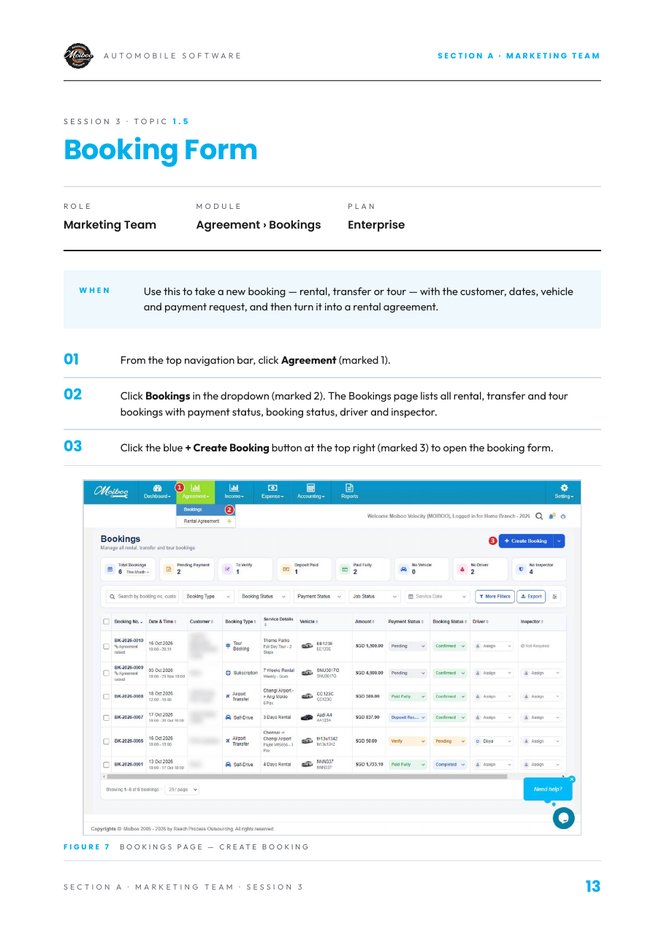
From the top navigation bar, click Agreement.
Click Bookings in the dropdown. The Bookings page lists all rental, transfer and tour bookings with payment status, booking status, driver and inspector.
Click the blue + Create Booking button at the top right to open the booking form.
Booking, customer, rental & vehicle
Booking Type (1): select the type, for example Consumer Self-Drive. The booking number is confirmed on save.
Customer Information (2): search and select a customer, or click + Add New. The customer and driving licence details appear below.
Rental Details (3): choose the Pick up Location, pick-up and return date and time. Tick Return to the same location if it applies, and add optional Service Details.
Vehicle Selection & Availability (4): filter by category, transmission, seats and fuel, click Check Availability and pick a vehicle marked Available.
Pricing, notes & save
Pricing & Payment Request (5): enter the daily rate, insurance, deposit, discount and tax. Choose Full Amount or Deposit / Partial Payment, set the amount requested and balance due, and choose WhatsApp or Email.
Review the Booking Summary on the right, then click Save & Send Payment Request, Save Booking or Save as Draft. Cancel discards.
Send the payment request
After Save & Send Payment Request, the Send on WhatsApp window opens. Check the amount requested, booking total, mobile number and message.
Click Open WhatsApp, then press send in WhatsApp. Click Cancel to skip sending.
Raise the rental agreement
A green banner confirms the booking is saved, and the new booking appears at the top of the list.
Scroll the table right to the Actions column. Click the three-dot menu on the booking row and choose the option to raise the rental agreement.
The Create Rental Agreement form opens with the hirer, vehicle and rental value carried over from the booking. Review and complete it, then click Generate Rental Agreement (see topic 2.1).
Back on the Bookings page, the booking shows Booking Status Confirmed. The booking process is complete.
Practise in a demo or training account with sample data. Everything you tick or type here is self-reported — this page doesn't connect to Moiboo and can't verify your work. Progress is saved in this browser only.
Your browser is blocking storage, so progress here won't be kept after you close the page.
SCENARIO
Test Customer A wants to self-drive a 4-seater for 13 days from this Saturday, picked up and returned at your main branch. Take the booking, request a deposit on WhatsApp, then raise the rental agreement.
Before you start
A demo or training Moiboo account with access to Agreement › Bookings.
A demo customer (or create one with + Add New) and at least one available demo vehicle.
Your own phone number to receive the WhatsApp payment request.
Sample data
Booking type
Consumer Self-Drive
Customer
Test Customer A
Pick-up
This Saturday, 10:00 AM · Main branch
Return
13 days later, 10:00 AM · Same location
Vehicle
Any 4-seater marked Available
Daily rate
SGD 100.00
Payment request
Deposit / Partial Payment · WhatsApp
Need help?
1. Can you open Agreement › Bookings and click + Create Booking? Click Agreement in the top bar, then Bookings. + Create Booking is the blue button at the top right.
2. Can you select Consumer Self-Drive as the Booking Type? Section 1 of the form. The booking number is confirmed when you save.
3. Can you select the customer (or add a new one)? Section 2 — search for the customer or click + Add New. Their licence details appear below.
4. Can you set the pick-up location, dates and times? Section 3 — Pick up Location, pick-up and return date and time. Tick Return to the same location.
5. Can you check availability and pick an Available vehicle? Section 4 — filter by seats, click Check Availability, then select a vehicle marked Available.
6. Can you fill the pricing and choose Deposit / Partial Payment by WhatsApp? Section 5 — daily rate, insurance, deposit, discount and tax, then the amount requested and WhatsApp.
7. Can you review the Booking Summary and click Save & Send Payment Request? The Booking Summary is on the right of the form; the save buttons are under it.
8. Can you send the payment request from the Send on WhatsApp window? Check the amount and mobile number, click Open WhatsApp, then press send in WhatsApp.
9. Can you raise the rental agreement from the booking's three-dot menu? Scroll the bookings table right to Actions, click the three dots and choose the rental agreement option.
10. Can you see the booking show Booking Status Confirmed? After generating the agreement, go back to Agreement › Bookings and check the booking's status.
Quick calculation
Expected result
A Consumer Self-Drive booking for Test Customer A with a 13-day rental, an Available vehicle and a deposit request sent on WhatsApp — and, once the agreement is generated, Booking Status Confirmed.
Your result
Let's find where you got stuck
Saved here as Needs help — nothing is sent anywhere. Copy your question to share it with your trainer, then carry on with other modules and come back.
Click Agreement in the top bar, then Bookings. + Create Booking is the blue button at the top right.Section 1 of the form. The booking number is confirmed when you save.Section 2 — search for the customer or click + Add New. Their licence details appear below.Section 3 — Pick up Location, pick-up and return date and time. Tick Return to the same location.Section 4 — filter by seats, click Check Availability, then select a vehicle marked Available.Section 5 — daily rate, insurance, deposit, discount and tax, then the amount requested and WhatsApp.The Booking Summary is on the right of the form; the save buttons are under it.Check the amount and mobile number, click Open WhatsApp, then press send in WhatsApp.Scroll the bookings table right to Actions, click the three dots and choose the rental agreement option.After generating the agreement, go back to Agreement › Bookings and check the booking's status.
Practice completeYou marked this practice complete on this browser. It's your own self-check.
Sales Team · Topic S1
Receiving Enquiries Video tutorial
Text Guide
Log a new rental enquiry in the Interest Form — customer, current vehicle, lead source and who follows up.
When
Use this when a new customer contacts you about renting a vehicle. The Interest Form keeps the customer details, lead source and follow-up owner of every enquiry in one place.
Open the Add Interest Form
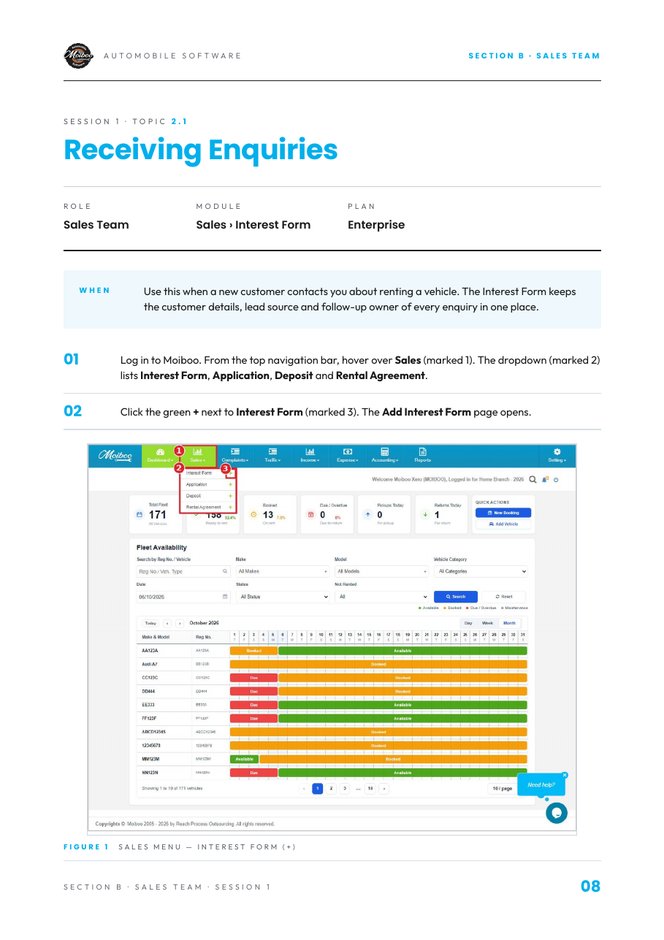
Log in to Moiboo. From the top navigation bar, hover over Sales. The dropdown lists Interest Form, Application, Deposit and Rental Agreement.
Click the green + next to Interest Form. The Add Interest Form page opens.
Check the breadcrumb reads Home / Interest Form / Add Interest Form. The blue Back button at the top right leaves the page without saving.
Fill the enquiry details
Check the Date. It is pre-filled — change it only if the enquiry was received on a different date.
Open the Enq Type dropdown and select the type of enquiry. If the type is not listed, click the orange + Add next to it and add it.
Open Assigned to User and select the staff member who will follow up on this enquiry.
Fill the current vehicle details
Open Current Vehicle Type and select the vehicle type the customer currently uses, if any.
In When would you be available for a non-obligatory car viewing?, pick the preferred viewing date. This field is mandatory.
Enter the Current Rental Company and pick the Current Contract Expiry date, if any.
Fill the customer details
Enter the Contact Person Name and Contact Person Mobile — both are mandatory — and add the Email.
Under Singapore Citizens, select Yes or Yes Permanent Resident.
Under Vocational Type, select PDVL (Private hirer) or TDVL (Taxi License).
Under How did you find about the us?, select the source the customer reports.
Lead source
Word of MouthSocial Media – FacebookSocial Media – InstagramSocial Media – YoutubeGoogle SearchOthers
Add comments & save
In Comments, enter any notes about the enquiry.
The Whatsapp Comments box shows WhatsApp conversation notes linked to the enquiry. It reads “No whatsapp comments” when there are none.
Check that every field marked with an asterisk (*) is complete, then click the green Save button at the bottom right.
Note. The saved enquiry appears in the Interest Form list. To turn it into an application, see topic S2.
Practise in a demo or training account with sample data. Everything you tick or type here is self-reported — this page doesn't connect to Moiboo and can't verify your work. Progress is saved in this browser only.
Your browser is blocking storage, so progress here won't be kept after you close the page.
SCENARIO
A PDVL driver who is a Singapore citizen walks in wanting to rent a car. They found you on Instagram, rent from another company today with a contract ending next month, and can come for a car viewing this Saturday.
Before you start
A demo or training Moiboo account with access to Sales › Interest Form.
At least one Enq Type and one staff user to assign the enquiry to.
1. Can you open the Add Interest Form from the Sales menu? Hover over Sales in the top bar and click the green + next to Interest Form.
2. Can you select the Enq Type and the staff member in Assigned to User? Open the Enq Type dropdown and pick a type (use the orange + Add if it's missing), then open Assigned to User and pick the follow-up owner.
3. Can you pick the car-viewing date? In “When would you be available for a non-obligatory car viewing?”, pick the date from the calendar. It's mandatory.
4. Can you enter the current rental company and contract expiry? Type the company in Current Rental Company and pick the date in Current Contract Expiry.
5. Can you enter the contact name, mobile and email? Fill Contact Person Name and Contact Person Mobile (both mandatory), then Email.
6. Can you select the citizenship, vocational type and lead source? Tick Yes under Singapore Citizens, PDVL under Vocational Type and Social Media – Instagram under How did you find about the us?
7. Can you add a comment about the enquiry? Type your note in the Comments box near the bottom of the form.
8. Can you save the Interest Form? Check every * field is filled, then click the green Save button at the bottom right.
9. Can you find the saved enquiry in the Interest Form list? Hover over Sales and click the Interest Form label (not the +). Use the Search box to find Test Customer A.
Expected result
A saved enquiry for Test Customer A in the Interest Form list — with mobile, email, PDVL, Instagram as the lead source, a car-viewing date and a staff member assigned.
Your result
Let's find where you got stuck
Saved here as Needs help — nothing is sent anywhere. Copy your question to share it with your trainer, then carry on with other modules and come back.
Hover over Sales in the top bar and click the green + next to Interest Form.Open the Enq Type dropdown and pick a type (use the orange + Add if it's missing), then open Assigned to User and pick the follow-up owner.In “When would you be available for a non-obligatory car viewing?”, pick the date from the calendar. It's mandatory.Type the company in Current Rental Company and pick the date in Current Contract Expiry.Fill Contact Person Name and Contact Person Mobile (both mandatory), then Email.Tick Yes under Singapore Citizens, PDVL under Vocational Type and Social Media – Instagram under How did you find about the us?Type your note in the Comments box near the bottom of the form.Check every * field is filled, then click the green Save button at the bottom right.Hover over Sales and click the Interest Form label (not the +). Use the Search box to find Test Customer A.
Practice completeYou marked this practice complete on this browser. It's your own self-check.
Sales Team · Topic S2
Creating Applications Video tutorial
Text Guide
Convert an enquiry into a rental application — personal, licence, documents, next of kin, consent and signature.
When
Use this to convert a customer enquiry into a rental application. The application records the customer's personal, licence, next-of-kin and consent details, and must be complete before the agreement stage.
Convert the enquiry
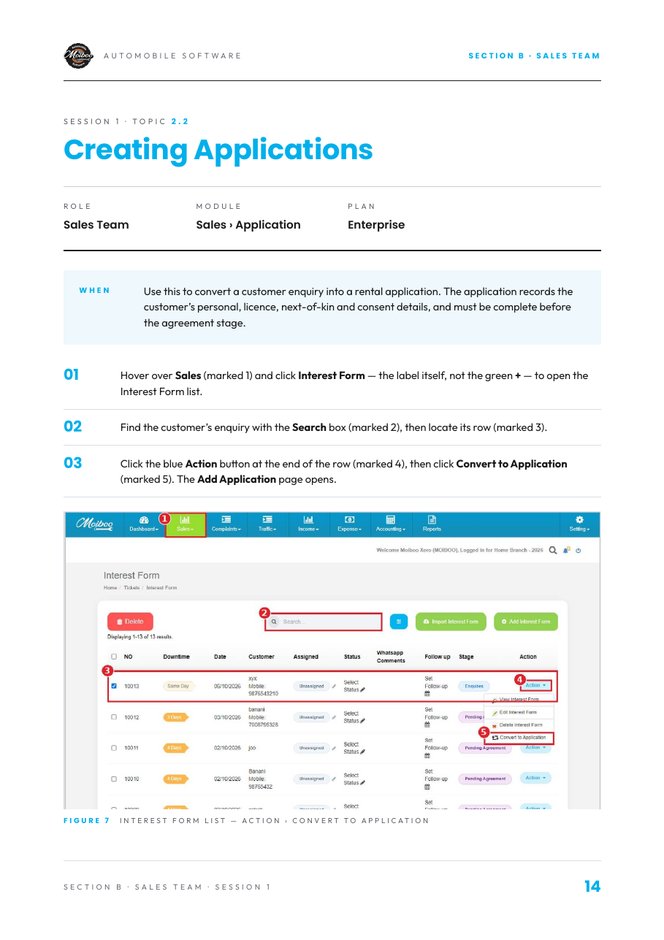
Hover over Sales and click Interest Form — the label itself, not the green + — to open the Interest Form list.
Find the customer's enquiry with the Search box, then locate its row.
Click the blue Action button at the end of the row, then click Convert to Application. The Add Application page opens.
Or start an application directly
Note. Use this route only when there is no enquiry to convert. Otherwise convert the enquiry as shown above.
Hover over Sales and click Application to open the Application list.
Click the green Add Application Form button at the top right. The Add Application page opens.
Basic information, address & contact
The breadcrumb reads Home / Application / Add Application, and the blue Back button leaves without saving. Details already captured in the Interest Form are carried over — review them and correct if needed.
Basic information: select the title in Full name, enter the Full Name as per NRIC exactly as printed, the NRIC no. and the Date of birth.
Address: enter the Street address, Block / Unit no. and Postal / Zip code, and confirm the Country.
Contact details: enter the Phone, the Gojek registered phone if the customer has one, and the Email.
Background & driving licence
Background: select the Race (mandatory) and Marital status, and tick every Language spoken that applies.
Driving licence: tick every Licence class that applies — 2B, 2A, 2, 3, 3A, 4 or 4A.
Choose the Date of issue (3/3A) and the Vocational licence expiry from the calendar.
Answer No or Yes to the licence-suspension question and to the traffic-accident-with-injuries (last 3 years) question.
Documents, next of kin & declarations
Upload documents: under NRIC & Driver's licence (front & back) and Vocational licence (front & back), click Choose Files (or the camera icon) and select the files.
Next of kin / Beneficiary: enter the Name, select the Relationship and enter the Contact no. (all mandatory), plus the Email if available.
Health & legal declarations: answer the medical-condition and bankruptcy questions with No or Yes.
Note. Accepted formats are jpg, png, pdf, doc and xlsx — maximum 5 MB per file and up to 10 files per upload box.
Consent, signature & save
Terms and Acknowledgment: ask the customer to read the consent statement, then tick the confirmation checkbox. Mandatory.
Signature: the customer signs inside the Sign here box with a mouse or touchscreen. Click Clear to redo. Mandatory.
Check that every field marked with an asterisk (*) is complete, then click the green button at the bottom right to save the application.
Review the application list
Go to Sales › Application. The saved application appears under the In Progress tab. Use All Enquiries and Completed for other applications.
To find an application, use the Search box or the blue filter button.
Check the Stage column — for example Pending Agreement or Pending Invoice.
Click Action at the end of a row to manage that application.
Practise in a demo or training account with sample data. Everything you tick or type here is self-reported — this page doesn't connect to Moiboo and can't verify your work. Progress is saved in this browser only.
Your browser is blocking storage, so progress here won't be kept after you close the page.
SCENARIO
Test Customer A from your enquiry practice wants to go ahead. Convert their enquiry into an application and complete it with them at the counter — documents, next of kin, consent and signature.
Before you start
The enquiry you saved in topic S1 (or any demo enquiry).
Any test image to use as the NRIC and licence uploads.
A mouse or touchscreen for the customer signature.
Sample data
Full name (NRIC)
Test Customer A
NRIC no.
S0000001A (test)
Address
1 Test Street, #01-01, 000001
Licence class
3 and 3A
Next of kin
Test Kin B · Spouse · 8000 0002
Declarations
No · No
Need help?
1. Can you convert an enquiry into an application from the Interest Form list? Sales › Interest Form (the label, not +). Search for the customer, click Action at the end of the row, then Convert to Application.
2. Do you know when to use Add Application Form instead? Only when there is no enquiry to convert: Sales › Application, then the green Add Application Form button.
3. Can you fill the basic information, address and contact details? Full Name as per NRIC exactly as printed, NRIC no., Date of birth, then Street, Block / Unit, Postal code, Phone and Email.
4. Can you complete race, licence classes, issue date and vocational licence expiry? Race is mandatory. Tick each licence class, then pick Date of issue (3/3A) and Vocational licence expiry from the calendar.
5. Can you upload the NRIC and licence documents? Under Upload documents, click Choose Files (or the camera icon) in each box. jpg, png, pdf, doc or xlsx, max 5 MB each.
6. Can you enter the next of kin details? Name, Relationship and Contact no. are all mandatory; add Email if you have it.
7. Can you capture the consent tick and the customer's signature? Tick the box under Terms and Acknowledgment, then the customer signs in the Sign here box. Clear lets them redo it.
8. Can you save the application? Check every * field, then click the green button at the bottom right.
9. Can you find the application under In Progress and read its Stage? Sales › Application opens on In Progress. Search for the customer and read the Stage column.
Expected result
Test Customer A's application appears under In Progress with documents, next of kin, consent and signature saved, and the Stage column shows the next step.
Your result
Let's find where you got stuck
Saved here as Needs help — nothing is sent anywhere. Copy your question to share it with your trainer, then carry on with other modules and come back.
Sales › Interest Form (the label, not +). Search for the customer, click Action at the end of the row, then Convert to Application.Only when there is no enquiry to convert: Sales › Application, then the green Add Application Form button.Full Name as per NRIC exactly as printed, NRIC no., Date of birth, then Street, Block / Unit, Postal code, Phone and Email.Race is mandatory. Tick each licence class, then pick Date of issue (3/3A) and Vocational licence expiry from the calendar.Under Upload documents, click Choose Files (or the camera icon) in each box. jpg, png, pdf, doc or xlsx, max 5 MB each.Name, Relationship and Contact no. are all mandatory; add Email if you have it.Tick the box under Terms and Acknowledgment, then the customer signs in the Sign here box. Clear lets them redo it.Check every * field, then click the green button at the bottom right.Sales › Application opens on In Progress. Search for the customer and read the Stage column.
Practice completeYou marked this practice complete on this browser. It's your own self-check.
Create an application directly with Add Application Form for a customer who has no enquiry — and note which fields you had to type that were carried over the first time.
Sales Team · Topic S4
Requesting Deposits Video tutorial
Text Guide
Record the customer's deposit against an application — amount, payment images and signature.
When
Use this to record the customer's deposit against an existing application. The deposit amount, payment images and signature are kept on record before the rental proceeds.
Open the deposit form
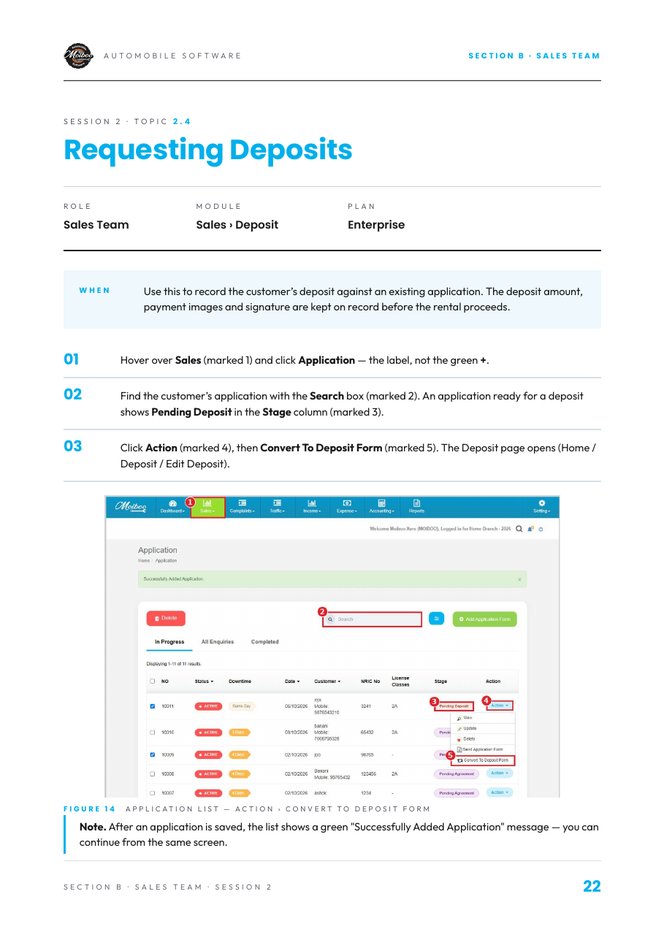
Hover over Sales and click Application — the label, not the green +.
Find the customer's application with the Search box. An application ready for a deposit shows Pending Deposit in the Stage column.
Click Action, then Convert To Deposit Form. The Deposit page opens (Home / Deposit / Edit Deposit).
Note. After an application is saved, the list shows a green “Successfully Added Application” message — you can continue from the same screen.
Fill the customer information
Details from the application — name, phone and email — are carried over. Review them. Back leaves without saving.
Check Date & time (mandatory) and enter the Vehicle model.
Select the Salutation and check First Name as per NRIC (mandatory).
Check the Phone and Email (mandatory), then enter the Package details.
Deposit, payment images & signature
In Deposit amount, enter the amount received. The currency (SGD) is shown at the left of the field.
Under Payment images, click Choose Files and select the payment images — jpg, png, gif, pdf, doc or xlsx, max 5 MB each, up to 10 files.
The customer signs inside the Sign here box. Click Clear to redo.
Check every field marked with an asterisk (*), then click the green Save button.
Note. The saved deposit appears in the Deposit List. To turn it into a rental agreement, see topic 2.1.
Practise in a demo or training account with sample data. Everything you tick or type here is self-reported — this page doesn't connect to Moiboo and can't verify your work. Progress is saved in this browser only.
Your browser is blocking storage, so progress here won't be kept after you close the page.
SCENARIO
Test Customer A pays a SGD 500 deposit by PayNow for a 12-month PDVL package on a Toyota Prius. Record it against their application.
Before you start
An application whose Stage is Pending Deposit (from topic S2).
Any test image to use as the payment screenshot.
Sample data
Customer
Test Customer A
Vehicle model
Toyota Prius
Package
12-month PDVL package
Deposit amount
SGD 500.00
Payment image
Test PayNow screenshot
Need help?
1. Can you find an application with Stage Pending Deposit? Sales › Application (the label, not +). Search for the customer and check the Stage column.
2. Can you open Convert To Deposit Form from the Action menu? Click Action at the end of the application row, then Convert To Deposit Form.
3. Can you check the carried-over name, phone and email? They come from the application. Correct them here if anything is wrong.
4. Can you fill Date & time, Vehicle model and Package details? Date & time is mandatory. Type the vehicle model and the package the customer chose.
5. Can you enter the deposit amount in SGD? Type the amount in Deposit amount — SGD is shown at the left of the field.
6. Can you upload a payment image? Under Payment images, click Choose Files. Up to 10 files, max 5 MB each.
7. Can you capture the customer's signature? The customer signs in the Sign here box. Clear lets them redo it.
8. Can you save the deposit and find it in the Deposit List? Click the green Save button, then hover over Sales and click Deposit.
Expected result
A SGD 500 deposit for Test Customer A in the Deposit List, with the vehicle model, package, a payment image and the customer's signature.
Your result
Let's find where you got stuck
Saved here as Needs help — nothing is sent anywhere. Copy your question to share it with your trainer, then carry on with other modules and come back.
Sales › Application (the label, not +). Search for the customer and check the Stage column.Click Action at the end of the application row, then Convert To Deposit Form.They come from the application. Correct them here if anything is wrong.Date & time is mandatory. Type the vehicle model and the package the customer chose.Type the amount in Deposit amount — SGD is shown at the left of the field.Under Payment images, click Choose Files. Up to 10 files, max 5 MB each.The customer signs in the Sign here box. Clear lets them redo it.Click the green Save button, then hover over Sales and click Deposit.
Practice completeYou marked this practice complete on this browser. It's your own self-check.
Operations Team · Topic 2.1
Creating an Agreement Video tutorial
Text Guide
Convert the deposit into a rental agreement — hirer, vehicle, dates, daily rates, GST, signatures and save.
When
Use this when the deposit is recorded and the customer is ready to sign. The deposit is converted into a rental agreement with the hirer, vehicle, rates and signatures.
Convert the deposit
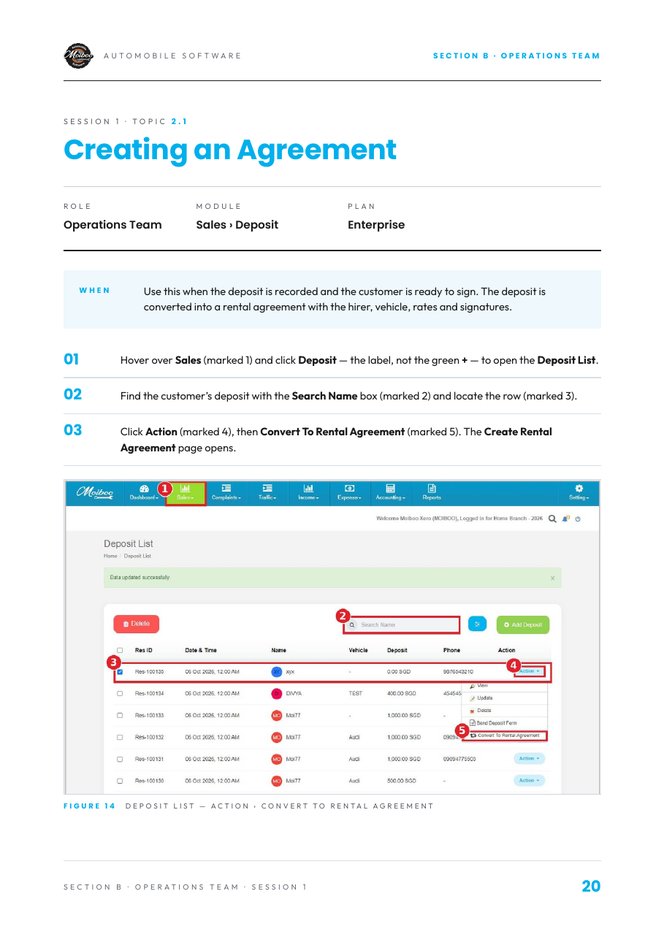
Hover over Sales and click Deposit — the label, not the green + — to open the Deposit List.
Find the customer's deposit with the Search Name box and locate the row.
Click Action, then Convert To Rental Agreement. The Create Rental Agreement page opens.
Agreement, hirer & vehicle
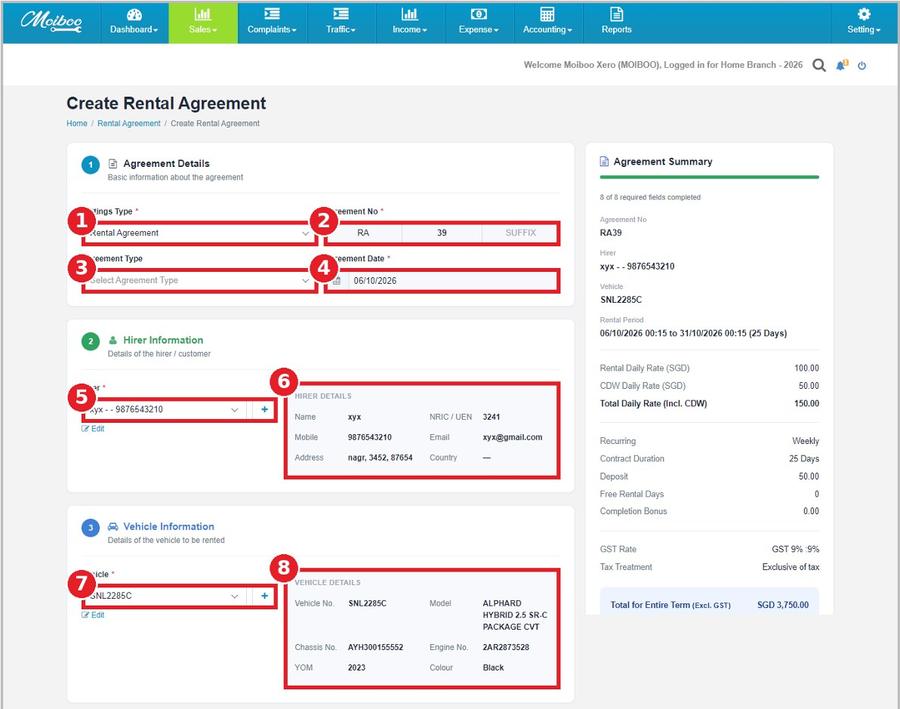
In Settings Type, select the settings type. Agreement No is pre-filled — change it only if required.
Select the Agreement Type and check the Agreement Date.
In Hirer, select the hirer. Click the blue + to add one, or Edit to edit. Check the Hirer Details panel.
In Vehicle, select the vehicle to be rented. Check the Vehicle Details panel — number, model, chassis, engine, year and colour.
Set the rental value
Choose the Start Date and End Date. Check that Contract Duration matches the period.
Enter the Rental Daily Rate and CDW Daily Rate in SGD. Total Daily Rate is calculated.
Select Recurring, enter the Deposit and select the GST Rate. Tick Rates are inclusive of tax if they already include tax.
Enter Free Rental Days and Completion Bonus if any, then review the calculation panel.
Additional information & generate
Select any Additional Driver 1 and 2. Enter Remarks and Accessories.
In Documents, drag and drop or Choose File — jpg, png, pdf, txt, xls, xlsx, doc, docx, max 2 MB.
Check the Agreement Summary panel, then click Generate Rental Agreement. Cancel leaves without saving.
Review, sign & save
Scroll through the Agreement Preview and check it against the Agreement Summary.
The hirer signs in Hirer's Signature. An authorised staff member signs in Authorised Signature.
Save with Save & PDF, Save & Email, Save & WhatsApp or Save. Use Back to Edit to change details, or Cancel.
Practise in a demo or training account with sample data. Everything you tick or type here is self-reported — this page doesn't connect to Moiboo and can't verify your work. Progress is saved in this browser only.
Your browser is blocking storage, so progress here won't be kept after you close the page.
SCENARIO
Test Customer A's deposit is in. They're renting vehicle TEST 001 for 25 days at SGD 100 a day plus SGD 50 a day CDW, billed weekly with 9% GST. Generate and sign the agreement.
Before you start
A saved deposit in the Deposit List (from topic S4).
A demo vehicle that is free for the rental period.
Sample data
Hirer
Test Customer A
Vehicle
TEST 001
Period
25 days
Rental daily rate
SGD 100.00
CDW daily rate
SGD 50.00
Recurring
Weekly
Deposit
SGD 500.00
GST rate
9%
Need help?
1. Can you convert a deposit into a rental agreement? Sales › Deposit (the label, not +). Search the name, click Action, then Convert To Rental Agreement.
2. Can you select Settings Type and Agreement Type, and check the Agreement Date? These are in the Agreement Details block at the top. Agreement No is pre-filled — leave it unless you need to change it.
3. Can you select the hirer and vehicle and check their detail panels? Pick them in Hirer and Vehicle. The Hirer Details and Vehicle Details panels fill in beside them.
4. Can you set the Start Date and End Date and check Contract Duration? Pick both dates from the calendar; Contract Duration should read 25 days.
5. Can you enter the Rental and CDW daily rates and check Total Daily Rate? Enter 100 and 50 — Total Daily Rate shows 150 automatically.
6. Can you set Recurring, Deposit and GST Rate? Select Weekly in Recurring, type the deposit and pick GST 9%. Tick Rates are inclusive of tax only if they already include it.
7. Can you review the Agreement Summary and click Generate Rental Agreement? The Agreement Summary panel is on the right. Generate Rental Agreement is at the bottom.
8. Can you collect the hirer's and the authorised signatures? On the preview page, the hirer signs in Hirer's Signature and you sign in Authorised Signature.
9. Can you save the agreement? Click Save & PDF, Save & Email, Save & WhatsApp or Save at the bottom of the preview.
Quick calculation
Expected result
A saved agreement for Test Customer A on vehicle TEST 001 with a 25-day period, SGD 150 total daily rate, weekly billing, 9% GST and both signatures. It shows Pending in Sales › Rental Agreement.
Your result
Let's find where you got stuck
Saved here as Needs help — nothing is sent anywhere. Copy your question to share it with your trainer, then carry on with other modules and come back.
Sales › Deposit (the label, not +). Search the name, click Action, then Convert To Rental Agreement.These are in the Agreement Details block at the top. Agreement No is pre-filled — leave it unless you need to change it.Pick them in Hirer and Vehicle. The Hirer Details and Vehicle Details panels fill in beside them.Pick both dates from the calendar; Contract Duration should read 25 days.Enter 100 and 50 — Total Daily Rate shows 150 automatically.Select Weekly in Recurring, type the deposit and pick GST 9%. Tick Rates are inclusive of tax only if they already include it.The Agreement Summary panel is on the right. Generate Rental Agreement is at the bottom.On the preview page, the hirer signs in Hirer's Signature and you sign in Authorised Signature.Click Save & PDF, Save & Email, Save & WhatsApp or Save at the bottom of the preview.
Practice completeYou marked this practice complete on this browser. It's your own self-check.
Operations Team · Topic 2.2
Starting Rentals Video tutorial
Text Guide
Hand over the vehicle — record start time, odometer, fuel, invoice frequency and inspector to make the rental Active.
When
Use this when the vehicle is handed over to the hirer. Starting the rental records the start date and time, odometer, fuel level, invoice frequency and check-out inspector.
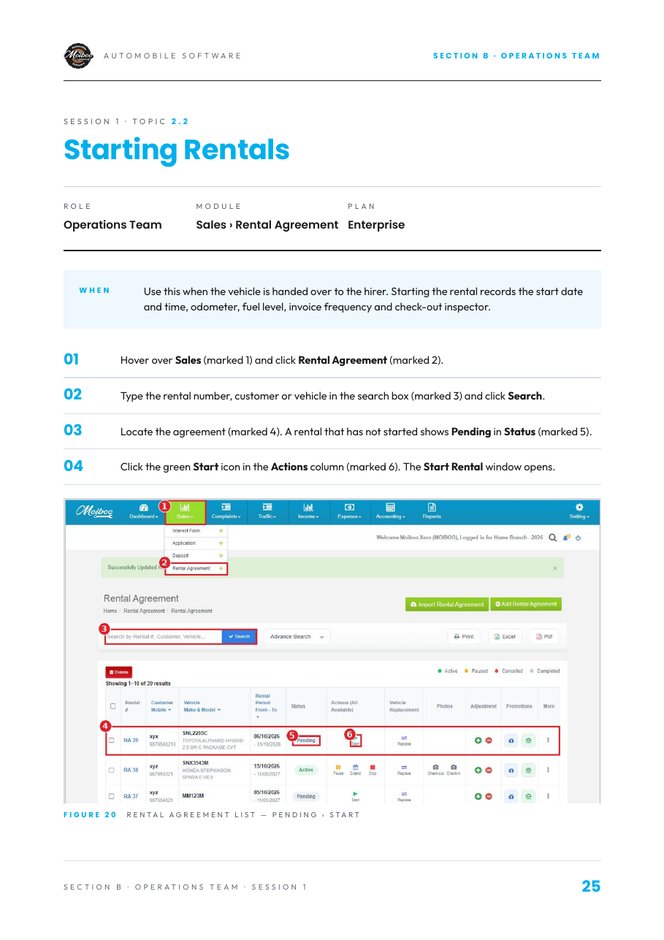
Find the pending agreement
Hover over Sales and click Rental Agreement.
Type the rental number, customer or vehicle in the search box and click Search.
Locate the agreement. A rental that has not started shows Pending in Status.
Click the green Start icon in the Actions column. The Start Rental window opens.
Fill the start details
Check the information box — agreement number, customer and vehicle.
Check Start Date & Time and enter the Odometer Reading (KM).
Select the Fuel Level, Invoice Frequency and Check-out Inspector. All are mandatory.
Scroll to review Prorated, then click Start Rental. Cancel closes the window.
Note. The Invoice Frequency decides how often recurring invoices are raised for this rental.
Practise in a demo or training account with sample data. Everything you tick or type here is self-reported — this page doesn't connect to Moiboo and can't verify your work. Progress is saved in this browser only.
Your browser is blocking storage, so progress here won't be kept after you close the page.
SCENARIO
Test Customer A is at the counter to collect TEST 001. The odometer reads 45,200 km and the tank is full. Start the rental with weekly invoices.
Before you start
A Pending agreement in Sales › Rental Agreement (from topic 2.1).
A staff user who can be selected as Check-out Inspector.
Sample data
Agreement
Your agreement from 2.1
Odometer
45,200 km
Fuel level
Full
Invoice frequency
Weekly
Inspector
Your own user
Need help?
1. Can you open Sales › Rental Agreement and search for the rental? Hover over Sales, click Rental Agreement, type the number, customer or vehicle and click Search.
2. Can you confirm the rental shows Pending in Status? Pending means the agreement is saved but the rental hasn't started.
3. Can you open the Start Rental window? Click the green Start icon in the Actions column of that row.
4. Can you enter the Start Date & Time and Odometer Reading? Check the pre-filled date and time, then type the odometer in KM.
5. Can you select Fuel Level, Invoice Frequency and Check-out Inspector? All three are mandatory dropdowns in the Start Rental window.
6. Can you review Prorated and click Start Rental? Scroll down inside the window to see Prorated, then click Start Rental.
7. Can you confirm the Status changed to Active? Back in the Rental Agreement list, the row's Status now reads Active and new action icons appear.
Expected result
The rental for TEST 001 shows Active in Sales › Rental Agreement with 45,200 km, a full tank, weekly invoices and you as Check-out Inspector.
Your result
Let's find where you got stuck
Saved here as Needs help — nothing is sent anywhere. Copy your question to share it with your trainer, then carry on with other modules and come back.
Hover over Sales, click Rental Agreement, type the number, customer or vehicle and click Search.Pending means the agreement is saved but the rental hasn't started.Click the green Start icon in the Actions column of that row.Check the pre-filled date and time, then type the odometer in KM.All three are mandatory dropdowns in the Start Rental window.Scroll down inside the window to see Prorated, then click Start Rental.Back in the Rental Agreement list, the row's Status now reads Active and new action icons appear.
Practice completeYou marked this practice complete on this browser. It's your own self-check.
Operations Team · Topic 2.3A
Doing Check Out Video tutorial
Text Guide
Hand the vehicle over: complete the 7-item checklist with photos in the Moiboo app, get the customer's signature, then view and send the check-out photos from the website.
When
Use this when a rental is going to start and the vehicle is handed over to the customer. The 7-item checklist and photos are done in the Moiboo app, the customer signs the Handover Form, and the photos can then be viewed and sent from the website.
Find the rental & open the job
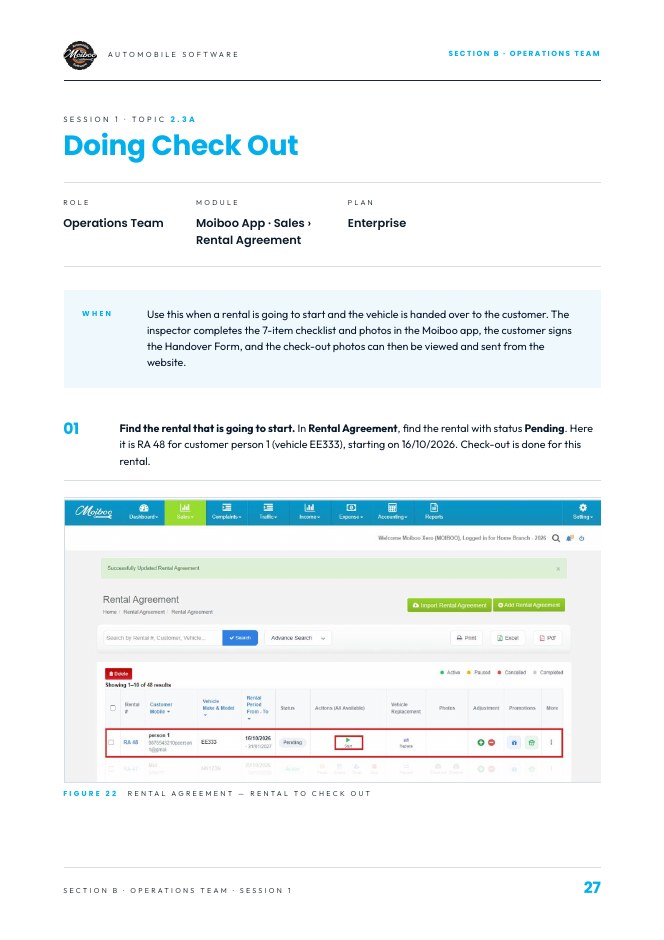
In Rental Agreement, find the rental that is going to start — status Pending. Here it is RA 48 for customer person 1 (vehicle EE333), starting on 16/10/2026. Check-out is done for this rental.
Open the Moiboo app. Enter the username (email) given to you in the Username field and your Password — tap the eye icon to see what you typed — then tap the blue Login button to open your Jobs list.
Open the assigned job. The Check-Out Details screen shows the vehicle number, car make / model and check-out date and time. Confirm the vehicle number (here EE333) and the check-out date / time.
The Checklist lists 7 items, all showing Pending until you complete them. Tap an item to open it — start with Front view of the Vehicle.
Checklist
Front viewLeft Hand Side (LHS)Rear viewRight Hand Side (RHS)Interior checksMileageFuel Level
Front, sides & rear
Front view of the Vehicle: tap the + box under Attachments and take or upload a photo (up to 7 photos). Added photos appear as thumbnails next to the + sign and the count updates, e.g. Attachments (3).
Switch the toggle at the top right from Not Ok to Ok if the condition is fine. Leave it as Not Ok if there is damage.
Add a comment (optional), for example any scratch or dent, and tap Save.
Left Hand Side (LHS): repeat the same process — tap + and add the LHS photos, set the toggle to Ok / Not Ok, add a comment (optional) and tap Save.
Rear view: tap + and add photos of the back of the vehicle, set Ok / Not Ok, add a comment (optional) and tap Save.
Right Hand Side (RHS): tap + and add the RHS photos, set Ok / Not Ok, add a comment (optional) and tap Save.
Interior, mileage & fuel
Interior checks: check and photograph the inside of the vehicle (seats, dashboard, mats, etc.). Tap + and add the photos, set Ok / Not Ok, add a comment (optional) and tap Save.
Mileage: type the current odometer reading in the Mileage box at the top, tap + and add a photo of the odometer as proof, add a comment (optional) and tap Save.
Fuel Level: tap the drop-down and select the level shown on the fuel gauge (Empty, 2/8, 3/8, 1/2, 5/8, 6/8 …). Add a photo of the fuel gauge with the + box (optional), add a comment (optional) and tap Save.
Submit & customer signature
When every item shows a green tick the checklist is complete — check that all 7 items have a green tick (the Ok values and the fuel level, e.g. 2/8, are shown).
Add notes in the notes box (optional) and tap Submit to go to the Handover Form.
The Handover Form shows the status Ready for Pick-up and the summary of the checklist. Ask the customer to review the Customer Confirmation list and sign inside the Signature box — tap Clear to sign again if needed.
Tap Save & Complete to finish the check-out. The rental is now handed over to the customer.
View the check-out photos on the website
Go to Sales › Rental Agreement and find the rental (here RA 48). Click the Check-out camera icon in the Photos column.
The Check-Out Images window opens. Click a section (Front view, LHS, Rear, RHS, Interior, Mileage, Fuel Level) to expand it and see its photos and Ok status.
The Send Check-Out Photos panel on the right shows the agreement, customer, vehicle and check-out date and time.
Send the check-out photos to the customer
Use the Send Check-Out Photos panel to share the photo link with the customer. Scroll down inside the window to see the remaining fields.
Under Send via, tick WhatsApp, Email or both.
Check the WhatsApp Number. Enter the dialling code if the system shows “No dialling code found for this customer”.
Edit the message if needed (optional). Keep ##PhotoLink## in the text — it is replaced with the photo link, which is valid for 7 days.
Click the send button at the bottom of the panel to send the photos to the customer.
Hand the vehicle over: complete the 7-item checklist with photos in the Moiboo app, get the customer's signature, then view and send the check-out photos from the website.
Moiboo Rental Training Booklet (Enterprise Plan) · pages 27–35
Practise in a demo or training account with sample data. Everything you tick or type here is self-reported — this page doesn't connect to Moiboo and can't verify your work. Progress is saved in this browser only.
Your browser is blocking storage, so progress here won't be kept after you close the page.
SCENARIO
Test Customer A is collecting TEST 001 today. Walk round the car with the Moiboo app, record a small scratch on the rear bumper, get the customer's signature, then send them the check-out photos on WhatsApp.
Before you start
The Moiboo app on your phone, with a demo or training login.
A Pending demo rental with a check-out job assigned to you.
Your own phone number to receive the photo link.
Sample data
Rental
Your demo agreement (e.g. RA 48)
Vehicle
TEST 001
Rear view
Not Ok — small scratch on bumper
Mileage
45,200 km
Fuel level
6/8
Send via
WhatsApp
Need help?
1. Can you find the Pending rental in Sales › Rental Agreement? Search for the rental and check the Status column shows Pending.
2. Can you log in to the Moiboo app and open the assigned job? Enter your email and password, tap Login, then tap the job in your Jobs list.
3. Can you complete Front view with photos, the Ok toggle and Save? Tap the + box under Attachments for photos (up to 7), set the toggle, add a comment if needed and tap Save.
4. Can you complete Left Hand Side, Rear view and Right Hand Side? Same steps for each. Leave Rear view as Not Ok and comment on the bumper scratch.
5. Can you complete Interior checks? Photograph the seats, dashboard and mats, set Ok / Not Ok and tap Save.
6. Can you enter the Mileage with an odometer photo? Type the reading in the box at the top, tap + for the photo, then Save.
7. Can you select the Fuel Level? Pick the level from the dropdown; a photo of the gauge is optional.
8. Can you Submit and get the customer's signature on the Handover Form? All 7 items must show a green tick. The customer signs in the Signature box; Clear lets them redo it.
9. Can you tap Save & Complete? It's at the bottom of the Handover Form.
10. Can you open the Check-out photos from the website and send them on WhatsApp? Sales › Rental Agreement › Check-out camera icon in Photos. Tick WhatsApp, keep ##PhotoLink## in the message and click send.
Expected result
A completed check-out for TEST 001 with all 7 checklist items ticked, the rear-bumper scratch marked Not Ok, the customer's signature saved, and a WhatsApp photo link (valid 7 days) sent to your test number.
Your result
Let's find where you got stuck
Saved here as Needs help — nothing is sent anywhere. Copy your question to share it with your trainer, then carry on with other modules and come back.
Search for the rental and check the Status column shows Pending.Enter your email and password, tap Login, then tap the job in your Jobs list.Tap the + box under Attachments for photos (up to 7), set the toggle, add a comment if needed and tap Save.Same steps for each. Leave Rear view as Not Ok and comment on the bumper scratch.Photograph the seats, dashboard and mats, set Ok / Not Ok and tap Save.Type the reading in the box at the top, tap + for the photo, then Save.Pick the level from the dropdown; a photo of the gauge is optional.All 7 items must show a green tick. The customer signs in the Signature box; Clear lets them redo it.It's at the bottom of the Handover Form.Sales › Rental Agreement › Check-out camera icon in Photos. Tick WhatsApp, keep ##PhotoLink## in the message and click send.
Practice completeYou marked this practice complete on this browser. It's your own self-check.
Operations Team · Topic 2.3B
Doing Check In Video tutorial
Text Guide
Check the vehicle back in when the customer returns it, then view the check-in photos from the website.
When
Use this when the vehicle comes back at the end of the rental. Stop the rental on the website and pick the check-in inspector, the inspector completes the 7-item checklist and photos in the Moiboo app, the customer signs the Intake Form, and the photos can then be viewed and sent from the website.
Stop the rental on the website
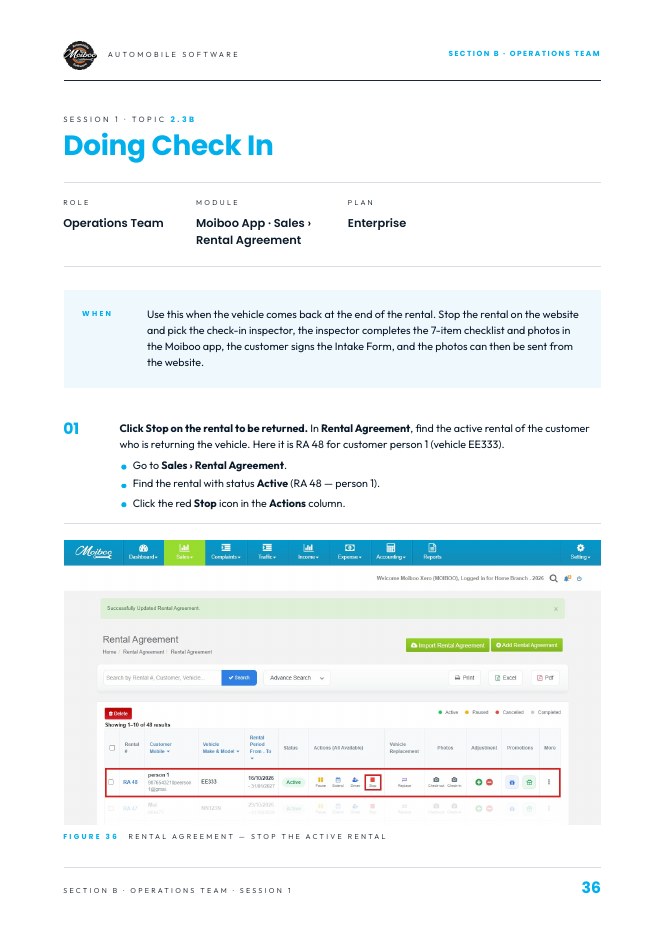
In Sales › Rental Agreement, find the active rental of the customer who is returning the vehicle — status Active. Here it is RA 48 for customer person 1 (vehicle EE333). Click the red Stop icon in the Actions column.
The Stop Rental window opens and shows the agreement, customer and vehicle at the top. Check the Stop Date and time.
Enter the Odometer Reading (KM) — here 235977 — and select the Fuel In level.
Select the Check-in Inspector (here Alex). The inspector receives the check-in job in the mobile app. Scroll down inside the window for the next fields.
Select the Reason for Stop: Early Return, Repossession or Contract Completed. Add Remarks (optional) and click the red Stop Rental button.
Login & open the check-in job
Open the Moiboo app on the phone. Enter the Username (email) and Password — tap the eye icon to see the password if needed — then tap Login to open My Jobs.
My Jobs lists all jobs. Scroll to the job of the customer returning the vehicle (here job 85, vehicle EE333, due today) and tap it to open the Check-In Details screen.
The Check-In Details screen shows the vehicle number, car make / model and the check-in date and time. Confirm the vehicle (here EE333) and the check-in date / time.
The Checklist lists 7 items, all showing Pending. Tap an item to open it — start with Front view of the Vehicle.
Checklist
Front viewLeft Hand Side (LHS)Rear viewRight Hand Side (RHS)Interior checksMileageFuel Level
Front, sides & rear
Front view of the Vehicle: tap the + box under Attachments and take or upload a photo (up to 7). Added photos appear as thumbnails and the count updates.
Switch the toggle at the top right from Not Ok to Ok (green) if the condition is fine. Leave it as Not Ok if there is damage.
Add a comment (optional), for example any scratch or dent, and tap Save.
Left Hand Side (LHS): repeat the same process — tap + and add the LHS photo, set the toggle to Ok, add a comment (optional) and tap Save.
Rear view: tap + and add photos of the back of the vehicle, set Ok / Not Ok, add a comment (optional) and tap Save.
Right Hand Side (RHS): tap + and add the RHS photo, set Ok / Not Ok, add a comment (optional) and tap Save.
Interior, mileage & fuel
Interior checks: check and photograph the inside of the vehicle (seats, dashboard, mats, etc.). Tap + and add the photos, set Ok / Not Ok, add a comment (optional) and tap Save.
Mileage: type the current odometer reading in the Mileage box at the top (here 235977), tap + and add a photo of the odometer as proof, add a comment (optional) and tap Save.
Fuel Level: tap the drop-down and select the level shown on the fuel gauge (Empty, 2/8, 3/8, 1/2, 5/8, 6/8 …). Add a photo of the gauge (optional), add a comment (optional) and tap Save.
Review & customer signature
When every item has a green tick the checklist is complete — check that all 7 items show a green tick. Add notes in the notes box (optional) and tap Next to go to the Intake Form.
The Intake Form shows the checklist summary for the customer to confirm. Ask the customer to review the Customer Confirmation list and sign inside the Signature box — tap Clear to sign again if needed.
Tap Save & Complete to finish the check-in.
Back in Rental Agreement, the rental now shows the status Completed and the Returned sign in the Actions column — the Stop button is no longer available and the Check-in photo icon turns green.
View the check-in photos on the website
Go to Sales › Rental Agreement and find the rental (here RA 48). Click the green Check-in camera icon in the Photos column.
The Check-In Images window opens. Click a section (Front view, LHS, Rear, RHS, Interior, Mileage, Fuel Level) to expand it and see its photos and Ok status.
The Send Check-In Photos panel on the right shows the agreement, customer, vehicle and check-in date and time.
Send the check-in photos to the customer
Scroll down inside the window to see the sending options. Under Send via, tick WhatsApp, Email or both.
Check the WhatsApp Number. Enter the dialling code if the system shows “No dialling code found for this customer”.
Edit the message if needed (optional). Keep ##PhotoLink## in the text — it is replaced with the photo link, which is valid for 7 days.
Click the Send Photos button at the bottom of the panel to send the photos to the customer.
Tip. Compare the check-in photos with the check-out photos from topic 2.3A · Doing Check Out to spot any new damage.
Stop the rental and pick the check-in inspector, complete the 7-item checklist with photos in the Moiboo app, get the customer's signature on the Intake Form, then view and send the check-in photos from the website.
Moiboo Rental Training Booklet (Enterprise Plan) · pages 36–47
Practise in a demo or training account with sample data. Everything you tick or type here is self-reported — this page doesn't connect to Moiboo and can't verify your work. Progress is saved in this browser only.
Your browser is blocking storage, so progress here won't be kept after you close the page.
SCENARIO
Test Customer A has returned TEST 001. Stop the rental on the website and assign yourself as the check-in inspector, check the vehicle in with the Moiboo app, then open the check-in photos and send them to the customer on WhatsApp.
Before you start
The Moiboo app on your phone, with a demo or training login.
The demo rental you checked out in topic 2.3A, now being returned.
Your own phone number to receive the photo link.
Sample data
Rental
Your demo agreement (e.g. RA 48)
Vehicle
TEST 001
Compare with
Your check-out photos from topic 2.3A
Need help?
1. Can you find the rental that is coming back in Sales › Rental Agreement? Search by rental number, customer or vehicle — use the demo rental you checked out in topic 2.3A.
2. Can you log in to the Moiboo app and open the assigned check-in job? Enter your email and password, tap Login, then tap the check-in job in your Jobs list.
3. Can you complete every checklist item with photos and Ok / Not Ok? Follow the video: for each item tap + to add photos, set the Ok / Not Ok toggle, add a comment if needed and tap Save.
4. Can you record the vehicle condition the way it came back? Mark any new damage as Not Ok and describe it in the comment, exactly as shown in the video.
5. Can you submit and finish the check-in in the app? Check every item shows a green tick, then finish the check-in as shown at the end of the video.
6. Can you open the Check-in photos from the website? Sales › Rental Agreement › find the rental › click the Check-in camera icon in the Photos column.
7. Can you compare the check-in photos with the check-out photos? Open the Check-out camera icon on the same row and compare each section.
Expected result
A completed check-in for TEST 001 in the Moiboo app, with the check-in photos showing from the Check-in camera icon on the website and compared with the check-out photos.
Your result
Let's find where you got stuck
Saved here as Needs help — nothing is sent anywhere. Copy your question to share it with your trainer, then carry on with other modules and come back.
Search by rental number, customer or vehicle — use the demo rental you checked out in topic 2.3A.Enter your email and password, tap Login, then tap the check-in job in your Jobs list.Follow the video: for each item tap + to add photos, set the Ok / Not Ok toggle, add a comment if needed and tap Save.Mark any new damage as Not Ok and describe it in the comment, exactly as shown in the video.Check every item shows a green tick, then finish the check-in as shown at the end of the video.Sales › Rental Agreement › find the rental › click the Check-in camera icon in the Photos column.Open the Check-out camera icon on the same row and compare each section.
Practice completeYou marked this practice complete on this browser. It's your own self-check.
Practise in a demo or training account with sample data. Everything you tick or type here is self-reported — this page doesn't connect to Moiboo and can't verify your work. Progress is saved in this browser only.
Your browser is blocking storage, so progress here won't be kept after you close the page.
SCENARIO
TEST 001 has broken down and is going to the workshop. It should be back with Test Customer A in two days. Pause the rental.
Before you start
An Active rental (from topic 2.2).
Sample data
Reason
Breakdown
Odometer
45,650 km
Expected resume
Two days from now
Remarks
Engine warning light — sent to workshop
Need help?
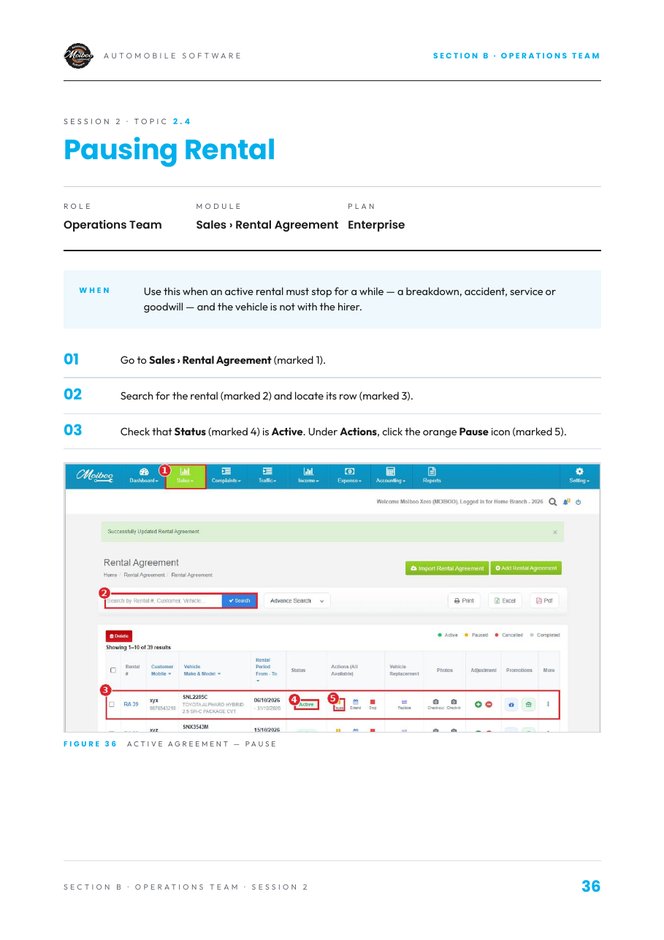
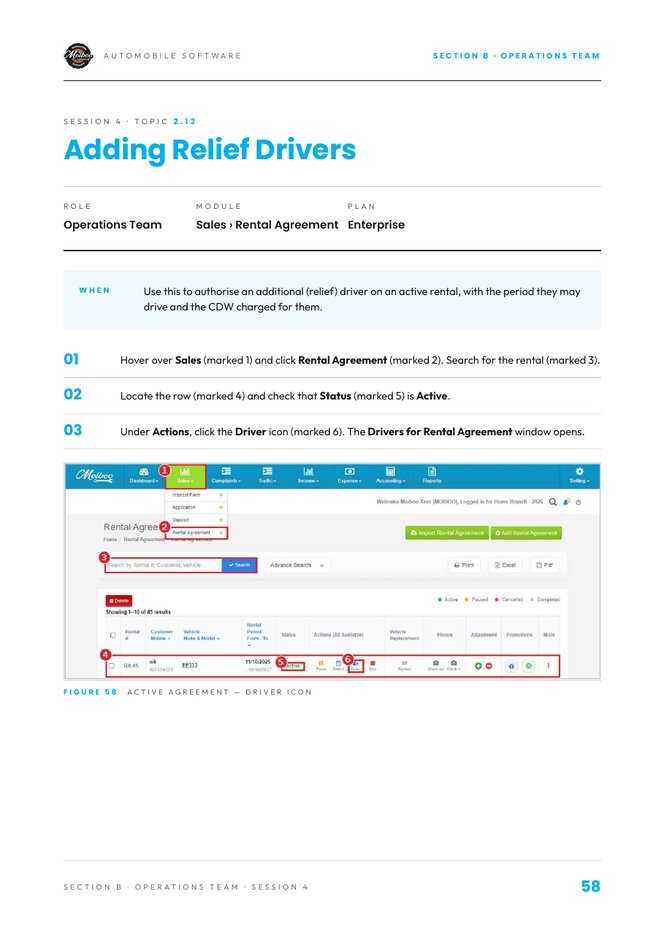
1. Can you find the rental and confirm its Status is Active? Sales › Rental Agreement, search for the rental, check the Status column.
2. Can you open the Pause Rental window? Click the orange Pause icon under Actions.
3. Can you set the Pause Date & Time and Expected Resume Date & Time? Pause Date & Time is mandatory; add the expected resume date if you know it.
4. Can you enter the odometer and choose Breakdown as the reason? Type the KM reading, then pick Breakdown in Reason for Pause.
5. Can you add remarks and click Pause Rental? Type your note in Remarks, then click Pause Rental.
6. Can you confirm the Status now reads Paused? Back in the list, the row shows Paused and a Resume action.
Expected result
The rental for TEST 001 shows Paused with reason Breakdown, the odometer reading and an expected resume date.
Your result
Let's find where you got stuck
Saved here as Needs help — nothing is sent anywhere. Copy your question to share it with your trainer, then carry on with other modules and come back.
Sales › Rental Agreement, search for the rental, check the Status column.Click the orange Pause icon under Actions.Pause Date & Time is mandatory; add the expected resume date if you know it.Type the KM reading, then pick Breakdown in Reason for Pause.Type your note in Remarks, then click Pause Rental.Back in the list, the row shows Paused and a Resume action.
Practice completeYou marked this practice complete on this browser. It's your own self-check.
Practise in a demo or training account with sample data. Everything you tick or type here is self-reported — this page doesn't connect to Moiboo and can't verify your work. Progress is saved in this browser only.
Your browser is blocking storage, so progress here won't be kept after you close the page.
SCENARIO
TEST 001 is back from the workshop. The breakdown wasn't the hirer's fault, so they shouldn't pay for the two days without the car. Resume the rental.
Before you start
A Paused rental (from topic 2.4).
Sample data
Odometer
45,660 km
Billing impact
Pause Billing
Remarks
Repair done — returned to hirer
Need help?
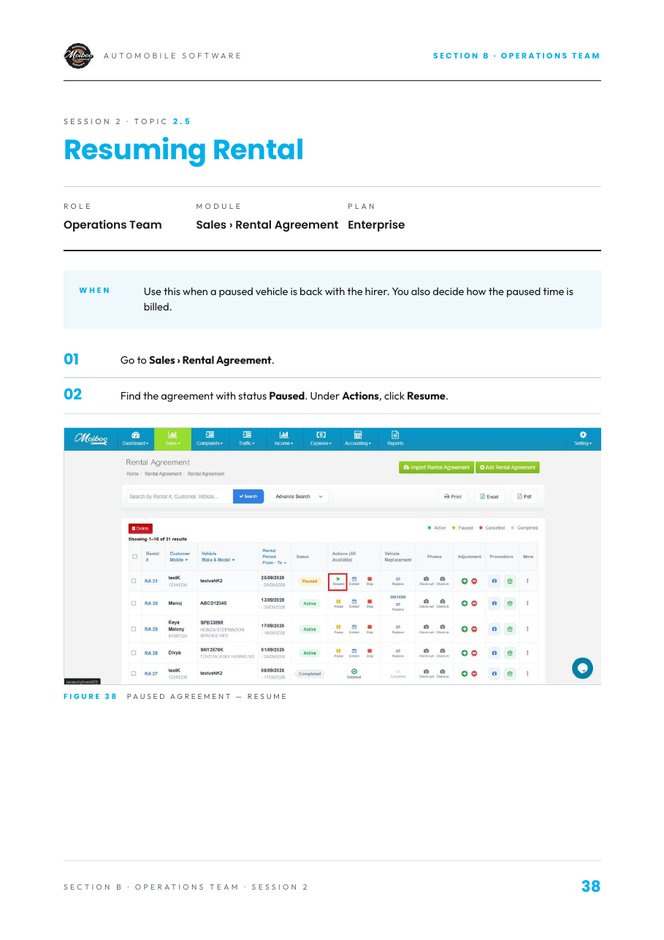
1. Can you find the Paused agreement and click Resume? Sales › Rental Agreement, find the row with status Paused, click Resume under Actions.
2. Can you set the Resume Date and odometer? Pick the date and type the KM reading in the Resume Rental window.
3. Do you know which Billing Impact raises a credit note? Pause Billing raises a credit note for the paused period. Extend Rental Period extends the term; Continue Billing keeps billing.
4. Can you select Pause Billing for this scenario? Choose Pause Billing so the hirer is credited for the two days.
5. Can you click Resume Rental and see the Status return to Active? Add remarks, click Resume Rental, then check the Status column.
6. Can you find the credit note in Income › Credit Note? Open Income › Credit Note and look for the hirer's name and vehicle plate (see topic 3.2).
Expected result
The rental is Active again, and a credit note for the paused days appears in Income › Credit Note for Test Customer A.
Your result
Let's find where you got stuck
Saved here as Needs help — nothing is sent anywhere. Copy your question to share it with your trainer, then carry on with other modules and come back.
Sales › Rental Agreement, find the row with status Paused, click Resume under Actions.Pick the date and type the KM reading in the Resume Rental window.Pause Billing raises a credit note for the paused period. Extend Rental Period extends the term; Continue Billing keeps billing.Choose Pause Billing so the hirer is credited for the two days.Add remarks, click Resume Rental, then check the Status column.Open Income › Credit Note and look for the hirer's name and vehicle plate (see topic 3.2).
Practice completeYou marked this practice complete on this browser. It's your own self-check.
Practise in a demo or training account with sample data. Everything you tick or type here is self-reported — this page doesn't connect to Moiboo and can't verify your work. Progress is saved in this browser only.
Your browser is blocking storage, so progress here won't be kept after you close the page.
SCENARIO
Test Customer A wants to keep TEST 001 for 7 more days after the current end date. Extend the rental.
Before you start
An Active rental.
Sample data
Extension type
Extend by Days
Days to extend
7
Need help?
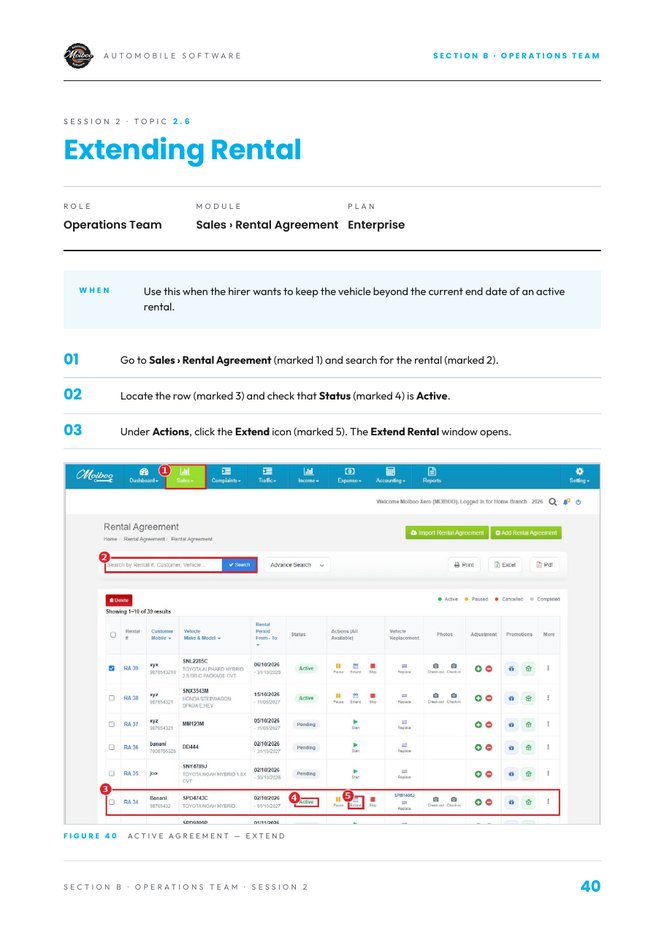
1. Can you find the Active rental and open the Extend window? Sales › Rental Agreement, search, check Status is Active, click the Extend icon.
2. Can you read the Current Rental Period? It's shown under the information box at the top of the window.
3. Can you choose Extend by Days and enter 7? Select Extend by Days under Extension Type, then type 7 in No. of Days to Extend.
4. Do you know when to use Extend to Date instead? When the hirer gives you a date — pick it in New End Date.
5. Can you click Extend Rental and check the new end date? Click Extend Rental, then open the agreement and confirm the end date moved by 7 days.
Expected result
The rental for TEST 001 is still Active and its end date is 7 days later than before.
Your result
Let's find where you got stuck
Saved here as Needs help — nothing is sent anywhere. Copy your question to share it with your trainer, then carry on with other modules and come back.
Sales › Rental Agreement, search, check Status is Active, click the Extend icon.It's shown under the information box at the top of the window.Select Extend by Days under Extension Type, then type 7 in No. of Days to Extend.When the hirer gives you a date — pick it in New End Date.Click Extend Rental, then open the agreement and confirm the end date moved by 7 days.
Practice completeYou marked this practice complete on this browser. It's your own self-check.
Practise in a demo or training account with sample data. Everything you tick or type here is self-reported — this page doesn't connect to Moiboo and can't verify your work. Progress is saved in this browser only.
Your browser is blocking storage, so progress here won't be kept after you close the page.
SCENARIO
TEST 001 needs a longer repair. Give Test Customer A a same-class replacement, TEST 002, for the rest of the rental.
Before you start
An Active rental.
A second demo vehicle that is free until the rental's end date.
Sample data
New vehicle
TEST 002
Odometer
30,100 km
Fuel level
Full
Class
Same Class
Remarks
Long repair on TEST 001
Need help?
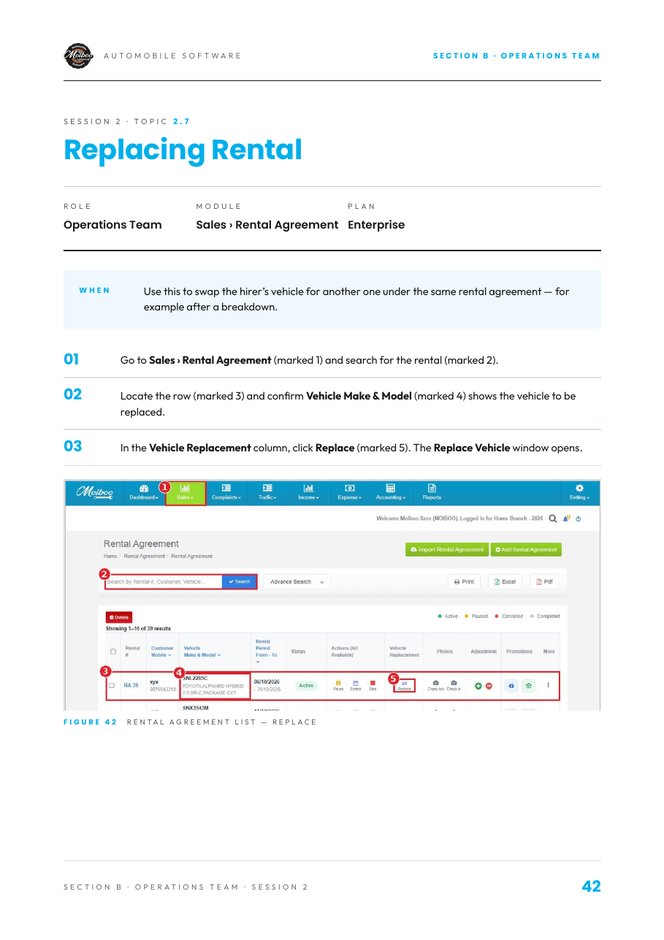
1. Can you open the Replace Vehicle window? Sales › Rental Agreement, find the row, click Replace in the Vehicle Replacement column.
2. Can you review the Current Vehicle (Incoming) details? Number, model, odometer, start date and days used are shown at the top of the window.
3. Can you select the new vehicle under New Vehicle (Outgoing)? Pick the Vehicle No. — Make & Model fills in automatically.
4. Can you enter the new vehicle's odometer and fuel level? Scroll down inside the window to find them.
5. Can you check the Replacement Date & Time and End Date? The new vehicle must be free for the whole period.
6. Can you select the reason, class and both inspectors? Reason for Replacement, Same Class / Different Class, Check-in Inspector (Outgoing) and Check-out Inspector (Incoming).
7. Can you click Replace Vehicle and see the new vehicle on the row? Click Replace Vehicle, then check Vehicle Make & Model in the list.
Expected result
The agreement now shows TEST 002 in Vehicle Make & Model, with the replacement date, odometer, fuel, reason and both inspectors recorded.
Your result
Let's find where you got stuck
Saved here as Needs help — nothing is sent anywhere. Copy your question to share it with your trainer, then carry on with other modules and come back.
Sales › Rental Agreement, find the row, click Replace in the Vehicle Replacement column.Number, model, odometer, start date and days used are shown at the top of the window.Pick the Vehicle No. — Make & Model fills in automatically.Scroll down inside the window to find them.The new vehicle must be free for the whole period.Reason for Replacement, Same Class / Different Class, Check-in Inspector (Outgoing) and Check-out Inspector (Incoming).Click Replace Vehicle, then check Vehicle Make & Model in the list.
Practice completeYou marked this practice complete on this browser. It's your own self-check.
Practise in a demo or training account with sample data. Everything you tick or type here is self-reported — this page doesn't connect to Moiboo and can't verify your work. Progress is saved in this browser only.
Your browser is blocking storage, so progress here won't be kept after you close the page.
SCENARIO
Test Customer A brings TEST 001 back a week before the end date because they've bought their own car. Stop the rental.
Before you start
An Active or Paused demo rental.
Sample data
Reason
Early Return
Odometer
48,900 km
Fuel in
1/2
Inspector
Your own user
Remarks
Hirer bought own vehicle
Need help?
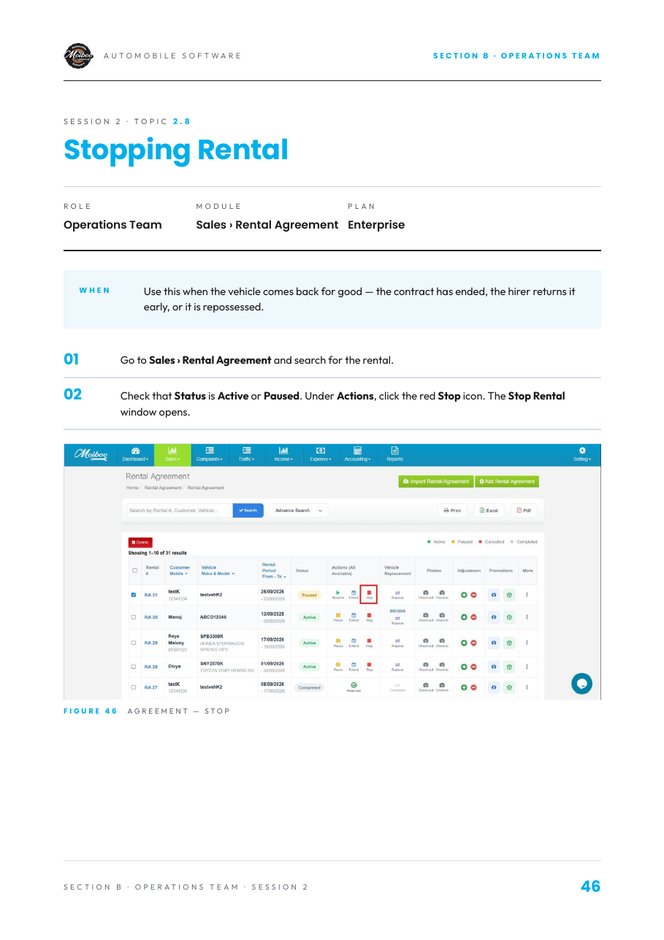
1. Can you find the rental and check its Status is Active or Paused? Sales › Rental Agreement, search for the rental, read the Status column.
2. Can you open the Stop Rental window? Click the red Stop icon under Actions.
3. Can you set the Stop Date, odometer and Fuel In? Stop Date is mandatory. Type the KM reading and pick the fuel level.
4. Can you select the Check-in Inspector? It's mandatory — pick the staff member who checked the vehicle in.
5. Do you know which Reason for Stop fits each case? Early Return — back before the end date; Repossession — taken back; Contract Completed — full term run.
6. Can you choose Early Return, add remarks and click Stop Rental? Pick the reason, type your remark, then click Stop Rental.
7. Can you confirm the status is Completed and Actions shows Returned? Check the row in the Rental Agreement list.
Expected result
The rental for TEST 001 shows Completed with Returned under Actions, and the stop date, odometer, fuel, inspector and Early Return reason recorded.
Your result
Let's find where you got stuck
Saved here as Needs help — nothing is sent anywhere. Copy your question to share it with your trainer, then carry on with other modules and come back.
Sales › Rental Agreement, search for the rental, read the Status column.Click the red Stop icon under Actions.Stop Date is mandatory. Type the KM reading and pick the fuel level.It's mandatory — pick the staff member who checked the vehicle in.Early Return — back before the end date; Repossession — taken back; Contract Completed — full term run.Pick the reason, type your remark, then click Stop Rental.Check the row in the Rental Agreement list.
Practice completeYou marked this practice complete on this browser. It's your own self-check.
Practise in a demo or training account with sample data. Everything you tick or type here is self-reported — this page doesn't connect to Moiboo and can't verify your work. Progress is saved in this browser only.
Your browser is blocking storage, so progress here won't be kept after you close the page.
SCENARIO
TEST 001 came back from a weekend trip very dirty inside. Charge Test Customer A a SGD 80 cleaning fee, before GST.
Before you start
An Active rental.
Sample data
Charge category
Cleaning Fee
Amount
SGD 80.00
Tax treatment
Tax Exclusive
Remarks
Interior deep clean
Need help?
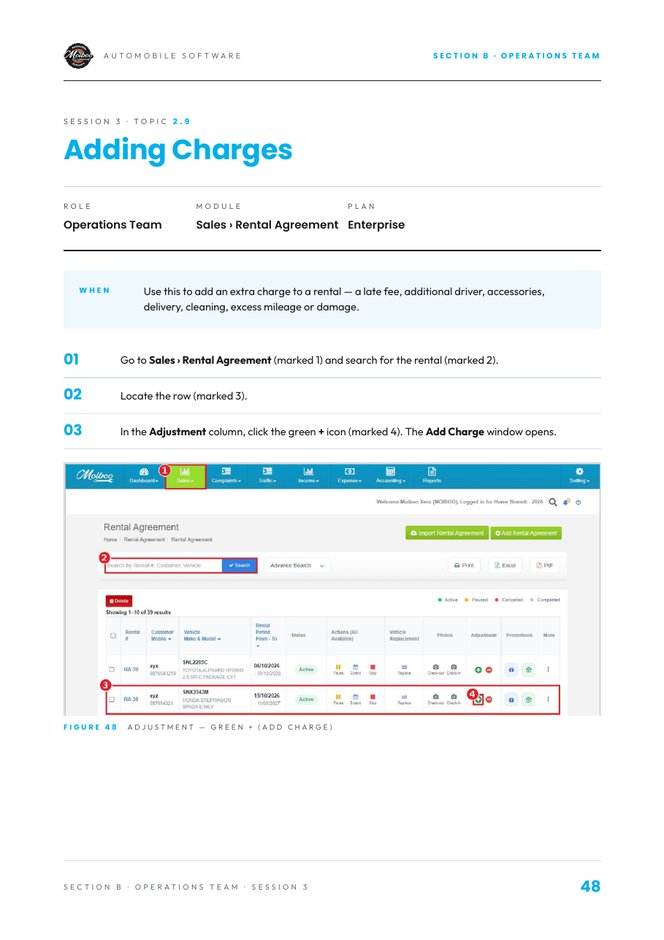
1. Can you open the Add Charge window? Sales › Rental Agreement, find the row, click the green + in the Adjustment column.
2. Can you select Cleaning Fee as the Charge Category? Click the Cleaning Fee tile in the window.
3. Can you check the Adjustment Date and enter the Amount? Both are mandatory. Type 80 in Amount.
4. Do you know the difference between Tax Exclusive and Tax Inclusive? Tax Exclusive adds GST on top of the amount; Tax Inclusive means the amount already includes GST.
5. Can you add remarks and click Apply Charge? Scroll down, type your remark and click Apply Charge.
6. Can you find the charge on the hirer's invoices? Open Income › Invoice and look for the customer's Non Recurring invoice (see topic 3.1).
Expected result
A SGD 80 Cleaning Fee (tax exclusive) is applied to Test Customer A's rental with your remark.
Your result
Let's find where you got stuck
Saved here as Needs help — nothing is sent anywhere. Copy your question to share it with your trainer, then carry on with other modules and come back.
Sales › Rental Agreement, find the row, click the green + in the Adjustment column.Click the Cleaning Fee tile in the window.Both are mandatory. Type 80 in Amount.Tax Exclusive adds GST on top of the amount; Tax Inclusive means the amount already includes GST.Scroll down, type your remark and click Apply Charge.Open Income › Invoice and look for the customer's Non Recurring invoice (see topic 3.1).
Practice completeYou marked this practice complete on this browser. It's your own self-check.
Practise in a demo or training account with sample data. Everything you tick or type here is self-reported — this page doesn't connect to Moiboo and can't verify your work. Progress is saved in this browser only.
Your browser is blocking storage, so progress here won't be kept after you close the page.
SCENARIO
TEST 001's scheduled service took a day longer than promised. Give Test Customer A a SGD 50 Service Delay credit.
Before you start
An Active rental.
Sample data
Credit category
Service Delay
Amount
SGD 50.00
Tax treatment
Tax Exclusive
Remarks
Service ran one day late
Need help?
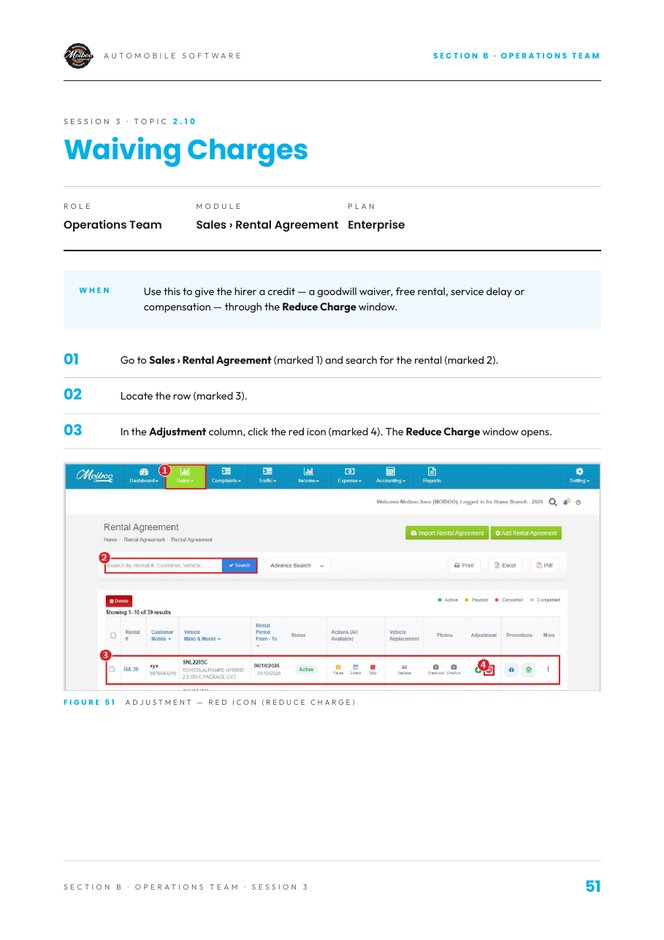
1. Can you open the Reduce Charge window? Sales › Rental Agreement, find the row, click the red icon in the Adjustment column.
2. Can you select Service Delay as the Credit Category? Click the Service Delay tile.
3. Can you check the Adjustment Date and enter the Amount? Type 50 in Amount.
4. Can you choose the Tax Treatment and add remarks? Tax Exclusive is the default. Scroll down for Remarks.
5. Can you click Apply Credit? Apply Credit is at the bottom of the window.
6. Can you find the new credit note in Income › Credit Note? Open Income › Credit Note and look for the customer and vehicle plate.
Expected result
A SGD 50 Service Delay credit is applied and a matching credit note appears in Income › Credit Note.
Your result
Let's find where you got stuck
Saved here as Needs help — nothing is sent anywhere. Copy your question to share it with your trainer, then carry on with other modules and come back.
Sales › Rental Agreement, find the row, click the red icon in the Adjustment column.Click the Service Delay tile.Type 50 in Amount.Tax Exclusive is the default. Scroll down for Remarks.Apply Credit is at the bottom of the window.Open Income › Credit Note and look for the customer and vehicle plate.
Practice completeYou marked this practice complete on this browser. It's your own self-check.
Role: Operations TeamModule: Traffic › Fines & ViolationPlan: Enterprise
Moiboo Academy
Operations Team · Topic 2.11
Checking Fine / Tolls / Tickets Video tutorial
Text Guide
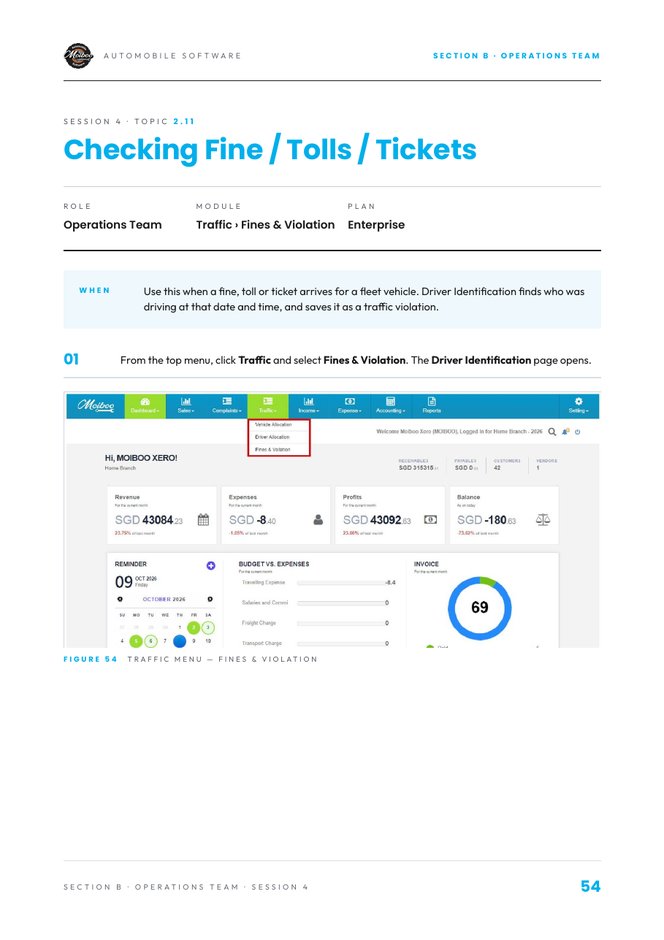
Find who was driving when a fine, toll or ticket was issued, and save it as a traffic violation.
When
Use this when a fine, toll or ticket arrives for a fleet vehicle. Driver Identification finds who was driving at that date and time, and saves it as a traffic violation.
Open Driver Identification
From the top menu, click Traffic and select Fines & Violation. The Driver Identification page opens.
Read the Driver Identification page
The cards at the top show Total Searches this year, Driver Identified, Not Identified and Saved as Traffic Violation.
Filter past searches with Search (vehicle, driver or NRIC), Search Date and Result, then click Filter. Clear resets.
Each row shows the search date, Vehicle No., offence date & time, driver, linked Agreement No., Result and Created By.
Find the driver
Click New Search at the top right of the list. The search form opens.
Enter the Vehicle No., Date of Offence and Time of Offence from the fine, toll or ticket, then click Find Driver. Back to list returns without searching.
Save as a violation
When the driver is identified, go back to the list and click Save to Violation in the Action column. The … button shows more options.
Check that the Saved as Traffic Violation count increases and the correct driver and agreement are shown.
Practise in a demo or training account with sample data. Everything you tick or type here is self-reported — this page doesn't connect to Moiboo and can't verify your work. Progress is saved in this browser only.
Your browser is blocking storage, so progress here won't be kept after you close the page.
SCENARIO
A parking ticket arrives for TEST 001, issued yesterday at 3:15 pm. Find out who was driving and save it as a traffic violation.
Before you start
A demo vehicle that was on an Active rental at the offence date and time.
Sample data
Vehicle No.
TEST 001
Date of offence
Yesterday
Time of offence
3:15 pm
Type
Parking ticket
Need help?
1. Can you open Traffic › Fines & Violation? Click Traffic in the top menu and select Fines & Violation.
2. Can you read the four summary cards? Total Searches, Driver Identified, Not Identified and Saved as Traffic Violation.
3. Can you start a New Search? New Search is at the top right of the list.
4. Can you enter the vehicle, date and time of offence and click Find Driver? Copy them from the ticket, then click Find Driver.
5. Can you see the identified driver and the linked Agreement No.? The result row shows the driver and the agreement that covered that time.
6. Can you click Save to Violation? In the Action column of the result row.
7. Can you confirm the Saved as Traffic Violation count went up? Check the card at the top of the page.
Expected result
A new search for TEST 001 with the driver identified, linked to the right agreement, and saved as a traffic violation.
Your result
Let's find where you got stuck
Saved here as Needs help — nothing is sent anywhere. Copy your question to share it with your trainer, then carry on with other modules and come back.
Click Traffic in the top menu and select Fines & Violation.Total Searches, Driver Identified, Not Identified and Saved as Traffic Violation.New Search is at the top right of the list.Copy them from the ticket, then click Find Driver.The result row shows the driver and the agreement that covered that time.In the Action column of the result row.Check the card at the top of the page.
Practice completeYou marked this practice complete on this browser. It's your own self-check.
Practise in a demo or training account with sample data. Everything you tick or type here is self-reported — this page doesn't connect to Moiboo and can't verify your work. Progress is saved in this browser only.
Your browser is blocking storage, so progress here won't be kept after you close the page.
SCENARIO
Test Customer A's brother will share the driving for the next 10 days. Add him as a relief driver with CDW of SGD 15 a day, billed one-time.
Before you start
An Active rental.
A demo customer to add as the relief driver (or create one with the blue +).
Sample data
Relief driver
Test Driver C
Period
10 days from today
CDW per day
SGD 15.00
Billing
One-time
Need help?
1. Can you open the Drivers for Rental Agreement window? Sales › Rental Agreement, find the Active row, click the Driver icon under Actions.
2. Can you review the Primary Driver and existing Additional Drivers? They're listed under the information box with their dates, CDW and billing.
3. Can you click Add Additional Driver and select the relief driver? Pick them in Additional Driver, or click the blue + to create a new customer.
4. Can you check the driver card details? Name, mobile, licence and expiry appear once the driver is selected.
5. Can you set Effective From and Effective Until? CDW is charged per day for this period.
6. Can you enter the CDW per day and choose One-time billing? Type the CDW Amount (per day) and choose One-time.
7. Can you click Add Additional Driver and see them in the list? The new driver appears under Additional Drivers in the window.
Quick calculation
Expected result
Test Driver C appears under Additional Drivers on the rental for 10 days, with CDW of SGD 15 a day billed one-time (SGD 150 total).
Your result
Let's find where you got stuck
Saved here as Needs help — nothing is sent anywhere. Copy your question to share it with your trainer, then carry on with other modules and come back.
Sales › Rental Agreement, find the Active row, click the Driver icon under Actions.They're listed under the information box with their dates, CDW and billing.Pick them in Additional Driver, or click the blue + to create a new customer.Name, mobile, licence and expiry appear once the driver is selected.CDW is charged per day for this period.Type the CDW Amount (per day) and choose One-time.The new driver appears under Additional Drivers in the window.
Practice completeYou marked this practice complete on this browser. It's your own self-check.
Role: Accounts TeamModule: Income › InvoicePlan: Enterprise
Moiboo Academy
Accounts Team · Topic 3.1
Checking Invoices Video tutorial
Text Guide
Read the invoice list — billed, received, outstanding and overdue — and check the linked rental agreement.
When
Use this to check what has been billed to each hirer, what has been received and what is still outstanding.
Open the invoice list
From the top menu, click Income and select Invoice. The breadcrumb reads Home › Income › Invoice.
Choose a tab: All Invoices, In Progress (still open) or Paid (settled).
Read the invoice list
Use Invoice #, Date, Customer, Car Plate and Agree. No. to identify the invoice. Amount Due, Paid and Due show billed, received and outstanding.
Check the OverDue badge and the Type. Recurring invoices come from a rental agreement; Non Recurring are one-off charges.
OverDue badge
Red · 7 Days
Overdue
Due Today
Due now
Orange · 1 Days
Short delay
Due in 23 Days
Upcoming
Type the number in the Invoice Id box to find an invoice; the filter button beside it gives more options. Add Invoice creates one; Sync Xero syncs with Xero.
Click Action on a row for its options. For several invoices, tick the checkboxes, then use Send Mail or Delete.
Click the blue Agree. No. link (for example RA 36) to open the linked rental agreement.
Check the linked agreement
In Sales › Rental Agreement, the Status column shows Active, Paused, Pending, Cancelled or Completed. Confirm it matches the invoice you are checking.
If the agreement shows Pending, it has not started, so no recurring invoices are raised yet. Click Start in the Actions column.
Start & re-check
Enter the Start Date & Time, Odometer Reading, Fuel Level, Invoice Frequency and Check-out Inspector, then click Start Rental (see topic 2.2).
Return to Income › Invoice and confirm the new invoices appear with the correct customer, agreement number and amount due.
Practise in a demo or training account with sample data. Everything you tick or type here is self-reported — this page doesn't connect to Moiboo and can't verify your work. Progress is saved in this browser only.
Your browser is blocking storage, so progress here won't be kept after you close the page.
SCENARIO
Test Customer A calls asking how much they still owe. Find their invoices, read what's due and overdue, and confirm the rental is the right one.
Before you start
An Active demo rental with at least one recurring invoice raised.
Sample data
Customer
Test Customer A
Car plate
TEST 001
Tab
In Progress
Need help?
1. Can you open Income › Invoice and switch between the three tabs? Click Income in the top menu, select Invoice, then try All Invoices, In Progress and Paid.
2. Can you find the customer's invoices? Use the Invoice Id box or the filter button beside it, or scan the Customer and Car Plate columns.
3. Can you read Amount Due, Paid and Due for an invoice? Billed, received and still outstanding.
4. Can you read the OverDue badge? Red means overdue, Due Today means due now, orange is a short delay, Due in N Days is upcoming.
5. Can you tell a Recurring invoice from a Non Recurring one? Recurring comes from the rental agreement; Non Recurring is a one-off charge such as a cleaning fee.
6. Can you open the linked rental agreement from the Agree. No. link? Click the blue link, e.g. RA 36.
7. Do you know why a Pending agreement has no recurring invoices? It hasn't started yet — start it from Sales › Rental Agreement (topic 2.2).
Expected result
You can tell the caller exactly what is due, what's paid and what's overdue, and which agreement each invoice belongs to.
Your result
Let's find where you got stuck
Saved here as Needs help — nothing is sent anywhere. Copy your question to share it with your trainer, then carry on with other modules and come back.
Click Income in the top menu, select Invoice, then try All Invoices, In Progress and Paid.Use the Invoice Id box or the filter button beside it, or scan the Customer and Car Plate columns.Billed, received and still outstanding.Red means overdue, Due Today means due now, orange is a short delay, Due in N Days is upcoming.Recurring comes from the rental agreement; Non Recurring is a one-off charge such as a cleaning fee.Click the blue link, e.g. RA 36.It hasn't started yet — start it from Sales › Rental Agreement (topic 2.2).
Practice completeYou marked this practice complete on this browser. It's your own self-check.
Role: Accounts TeamModule: Income › Credit NotePlan: Enterprise
Moiboo Academy
Accounts Team · Topic 3.2
Checking Credit Notes Video tutorial
Text Guide
Check credits given to hirers and how much has been applied — and raise new ones from the agreement.
When
Use this to check credits given to hirers — waivers, free rental, service delays and compensation — and how much of each has been applied.
Open the credit note list
From the top menu, click Income and select Credit Note. The breadcrumb reads Home › Income › Credit Note.
Use Credit Note #, Date, Customer and Cost Centre (the vehicle plate) to identify the credit. The small label under the number (e.g. RA 34) is the rental agreement.
Read the amounts & status
Check the amounts in each row.
Credit note amounts
Amount
The credit value
Paid
How much has been applied
Pending
Balance still to be applied
The Status column shows the state of each credit note, such as DRAFT. Confirm it is as expected.
Type the number in CreditNote Id and click Search, or use Advance Search. Detailed Excel, Print, Excel and Pdf export the list; Sync Xero syncs with Xero; Action shows a row's options.
Raise a credit from the agreement
To create a credit note for a rental, go to Sales › Rental Agreement. In the Adjustment column, click the red minus (–) button.
In the Reduce Charge window, select a Credit Category, enter the Adjustment Date and Amount, set the Tax Treatment and click Apply Credit (see topic 2.10).
Return to Income › Credit Note and check the new credit note shows the correct customer, vehicle, amount and agreement.
Practise in a demo or training account with sample data. Everything you tick or type here is self-reported — this page doesn't connect to Moiboo and can't verify your work. Progress is saved in this browser only.
Your browser is blocking storage, so progress here won't be kept after you close the page.
SCENARIO
Test Customer A says they were promised a credit for a late service. Find the credit note, check how much is still pending, and raise one if it's missing.
Before you start
A demo rental — ideally one where you applied a credit in topic 2.10.
Sample data
Customer
Test Customer A
Cost centre
TEST 001
Credit category
Service Delay
Need help?
1. Can you open Income › Credit Note? Click Income in the top menu and select Credit Note.
2. Can you find the customer's credit note? Type the number in CreditNote Id and click Search, or use Advance Search.
3. Can you tell which agreement and vehicle the credit belongs to? The small label under the number (e.g. RA 34) is the agreement; Cost Centre is the vehicle plate.
4. Can you read Amount, Paid and Pending? Credit value, how much is applied, and the balance still to be applied.
5. Can you check the credit note's Status? The Status column, e.g. DRAFT.
6. Can you raise a new credit from the rental agreement? Sales › Rental Agreement, red – in the Adjustment column, fill the Reduce Charge window and click Apply Credit.
Expected result
You found the hirer's credit note, know how much of it is still pending, and can raise a new credit from the agreement when one is missing.
Your result
Let's find where you got stuck
Saved here as Needs help — nothing is sent anywhere. Copy your question to share it with your trainer, then carry on with other modules and come back.
Click Income in the top menu and select Credit Note.Type the number in CreditNote Id and click Search, or use Advance Search.The small label under the number (e.g. RA 34) is the agreement; Cost Centre is the vehicle plate.Credit value, how much is applied, and the balance still to be applied.The Status column, e.g. DRAFT.Sales › Rental Agreement, red – in the Adjustment column, fill the Reduce Charge window and click Apply Credit.
Practice completeYou marked this practice complete on this browser. It's your own self-check.
Accounts Team · Topic 3.3
Viewing Outstanding List Video tutorial
Text Guide
See every invoice with money still pending and how overdue it is — and act on it from the report.
When
Use this to see every invoice with money still pending, how many days each is overdue, and to act on them straight from the report.
Open the Overdue Invoice report
Click Reports in the top menu. The Report page opens with Income, Expense, Accounting and Tax Reports.
In Income Reports, click Overdue Invoice — “gives you a snapshot of your pending income”.
Filter, read & act
Set the filters — date range, Name / Mobile / Area / Address / City, Customer, User, Executives, Customer Type, Due Days sorting and status. Click Search, or Cancel to reset.
Print / Excel prints or exports the report; Ageing Print prints the ageing view.
Read the columns — customer, cost center, invoice #, agreement #, date, Amount, Paid, Pending, Due Days Crossed, executive and status.
Action on a row offers PDF, Print, View, Update and Mail Invoice, Add Receipt and WhatsApp Invoice. Totals are at the bottom.
Practise in a demo or training account with sample data. Everything you tick or type here is self-reported — this page doesn't connect to Moiboo and can't verify your work. Progress is saved in this browser only.
Your browser is blocking storage, so progress here won't be kept after you close the page.
SCENARIO
It's Monday morning. Pull up every invoice still pending, sort the most overdue to the top and send a reminder to the worst one.
Before you start
A demo account with at least one unpaid invoice.
Sample data
Report
Income Reports › Overdue Invoice
Sort
Due Days — highest first
Reminder
WhatsApp Invoice to your own test number
Need help?
1. Can you open Reports › Overdue Invoice? Click Reports, then Overdue Invoice under Income Reports.
2. Can you set the filters and click Search? Date range, customer, executive, Due Days sorting and status are all on the filter bar.
3. Can you read Amount, Paid, Pending and Due Days Crossed? Pending is what's still owed; Due Days Crossed is how late it is.
4. Can you find the totals at the bottom of the report? Scroll to the bottom of the list.
5. Can you export or print the report, including the ageing view? Print / Excel for the list, Ageing Print for ageing.
6. Can you send an invoice by WhatsApp from the Action menu? Action on the row › WhatsApp Invoice. Use your own test number.
Expected result
A filtered Overdue Invoice report sorted by Due Days, with the total pending noted and one invoice sent by WhatsApp.
Your result
Let's find where you got stuck
Saved here as Needs help — nothing is sent anywhere. Copy your question to share it with your trainer, then carry on with other modules and come back.
Click Reports, then Overdue Invoice under Income Reports.Date range, customer, executive, Due Days sorting and status are all on the filter bar.Pending is what's still owed; Due Days Crossed is how late it is.Scroll to the bottom of the list.Print / Excel for the list, Ageing Print for ageing.Action on the row › WhatsApp Invoice. Use your own test number.
Practice completeYou marked this practice complete on this browser. It's your own self-check.
Practise in a demo or training account with sample data. Everything you tick or type here is self-reported — this page doesn't connect to Moiboo and can't verify your work. Progress is saved in this browser only.
Your browser is blocking storage, so progress here won't be kept after you close the page.
SCENARIO
Test Customer A has just paid this week's rental by bank transfer. Record the payment against the invoice and attach the transfer slip.
Before you start
An unpaid demo invoice in Income › Invoice.
Any test image to attach as the transfer slip.
Sample data
Payment method
Bank transfer
Ref No
TEST-TRF-001
Amount
Full amount due
Receipt mode
Your demo bank account
Need help?
1. Can you open Add Receipt from the invoice's Action menu? Income › Invoice, tick the invoice, click Action at the end of the row, then Add Receipt.
2. Can you choose the Template Name and Payment Method and enter the Ref No? These are at the top of the Create Receipt window.
3. Do you know when to fill Cheque No and Cheque Date? Only when the customer pays by cheque.
4. Can you confirm the Amount and select the bank in Receipt Mode? The Receipt No is generated automatically.
5. Can you attach the transfer slip? Under Attach Documents — max 2 MB. Add new adds another file.
6. Can you save the receipt? Add any notes and click Save.
7. Can you confirm the invoice moved to the Paid tab? Back in Income › Invoice, check the Paid tab (or Paid and Due on the row for a part payment).
Expected result
A saved receipt for Test Customer A's invoice with the bank transfer reference and slip attached — and the invoice now shows as paid.
Your result
Let's find where you got stuck
Saved here as Needs help — nothing is sent anywhere. Copy your question to share it with your trainer, then carry on with other modules and come back.
Income › Invoice, tick the invoice, click Action at the end of the row, then Add Receipt.These are at the top of the Create Receipt window.Only when the customer pays by cheque.The Receipt No is generated automatically.Under Attach Documents — max 2 MB. Add new adds another file.Add any notes and click Save.Back in Income › Invoice, check the Paid tab (or Paid and Due on the row for a part payment).
Practice completeYou marked this practice complete on this browser. It's your own self-check.
Role: Accounts TeamModule: Reports › Bank Reconciliation ReportPlan: Enterprise
Moiboo Academy
Accounts Team · Topic 3.6
Bank Reconciliations Video tutorial
Text Guide
Check each bank and cash account against the bank statement and enter the bank date for every transaction.
When
Use this to check each bank and cash account against the bank statement, so the balance in Moiboo matches the bank.
Open the report
From the top navigation bar, click Reports.
Under Accounting Reports, click Bank Reconciliation Report.
Choose the account
The Bank Accounts Ledger Account page opens. Set the from and to dates.
Leave the filter on Only Accounts and click Search.
The Particulars column lists each account. There are two types of account:
Account types
CASH
Cash account — money received or paid in cash (cash in hand). It is not a bank account, but it is checked the same way.
OCBC
Bank account — the company's account at OCBC Bank. Money received or paid by bank transfer or cheque goes here.
Open the account ledger
Click the account name — for example, CASH — to open its ledger.
The ledger (for example, CASH Account) opens. Filter by Transaction Date Range or Bank Date Range, ChequeNo, Total Amount From / To and Branch, then click Search. Clear resets the filters.
Reconcile the ledger
Each row shows the Date, Reference, Cheque No, Description, Vch Type (Receipt or Payment) and the Debit or Credit Amount.
Check each transaction against the bank statement and enter its Bank Date — the date it cleared the bank.
Check the Total, Page Balance and Ledger Balance at the bottom. Click Reconcile Report for the reconciliation report.
Practise in a demo or training account with sample data. Everything you tick or type here is self-reported — this page doesn't connect to Moiboo and can't verify your work. Progress is saved in this browser only.
Your browser is blocking storage, so progress here won't be kept after you close the page.
SCENARIO
Your manager wants last month's OCBC account matched to the bank statement. Enter the bank date for every receipt and payment that cleared, then pull the reconciliation report.
Before you start
A demo account with a few receipts and payments last month.
A sample bank statement for the same month (a printout or a list from your trainer).
Sample data
Report
Reports › Bank Reconciliation Report
Date range
1st – last day of last month
Filter
Only Accounts
Account
OCBC (or CASH)
Need help?
1. Can you open Reports › Bank Reconciliation Report? Click Reports, then Bank Reconciliation Report under Accounting Reports.
2. Can you set the date range and search with Only Accounts? Set the from and to dates, leave the filter on Only Accounts and click Search.
3. Do you know the difference between the CASH and OCBC accounts? CASH is cash in hand; OCBC is the company's bank account for transfers and cheques.
4. Can you open an account's ledger from the Particulars column? Click the account name, e.g. CASH or OCBC.
5. Can you filter the ledger by date range, cheque no. or amount? Use Transaction / Bank Date Range, ChequeNo, Total Amount From / To and Branch, then Search. Clear resets.
6. Can you tell a Receipt from a Payment in the ledger? The Vch Type column shows Receipt or Payment; amounts sit in Debit or Credit.
7. Can you enter the Bank Date for a transaction that cleared? Match it to the bank statement and enter the date it cleared the bank.
8. Can you read the Total, Page Balance and Ledger Balance? They're at the bottom of the ledger.
9. Can you open the Reconcile Report? Click Reconcile Report at the bottom of the ledger.
Expected result
Every cleared transaction in last month's ledger has a Bank Date, the Ledger Balance agrees with the bank statement, and the Reconcile Report is ready to share.
Your result
Let's find where you got stuck
Saved here as Needs help — nothing is sent anywhere. Copy your question to share it with your trainer, then carry on with other modules and come back.
Click Reports, then Bank Reconciliation Report under Accounting Reports.Set the from and to dates, leave the filter on Only Accounts and click Search.CASH is cash in hand; OCBC is the company's bank account for transfers and cheques.Click the account name, e.g. CASH or OCBC.Use Transaction / Bank Date Range, ChequeNo, Total Amount From / To and Branch, then Search. Clear resets.The Vch Type column shows Receipt or Payment; amounts sit in Debit or Credit.Match it to the bank statement and enter the date it cleared the bank.They're at the bottom of the ledger.Click Reconcile Report at the bottom of the ledger.
Practice completeYou marked this practice complete on this browser. It's your own self-check.
Accounts Team · Topic 3.7
GST Reports Video tutorial
Text Guide
Prepare the GST F5 return for the period — check every box, declare, save, and print or export it.
When
Use this to prepare the GST F5 return. It sums up sales, purchases, GST on sales and GST paid on purchases for the period, ready to file with IRAS.
Open GST FORM-5
From the top navigation bar, click Reports.
Under Tax Reports, click GST FORM-5. GST FORM-5 SUMMARY shows the report by tax code.
Note. GST (Goods and Services Tax) is a broad-based consumption tax on the import of goods and on nearly all supplies of goods and services in Singapore. Filing the GST return is compulsory.
Add a GST form
The GST Forms list shows each saved form with its From Period, To Period, Taxable Sales, Taxable Purchase, Net TAX Due and Status.
Click Add GST Form at the top right.
Generate the GST F5
Set the From Period and To Period (month / year) and click Search.
The GST F5 — Goods and Services Tax Return fills in with the company Name, Return Period and the box values.
Download Outward Supplies and Download Inward Supplies download the sales and purchase details behind the figures.
Understand the boxes
Check each box before you save. The totals are worked out from the invoices and purchases in the period.
GST F5 boxes
Box 1
Standard-rated supplies — sales subject to GST at the standard rate (currently 9%). Excludes the GST charged.
Box 2
Zero-rated supplies — supplies of international services listed in section 21(3) of the GST Act.
Box 3
Exempt supplies — the total of each type of exempt supply for the period.
Box 4
Total supplies — Box 1 + Box 2 + Box 3. Worked out automatically.
Box 5
Taxable purchases — standard-rated purchases (including imports) where the GST can be claimed, plus zero-rated purchases. Excludes GST.
Box 6
Output tax due — the GST charged on standard-rated supplies.
Box 7
Input tax and refunds claimed — the GST paid on purchases, subject to the conditions for claiming input tax.
Box 8
Net GST — Box 6 minus Box 7. Worked out automatically. This is the net GST to be paid to, or claimed from, IRAS.
Box 13
Revenue — revenue for the period from the profit & loss accounts. It can differ from Box 4, which follows GST rules.
Note. Boxes 9 and 16 – 19 apply only to businesses under an approved scheme, such as the Major Exporter Scheme or the Import GST Deferment Scheme.
Declaration & save
Answer the questions in boxes 10 – 12 (claims in Box 7) and 14 – 15 with Yes or No.
Under Declaration, enter the Name of the declarant, Declarant ID, Designation, Contact Person and Contact Tel No.
Click Save.
Find & manage a saved form
A message confirms the form was added, and it shows in the list as DRAFT.
To find a form, set the From Period and To Period and click Search.
Click Action on the form and choose what you need.
Practise in a demo or training account with sample data. Everything you tick or type here is self-reported — this page doesn't connect to Moiboo and can't verify your work. Progress is saved in this browser only.
Your browser is blocking storage, so progress here won't be kept after you close the page.
SCENARIO
It's time to prepare last quarter's GST return. Generate the GST F5 for the three months, check the boxes, fill the declaration and save it as a draft for your manager to review.
Before you start
A demo account with some invoices and purchases in the last quarter.
Your own name and designation for the declaration (use test details, never a real ID).
Sample data
From period
First month of last quarter
To period
Last month of last quarter
Box 6 (output tax)
SGD 900.00
Box 7 (input tax)
SGD 270.00
Declarant ID
S0000001A (test)
Need help?
1. Can you open Reports › GST FORM-5? Click Reports, then GST FORM-5 under Tax Reports.
2. Can you click Add GST Form? It's at the top right of the GST Forms list.
3. Can you set the From Period and To Period and click Search? Pick the month / year for each, then Search. The GST F5 fills in.
4. Can you download the Outward and Inward Supplies? Use Download Outward Supplies and Download Inward Supplies to see the invoices and purchases behind the figures.
5. Do you know what Boxes 1, 5, 6, 7 and 8 mean? 1 — standard-rated sales; 5 — taxable purchases; 6 — GST on sales; 7 — GST paid on purchases; 8 — Box 6 minus Box 7.
6. Can you answer the questions in boxes 10 – 12 and 14 – 15? Choose Yes or No for each.
7. Can you fill in the Declaration? Name of the declarant, Declarant ID, Designation, Contact Person and Contact Tel No.
8. Can you save the form and find it as DRAFT? Click Save, then search the period in the GST Forms list.
9. Do you know which Action locks the form once it's final? Freeze. Update GST Form, Print and Audit XML / TXT are also in the Action menu.
Quick calculation
Expected result
A GST F5 for last quarter saved as DRAFT, with every box checked against the supplies downloads and the declaration filled in — ready for your manager to review before it is frozen.
Your result
Let's find where you got stuck
Saved here as Needs help — nothing is sent anywhere. Copy your question to share it with your trainer, then carry on with other modules and come back.
Click Reports, then GST FORM-5 under Tax Reports.It's at the top right of the GST Forms list.Pick the month / year for each, then Search. The GST F5 fills in.Use Download Outward Supplies and Download Inward Supplies to see the invoices and purchases behind the figures.1 — standard-rated sales; 5 — taxable purchases; 6 — GST on sales; 7 — GST paid on purchases; 8 — Box 6 minus Box 7.Choose Yes or No for each.Name of the declarant, Declarant ID, Designation, Contact Person and Contact Tel No.Click Save, then search the period in the GST Forms list.Freeze. Update GST Form, Print and Audit XML / TXT are also in the Action menu.
Practice completeYou marked this practice complete on this browser. It's your own self-check.